

Every show you've been in deserves a place on your page: gallery shows, art fairs, festivals, screenings, online exhibitions. Each one becomes an entry on your page, like a line on a CV — with the room photographs, the pieces that were shown, and links to the press.
About 5 minutes per show
Before you start
- The show's title, the venue and the dates. Photos and links are optional.
Add a show
Step 1: Open the Exhibitions tab
In the menu on the left, choose In Real Life, then press the Exhibitions tab at the top. Press Add exhibition.


Step 2: Fill in the show
Under The show and Dates & place:
- Type the Title of the show.
- Choose its Kind — Solo show, Group show, Art fair, Festival, Screening, Online or Other.
- Add the Venue and Location (for example Kunsthalle, Berlin, Germany).
- Pick the Opens and Closes dates. For a one-day event, only the opening date is needed.
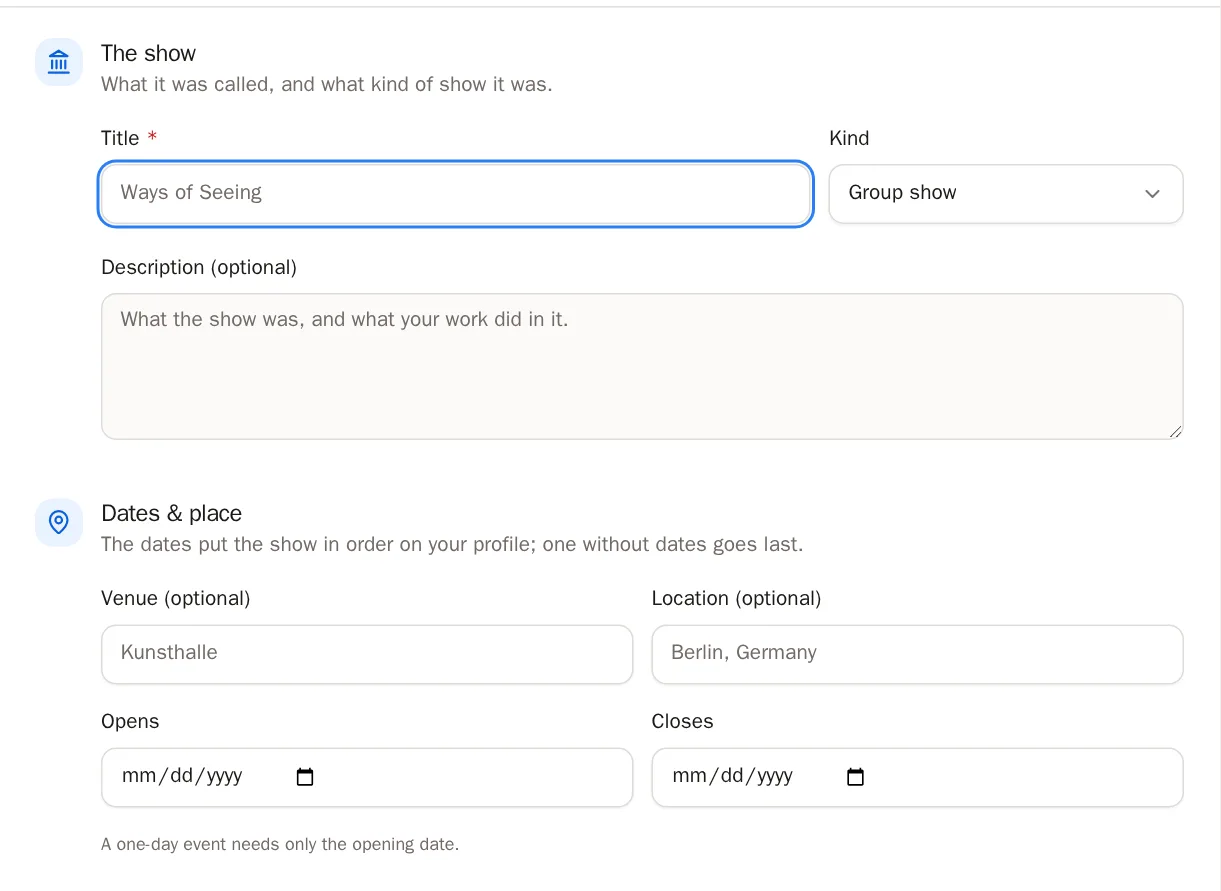
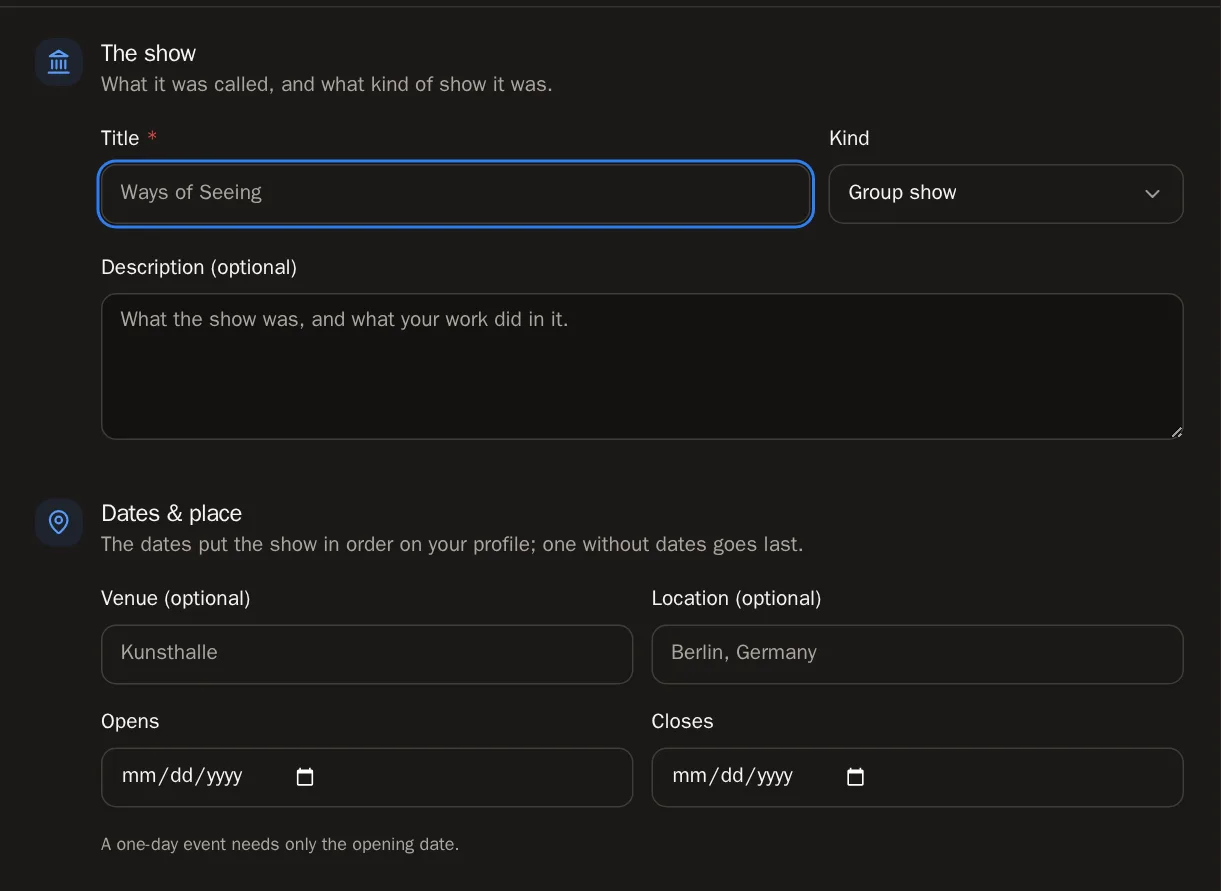 Tip Shows are sorted by date automatically, newest first. A show without dates goes at the end.
Step 3: Press Add exhibition
Press Add exhibition at the bottom. The window stays open — now you can add the photos, the work and the links.
You'll know it worked when… You see Exhibition added — now its photographs, work and links.Step 4: Show the room
In Photos & video, press Add photographs or video. Choose installation shots, the opening night, or a short walk-through video (MP4 or WebM). You can add up to 12. They save as you go.
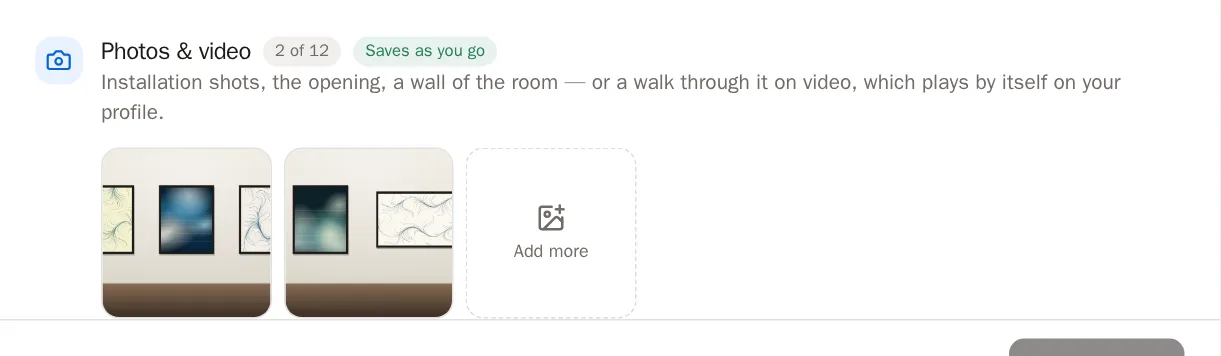
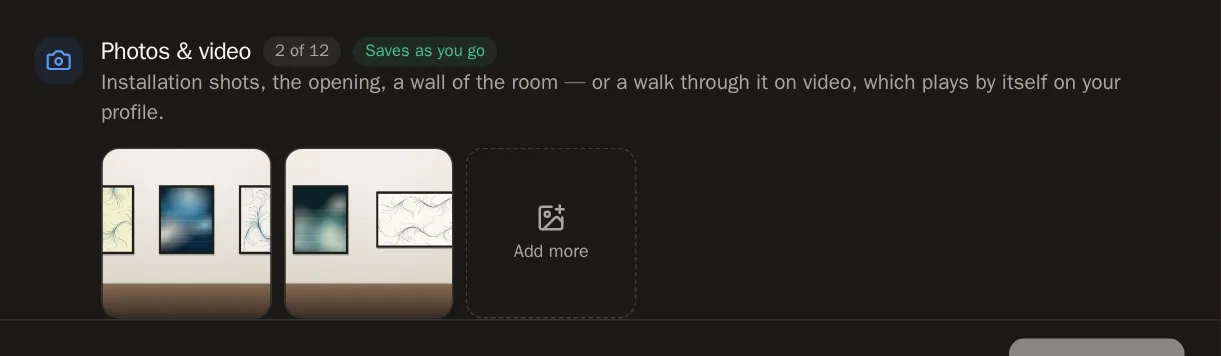 Tip A video plays by itself, silently, on your page — a great way to show what it felt like to be there.
Step 5: Hang the work
In Work shown, press the pieces that were in the show — your tokens and your studio work. They appear as a grid under the show on your page. They save as you go.
Step 6: Add links
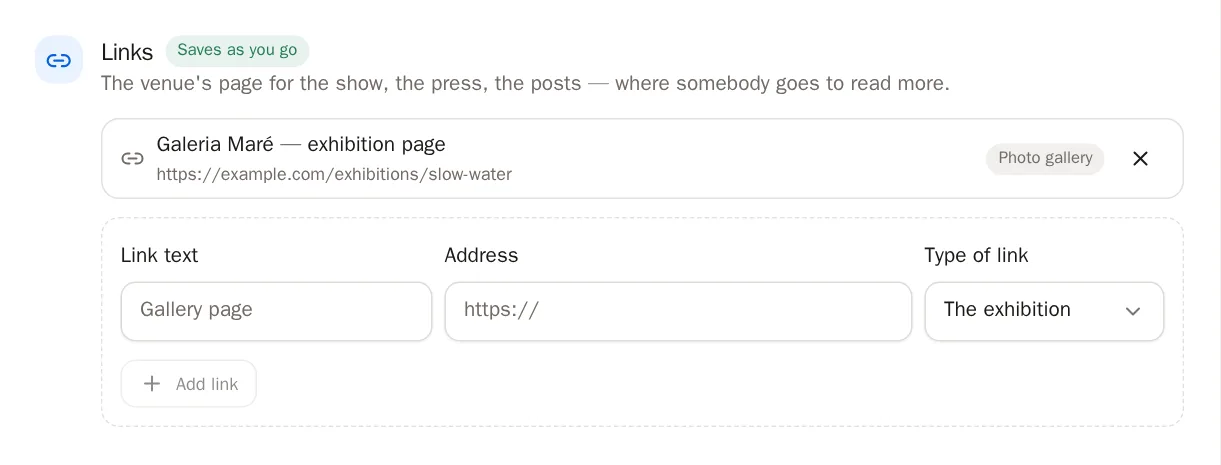
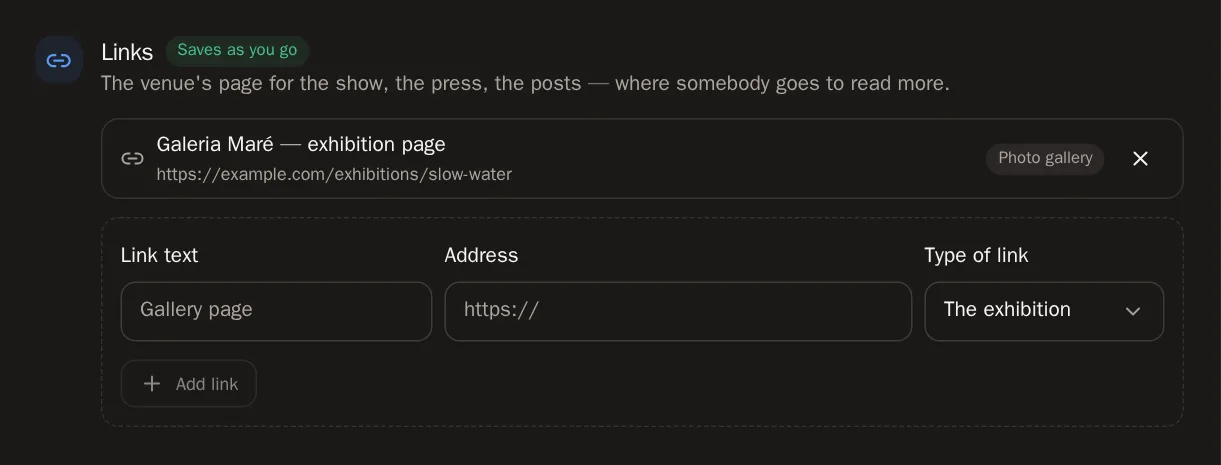
In Links, add the gallery's page for the show, press articles or social posts:
- Type the Link text, for example Gallery page.
- Paste the Address (starting with https://).
- Choose the Type of link.
- Press Add link.
Step 7: Finish
Show on my profile is on already, so the show is visible. Press Close when you're done, or Save changes if you edited the title, dates or place.
Change or remove a show
Step 8: Edit a show
Press a show's card to open it. Change anything, then press Save changes.
Step 9: Hide a show
Turn off Show on my profile in On your profile. The show stays here with everything attached, ready for when you show it again.
Step 10: Delete a show
Press Delete, then Delete this exhibition for good. The artwork itself is not deleted.
Careful Deleting a show removes its photographs and links and cannot be undone.
Questions people ask
Does anyone check my exhibitions?
Exhibitions are your own entries. The photographs, the work and the links to the venue and press are what make them believable to visitors — so add them when you can.
A piece I added to a show doesn't appear
Only public pieces are shown to visitors. If a piece is private, it stays in the show on your dashboard but is hidden on your page.