

A collection is a group of your work that belongs together — a series, a year, a commission, a show. Each collection appears on your page as its own titled grid, so visitors see a body of work instead of a pile of pieces.
Featured is your shortlist: the handful of pieces that open your page, in the order you choose.
About 5 minutes
Before you start
- Some artwork on your page already. If you have none yet, start with Import your artwork or Studio work.
Make a collection
Step 1: Open Collections
In the menu on the left, choose Collections. Then press New collection.
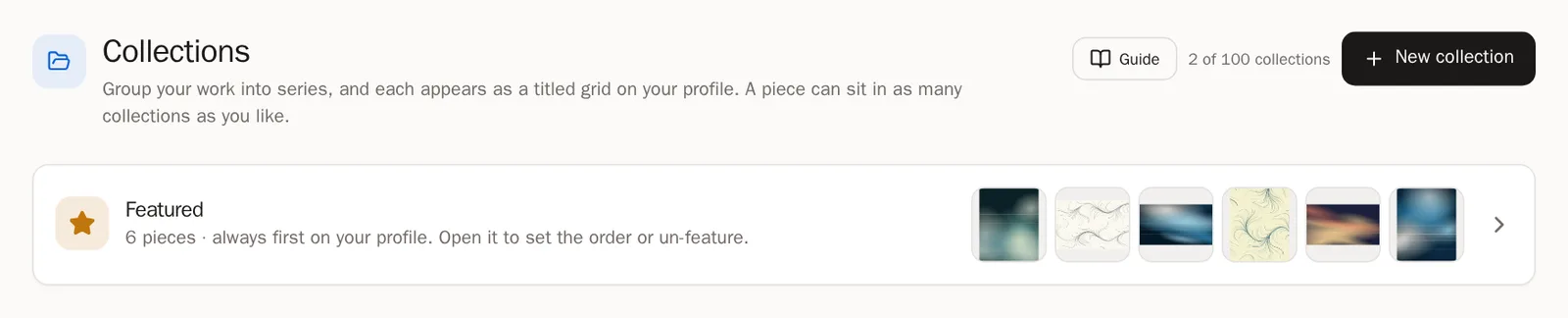
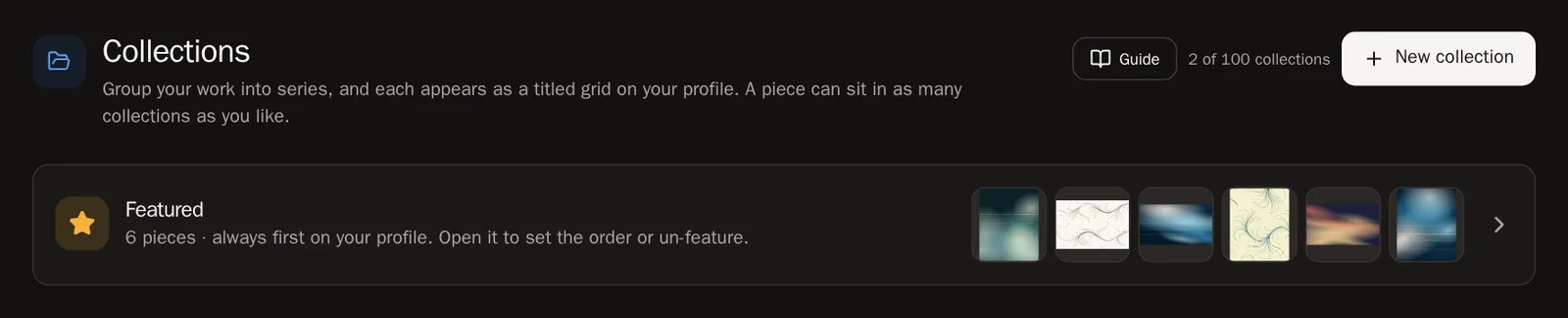
Step 2: Name it
A window called New collection opens.
- Type a Title, such as Plotter Drawings or 2024 Selects.
- If you like, add a short Description — what holds the series together.
- Leave Show on my profile switched on so visitors can see it.
- Press Create.
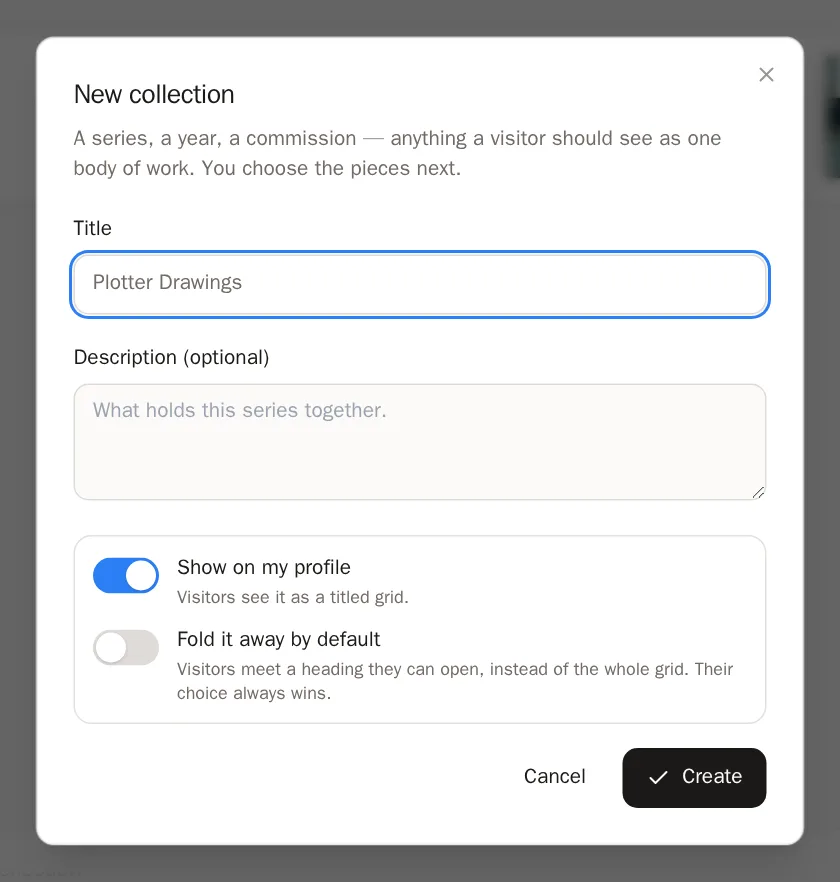
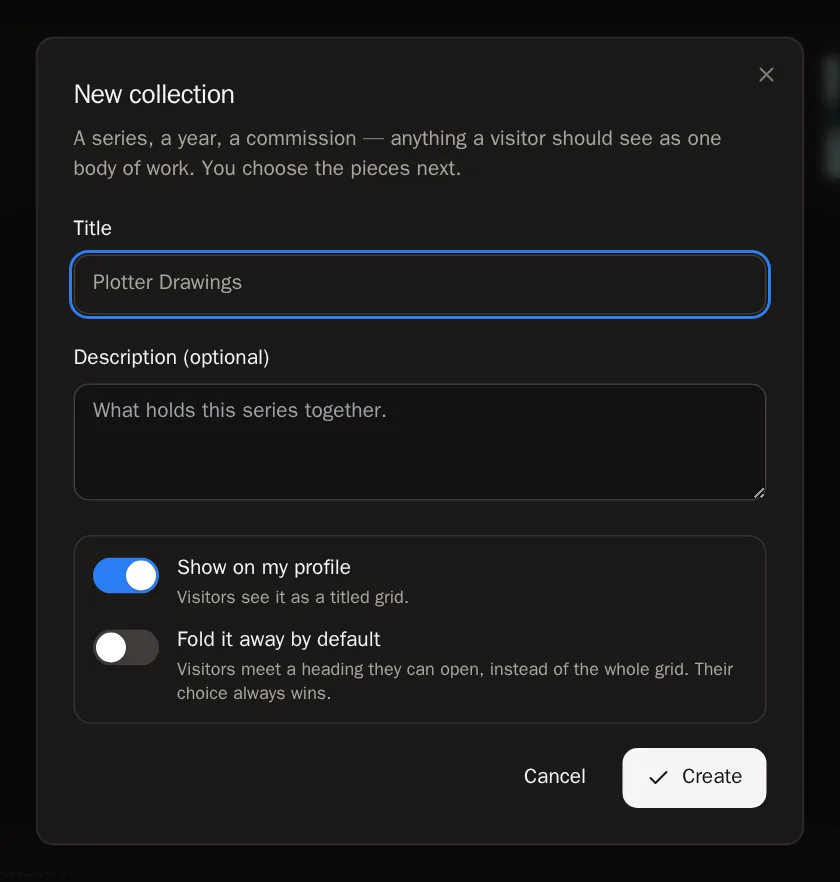 You'll know it worked when… You see Collection created, and your new, empty collection opens.
Step 3: Add your work
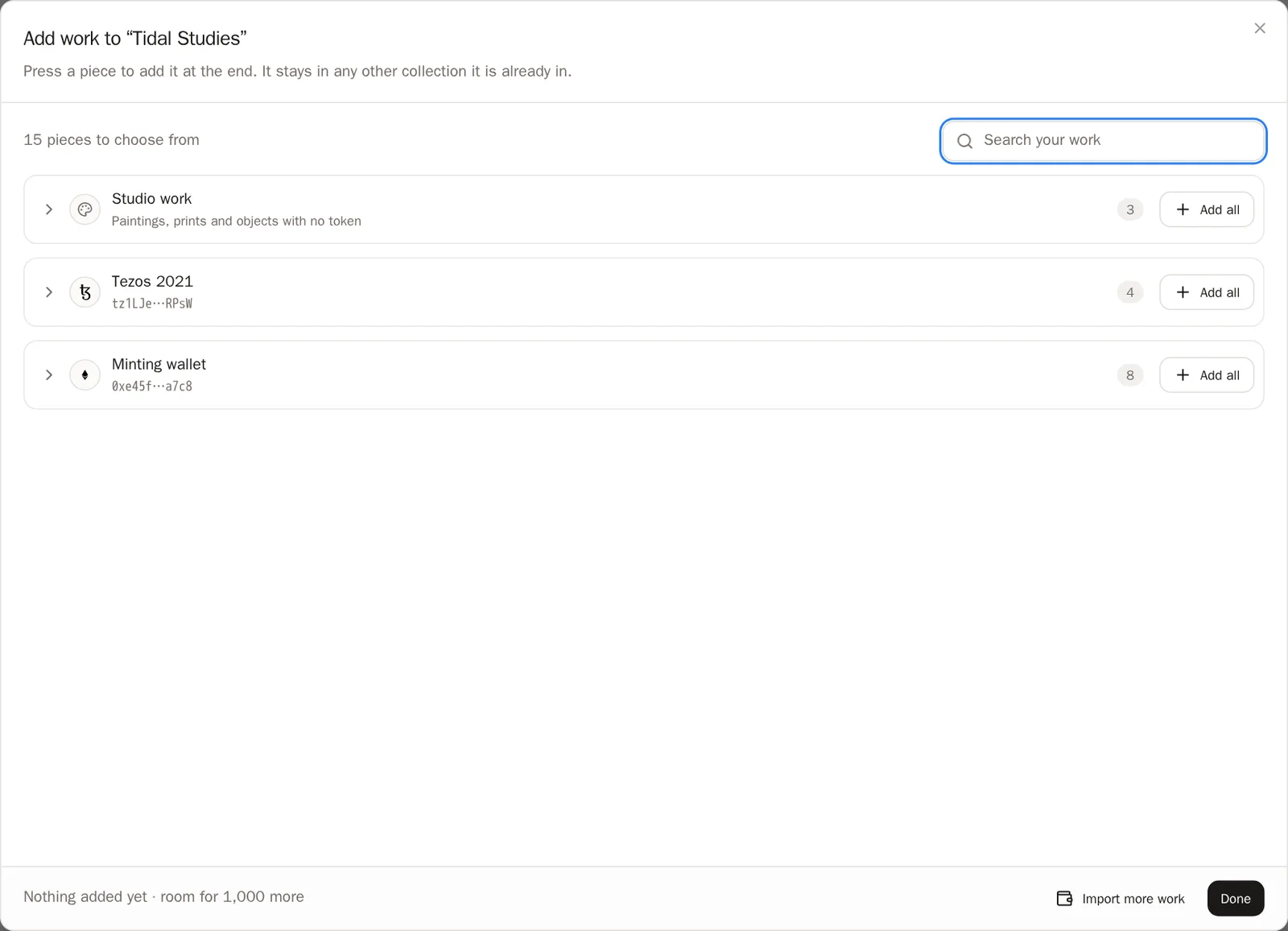
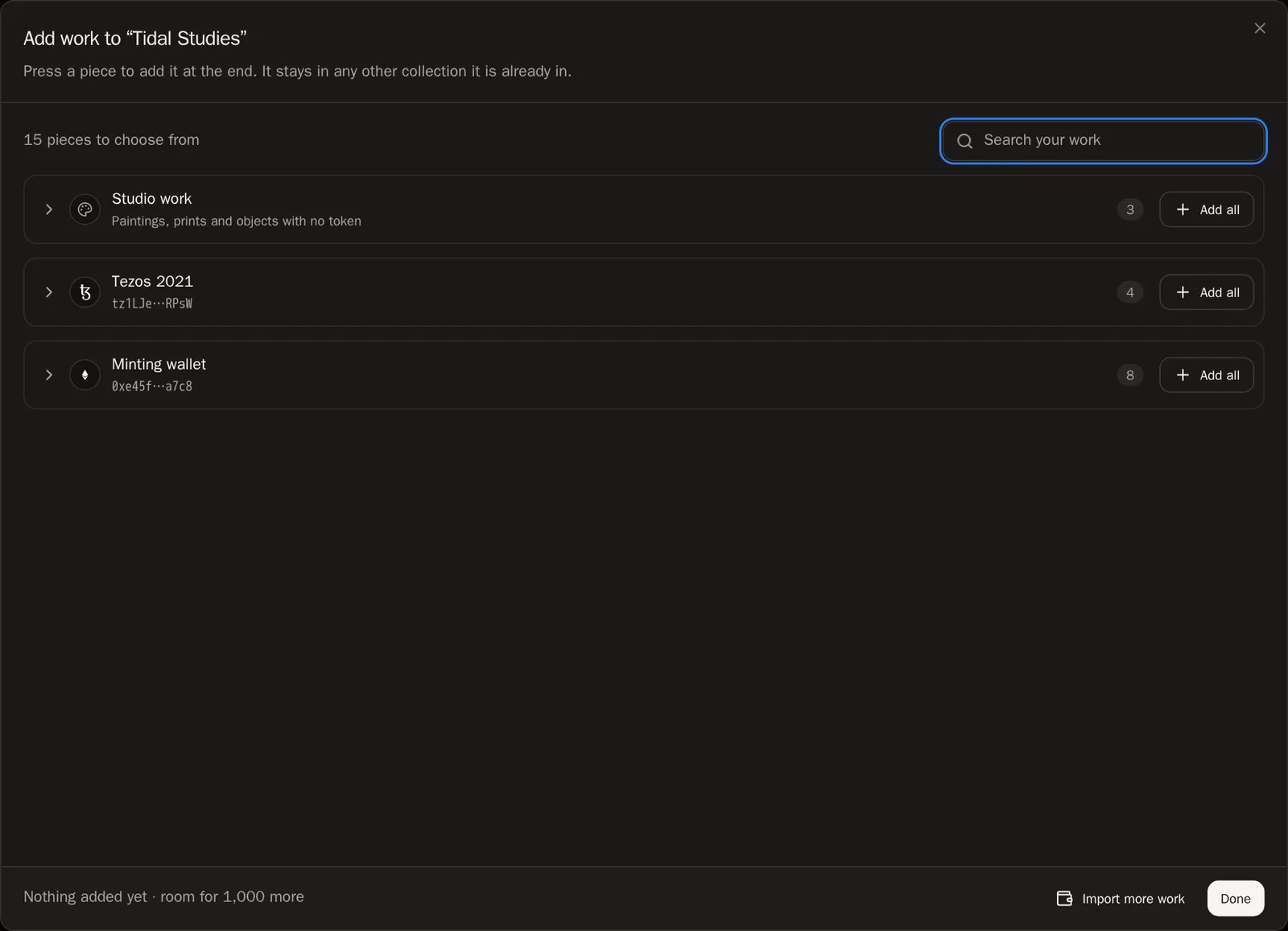
Press Add work. Your work is shown in folders: Studio work first, then one folder for each wallet. Open a folder and press a piece to add it — it is saved straight away.
- Press a piece to add it to the end of the collection.
- Press Add all on a folder to add everything in it at once.
- Use Search your work to find a piece by its title.
- Press Done when you have finished.
 Tip A piece can be in as many collections as you like. Adding it to one never takes it out of another.
Step 4: Put the pieces in order
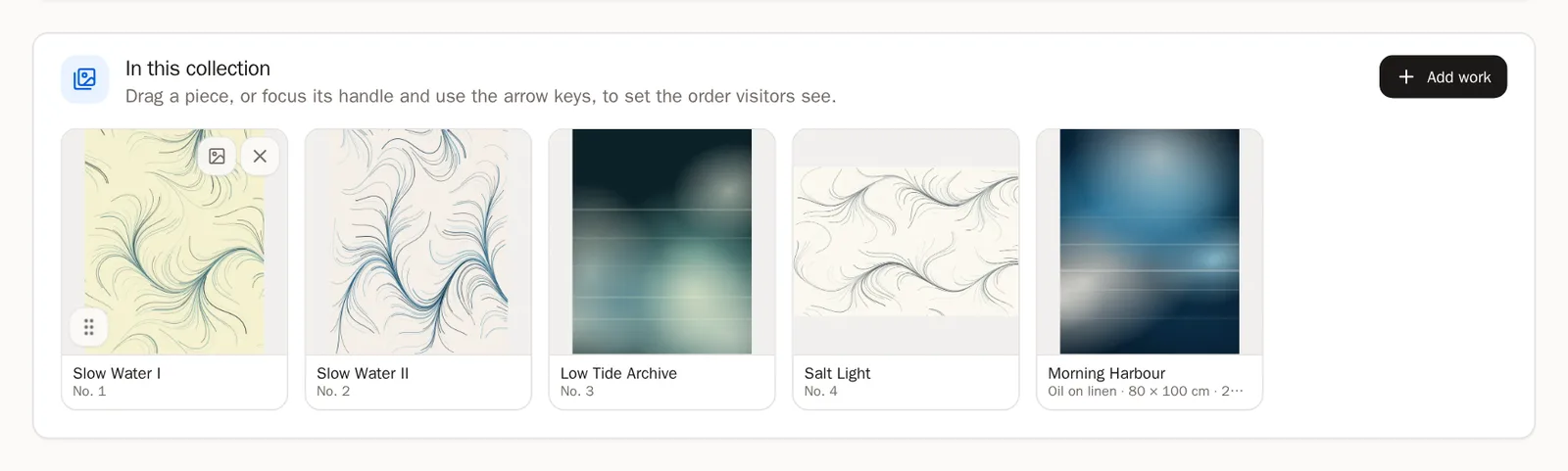
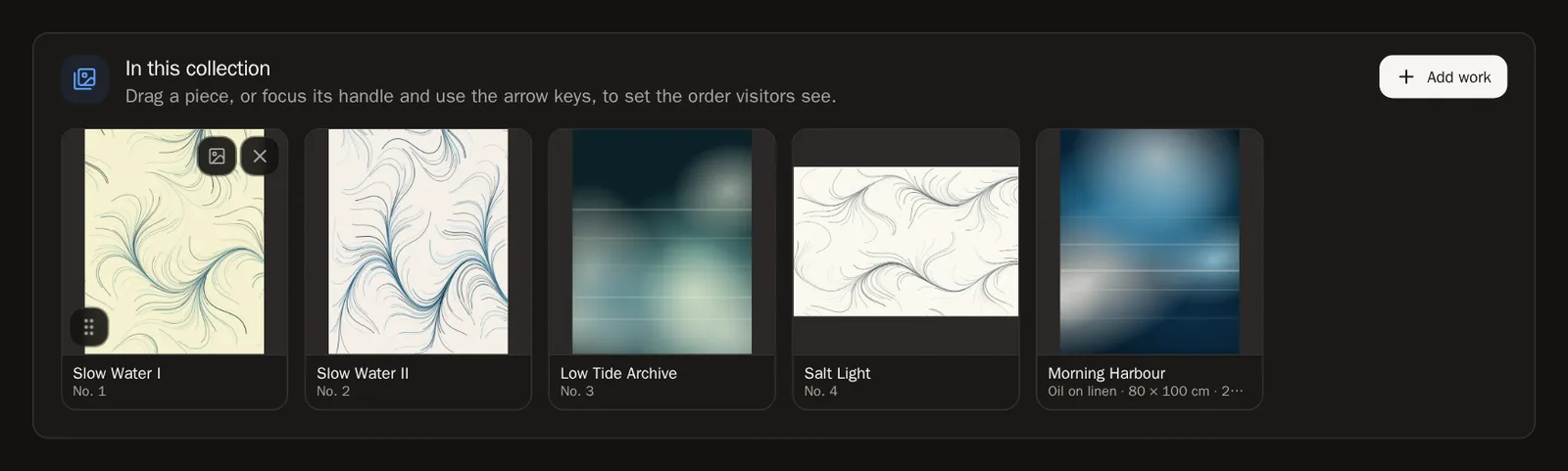
The order on this page is the order visitors see. Hold the small handle on a piece and drag it to a new place. It saves by itself.
Step 5: Choose a cover (optional)
Press the picture button on a piece — Use as the cover — to make it the image that represents the collection. Without a cover, the first pieces are used.
Change a collection
Step 6: Show it, hide it, or fold it
At the top of a collection are two switches. They save the moment you flip them.
- Show on my profile — turn it off to hide the whole collection while you work on it.
- Fold it away by default — visitors see the heading and open it themselves. Good for a very long collection.


Step 7: Take a piece out
Point at a piece and press its Remove from this collection button. The piece stays on your page and in any other collection — it only leaves this one.
Step 8: Rename or delete
Press Edit details to change the title or description, then Save.
To delete the collection, press Delete in the same window, then Delete collection. Your artwork is not deleted — only the grouping goes.

 Good to know Renaming does not change the collection's web address, so links people already shared keep working.
Step 9: Order the collections on your page
Back on the main Collections page (press All collections), drag a collection card by its handle to move it. Your page shows collections in this order.
Featured — your best few pieces
Featured is always first on your page. It plays as a slideshow (or a mosaic — you choose in the Profile Designer).
Step 10: Star a piece to feature it
You feature a piece where you manage it: press the star on its tile in a wallet's Minted works, or switch on Feature this work for a studio piece.
Tip Feature three to six pieces. A short list is stronger than a long one.Step 11: Arrange your featured pieces
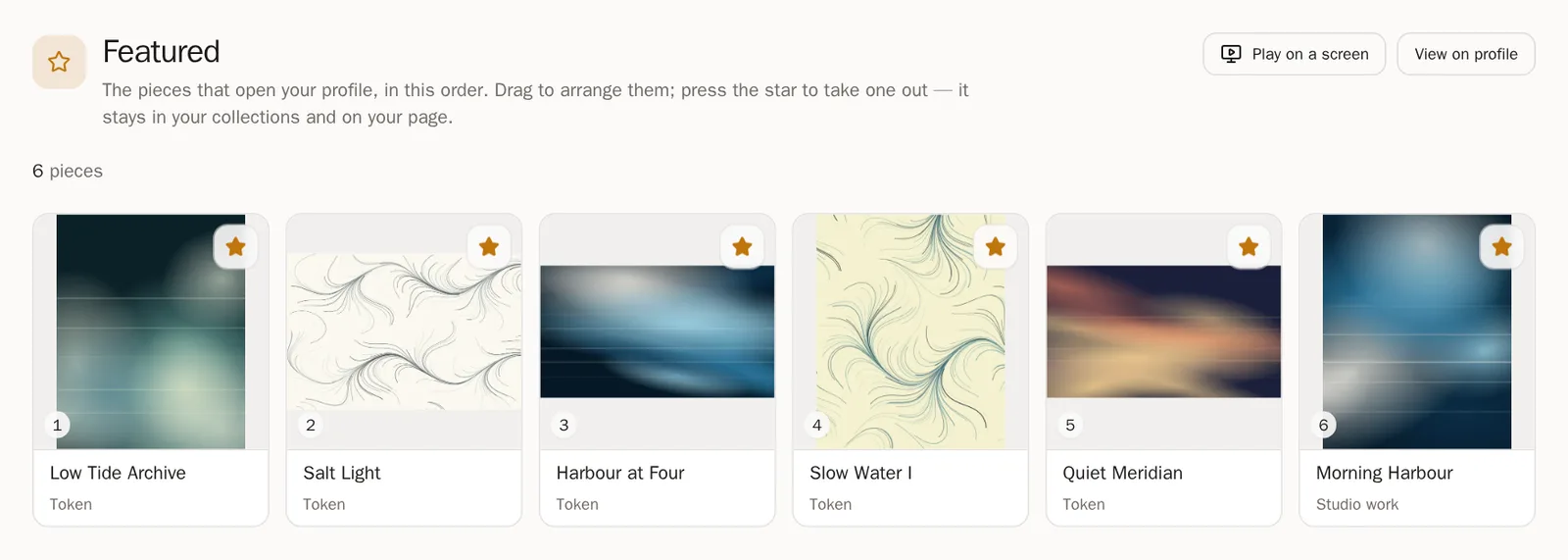
On the Collections page, the Featured card is always first. Open it and drag the pieces into the order you want. It saves by itself.
- Press the star on a piece to take it out of Featured. It stays on your page and in your collections.
- Press Play on a screen to show your featured work on a gallery screen.
The work that is in no collection
Step 12: "More artwork"
Work that is not in any collection can appear under a heading called More artwork. You decide in the Profile Designer whether to show it, hide it, or show it folded. On the Collections page, press Arrange your profile to go there.
Questions people ask
How many collections can I make?
Up to 100 collections, each holding up to 1,000 pieces.
A piece in my collection says "Private"
Private pieces stay in the collection on your dashboard but are not shown to visitors. Make the piece public from its wallet's Minted works to show it.
My collection doesn't show on my page
An empty collection is never shown. Add at least one public piece, and check that Show on my profile is switched on.