

Gallery Exhibition puts your art on the wall. Any television, monitor or projector can become a gallery screen that plays the work you choose — your featured pieces, a collection, or the art you've collected. Several screens in one room can even change piece at exactly the same moment.
Every account includes one screen for free.
There are three parts: 1. get the SolPersona Gallery app onto your screen, 2. link the screen to your account with your phone, and 3. choose what it plays. Pick whichever way of connecting suits the screen you have.
About 10 minutes for your first screen
Before you start
- A TV, monitor or projector.
- One of: a Roku, a Raspberry Pi, a Chromecast or Google TV, an Apple TV or AirPlay TV, or any computer you can plug into the screen.
- Your phone, signed in to SolPersona, to link the screen.
Which way should I connect?
Pick the one that matches what you have. You only need one.
Step 1: Your options at a glance
All of these show exactly the same gallery:
- Roku — the easiest if you have a Roku stick or a Roku TV. Install the free app from the Roku store.
- Raspberry Pi — the best for a screen that stays on the wall for good. A small, cheap computer that starts the gallery by itself.
- Web player on a computer — no installing at all. Open
solpersona.com/playeron a laptop plugged into the screen. - Google Cast — send the gallery from Chrome to a Chromecast or Google TV.
- Apple AirPlay — mirror the player from a Mac, iPhone or iPad to an Apple TV or AirPlay TV.
Tip Just curious? Open solpersona.com/player right now on this computer and press Try a sample gallery to see how it looks.
Roku: install the SolPersona Gallery app
The app is called SolPersona Gallery and it's free in the Roku Channel Store.
Step 2: Install it from your TV
With your Roku turned on and connected to the internet:
- Press the Home button on your Roku remote.
- Choose Search (on some Rokus, go to Streaming Store or + Add channels first).
- Type SolPersona Gallery and choose it from the results.
- Choose Add app (on older Rokus it says Add channel). Enter your Roku PIN if asked.
- Choose Go to app to open it.
HomeSearchStreaming StoreSettingsPress Home on the Roku remoteYou'll know it worked when… The app opens on a pairing screen with a QR code and an eight-letter code.Step 3: Or install it from your phone or computer
Open SolPersona Gallery in the Roku Channel Store, sign in with your Roku account, and press Add app. It appears on your Roku within a few minutes.
Tip Don't want to wait? On the Roku go to Settings → System → System update → Check now and it shows up straight away.Step 4: Using the remote
On the pairing screen, press OK to play a sample gallery and Back to return. Once linked, press OK to see the screen's name and settings.
Tip Roku can't open an app by itself when the TV turns on. On a Roku TV, set Settings → System → Power → Power on to the last used app so the gallery comes back after a power cut.
Raspberry Pi: a dedicated gallery screen
A Raspberry Pi plugged into the back of a screen becomes a gallery that starts by itself every time it is switched on, keeps itself up to date, and can even play without internet.
Step 5: What you need
- A Raspberry Pi 5 (best — up to 4K at 60 frames) or a Raspberry Pi 4 (4K at 30 frames), with its official power supply.
- A microSD card of 16 GB or more. A card marked A2 or High Endurance lasts longest.
- A micro-HDMI to HDMI cable to plug the Pi into your screen.
- Wi-Fi, or a network cable.
- A computer with an SD card slot (or a cheap USB card reader) to set up the card.
Step 6: Download the SolPersona Gallery image
On your computer, open the SolPersona Gallery for Raspberry Pi download page. Under the newest release, find Assets and download the file ending in .img.xz (for example
solpersona-gallery-0.1.0.img.xz). It's about 700 MB.Good to know Don't unzip it. Raspberry Pi Imager reads the .img.xz file as it is.Step 7: Get Raspberry Pi Imager
Raspberry Pi Imager is the free app that writes the gallery onto your SD card. Download it from raspberrypi.com/software for Windows, Mac or Linux, and install it like any other app.
Step 8: Write the image to your SD card
Put the microSD card into your computer and open Raspberry Pi Imager.
- Press Choose Device and pick your Raspberry Pi (Pi 5 or Pi 4).
- Press Choose OS, scroll to the bottom and choose Use Custom. Select the .img.xz file you downloaded.
- Press Choose Storage and pick your SD card. Check the size — it should match your card.
- Press Next. When Imager asks about OS customisation, press Edit settings to type your Wi-Fi name, password, country and time zone — or skip it and set Wi-Fi up later.
- Press Yes to start writing. Wait until Imager says the card has been written and verified, then take the card out.
Raspberry Pi ImagerRaspberry Pi DeviceCHOOSE DEVICEOperating SystemCHOOSE OSStorageCHOOSE STORAGENEXT1. Raspberry Pi ImagerCareful Writing erases everything on the card. Double-check you picked the SD card and not another drive.Step 9: Plug it in and switch it on
Put the SD card into the Pi. Plug the Pi into your screen with the HDMI cable (use the HDMI port nearest the power socket), then plug in the power. Switch the screen to that HDMI input.
The first start takes about two minutes — the Pi prepares the card and restarts once or twice. That's normal.
Raspberry PiPut the card in the PiYou'll know it worked when… The screen shows Register this screen to your SolPersona account with a QR code and a code.Step 10: No Wi-Fi set? Use the setup hotspot
If the Pi can't find a network after about a minute, the screen says Join Wi-Fi SolPersona-Gallery-XXXX on your phone.
- On your phone, open Wi-Fi settings and join SolPersona-Gallery-XXXX (or scan the QR code on the screen).
- A page opens on your phone. Choose your home or venue Wi-Fi and type its password.
- The Pi connects and shows its pairing code.
Tip A network cable works with no setup at all.Step 11: Looking after it
The Pi updates itself overnight (around 3 am, or outside your opening hours), so there's nothing to maintain. Press OK on your TV remote (or Enter on a keyboard) to see its name, connection and version.
A computer or laptop: the web player
No app needed. Any computer with a web browser can be a gallery screen — on its own display, or on a TV it's plugged into.
Step 12: Connect the computer to the TV (optional)
To use a TV, plug your laptop into it with an HDMI cable (some laptops need a USB-C to HDMI adapter). Switch the TV to that HDMI input. If the TV shows your desktop, you're ready.
Step 13: Open the web player
Open your browser (Chrome, Edge, Safari or Firefox) and go to
solpersona.com/player. You can also press Open the web player on the Gallery Exhibition page.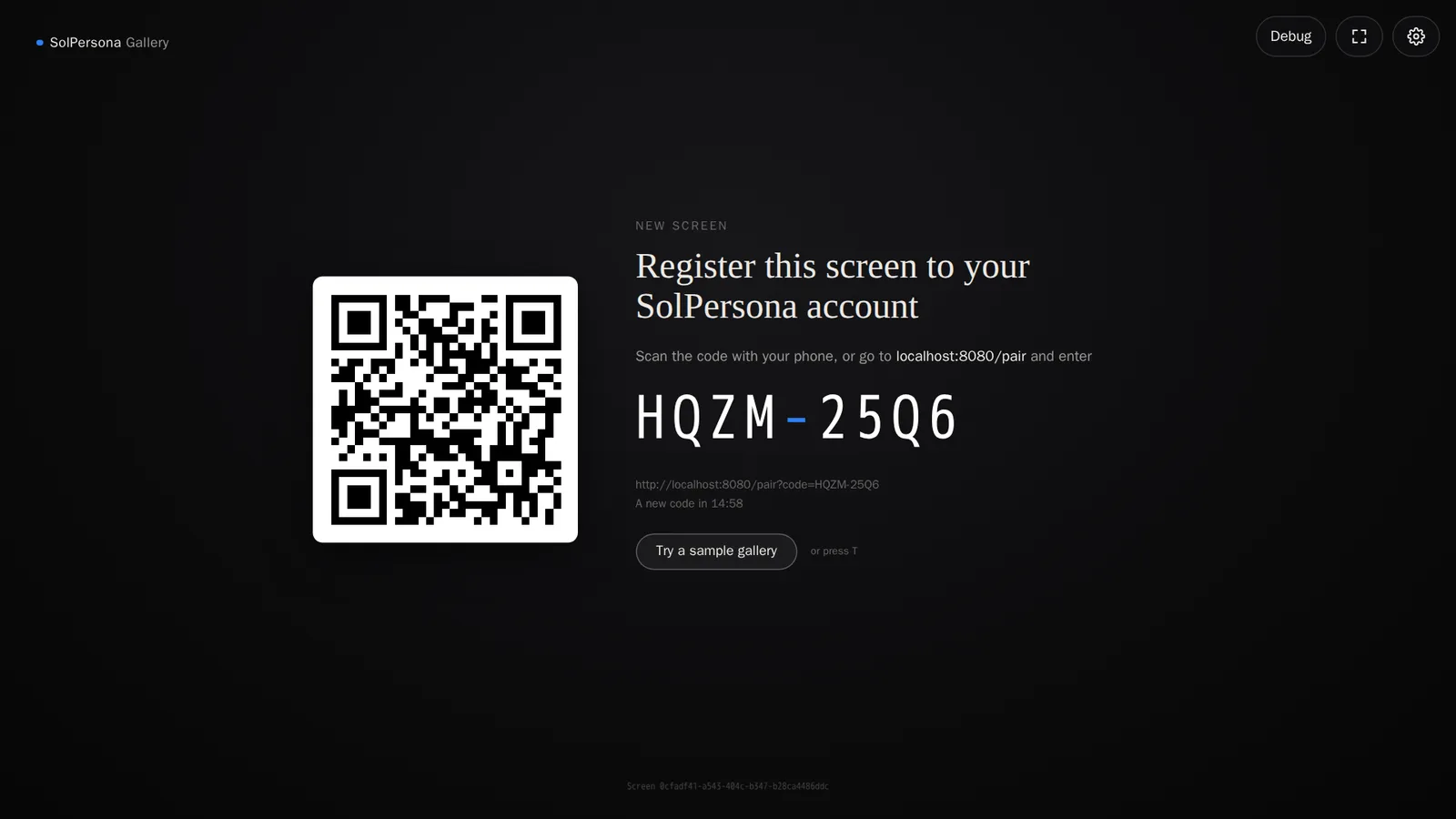
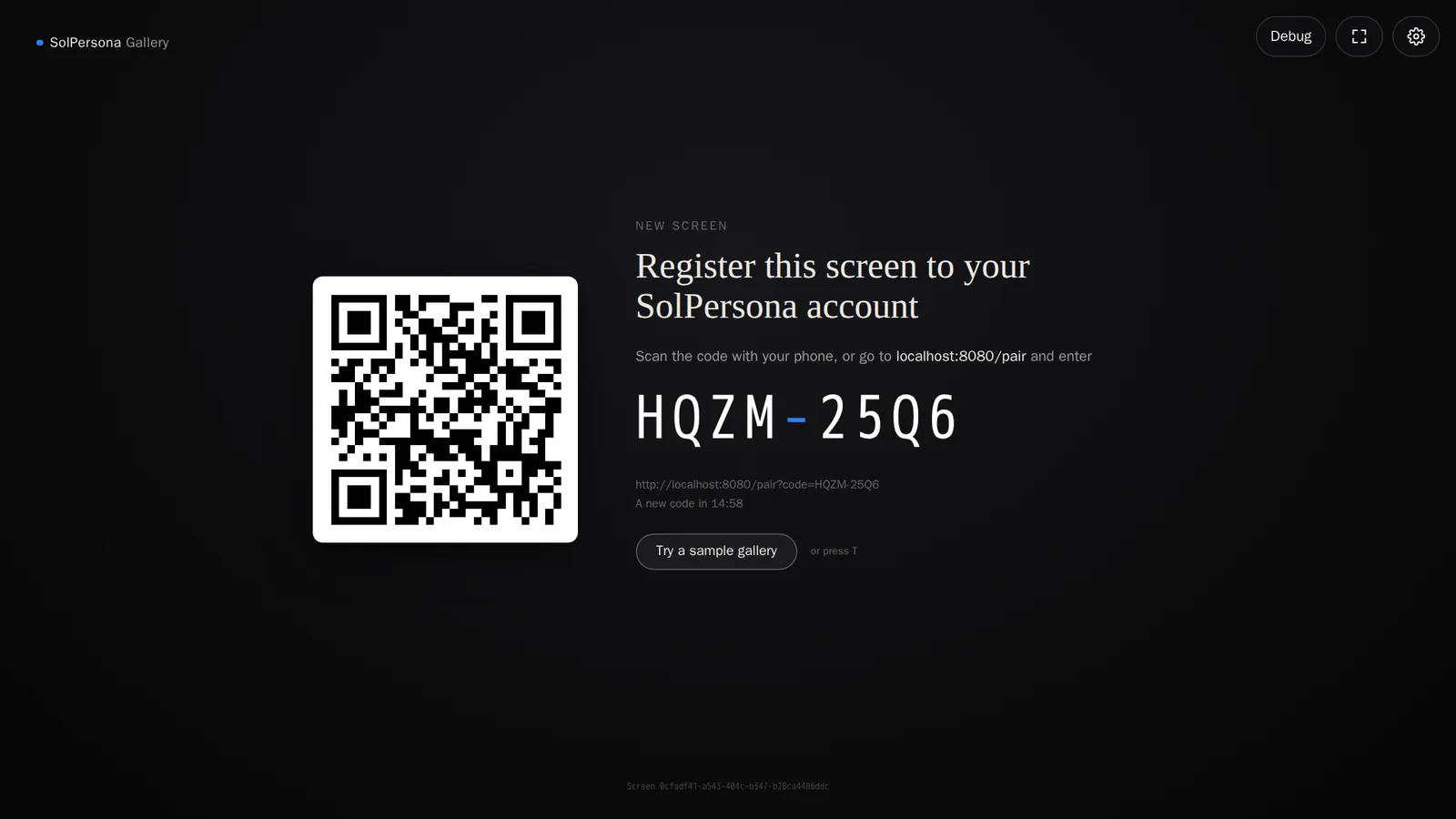 Plug the laptop into the TVYou'll know it worked when… The player shows a QR code and an eight-letter code.
Step 14: Make it full screen
Press F on the keyboard (or the full-screen button in the top corner). If your TV shows a separate desktop, drag the browser window onto the TV first, then press F.
Tip Set your computer to never sleep or turn off its display while the gallery is showing — otherwise the screen goes dark.Step 15: Handy keys
- T — play a sample gallery.
- F — full screen on and off.
- R — reload.
- Esc — stop the sample or close settings.
Google Cast: Chromecast and Google TV
You can send the gallery from Chrome to a Chromecast or a Google TV on the same Wi-Fi. The TV then becomes a gallery screen of its own — your computer can be closed afterwards.
Step 16: Cast from the player
Use Chrome or Edge on a computer (or Chrome on an Android phone), on the same Wi-Fi as your Chromecast.
- Open
solpersona.com/player. - Press the gear button in the top corner to open Settings.
- Under Show on a TV, press Cast to a Chromecast and choose your TV.
- The TV shows its own pairing code — link it as described below. Or press Play the sample on the TV to try it first.
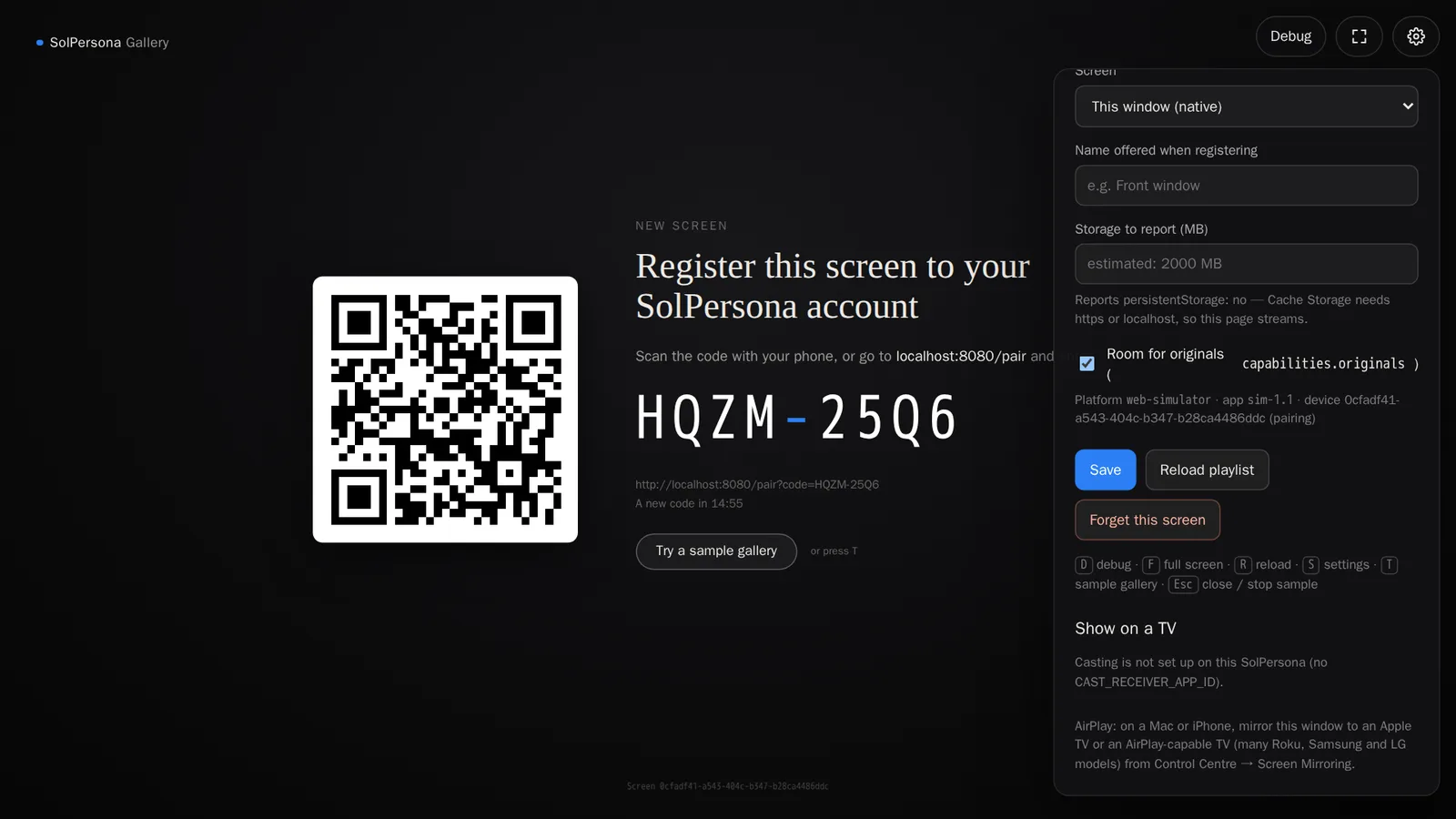
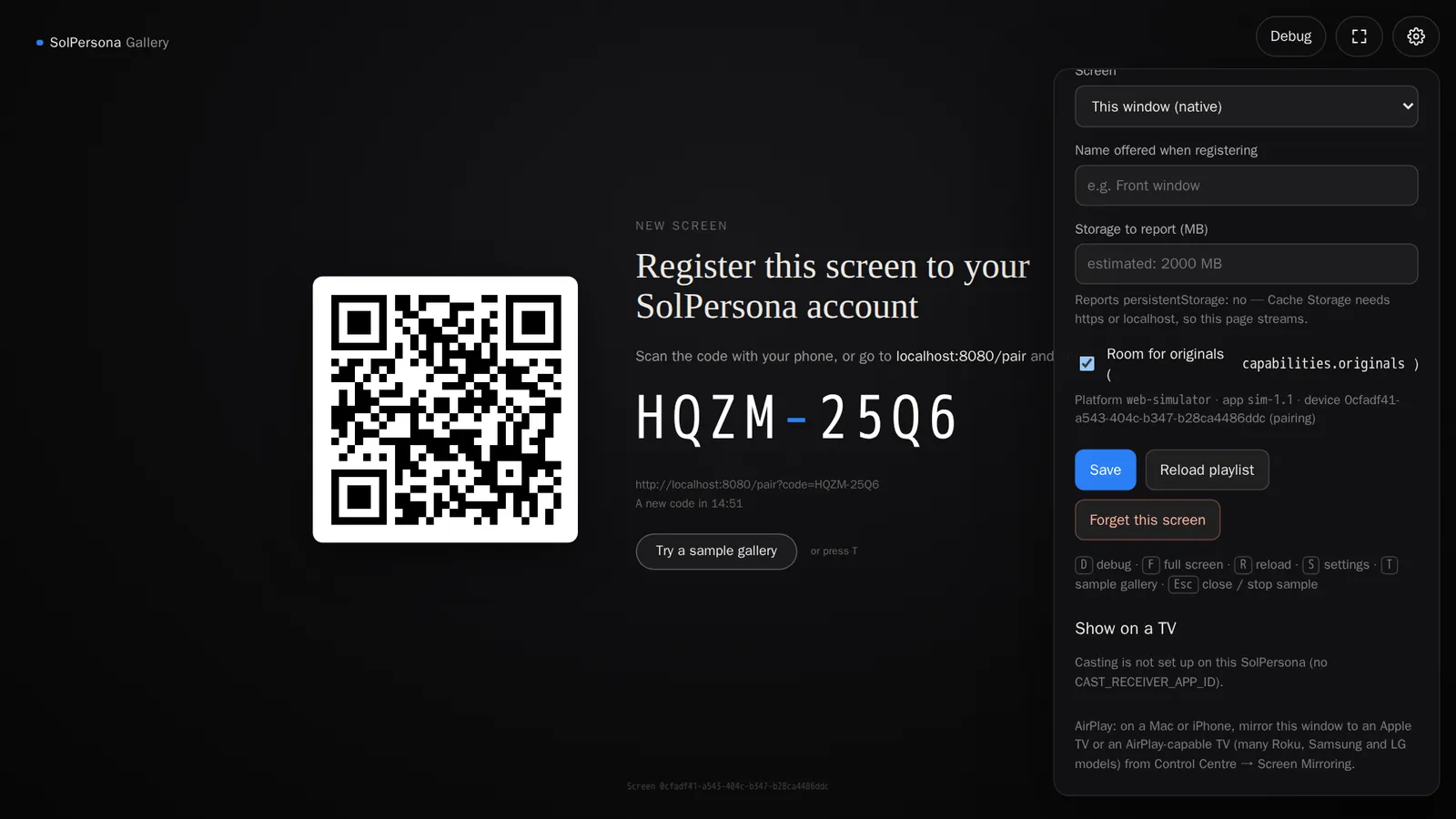 solpersona.com/playerSolPersona GalleryABCD-EFGHsolpersona.com/pairOpen solpersona.com/player in Chrome or EdgeYou'll know it worked when… The panel says Showing on your TV's name.Good to know If the button isn't there, the panel says why — for example that Google Cast only works in Chrome or Edge, or that no Chromecast was found on your network.
- Open
Step 17: Another way: cast the tab
You can also use Chrome's own menu: press ⋮ at the top right, choose Cast…, then pick your TV. This mirrors the browser tab, so keep the computer on and awake.
Apple AirPlay: Apple TV and AirPlay TVs
Mirror the web player from a Mac, iPhone or iPad to an Apple TV or an AirPlay-ready TV (many Samsung, LG, Sony and Roku TVs). Both must be on the same Wi-Fi.
Step 18: From a Mac
- Open
solpersona.com/playerin Safari or Chrome. - Open Control Centre (the two switches at the top right of the screen) and press Screen Mirroring.
- Choose your Apple TV or AirPlay TV.
- Press F to make the player full screen.
⌥⌥10:30SolPersona GalleryABCD-EFGHsolpersona.com/pairOpen solpersona.com/playerTip Keep the Mac awake while it's mirroring: plug it in and set the display to never turn off.- Open
Step 19: From an iPhone or iPad
- Open
solpersona.com/playerin Safari. - Swipe down from the top right corner to open Control Centre.
- Press Screen Mirroring and choose your TV.
- Turn your phone sideways for the best picture.
- Open
Link the screen to your account
Whichever way you connected, the screen now shows a QR code and an eight-letter code. Linking takes about a minute.
Step 20: Scan the code with your phone
Point your phone's camera at the QR code on the screen and press the link that appears. Sign in to SolPersona if asked.
SolPersona GalleryRegister this screen to your SolPersona accountABCD-EFGHsolpersona.com/pairThe screen shows a QR codeTip No camera? On any device, go tosolpersona.com/pairand type the code, or press Add a screen on the Gallery Exhibition page and type it under I have a code.Step 21: Name it and link it
Check the code matches the one on the screen. Give the screen a name — where it hangs, like Front window or Living room — then press Link this screen.
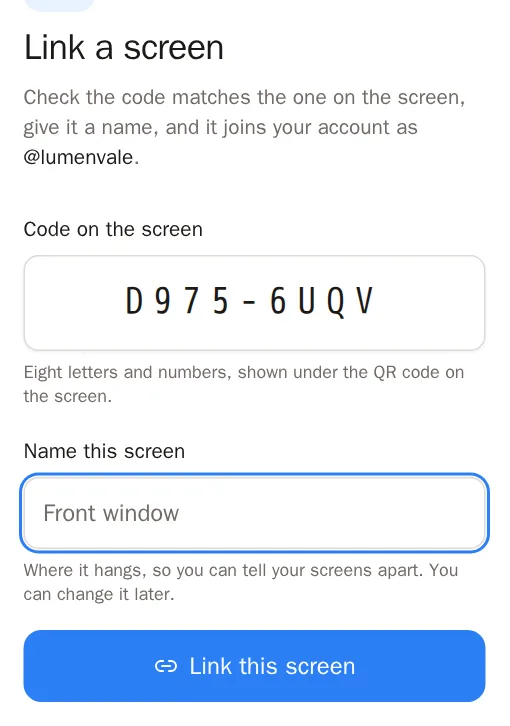
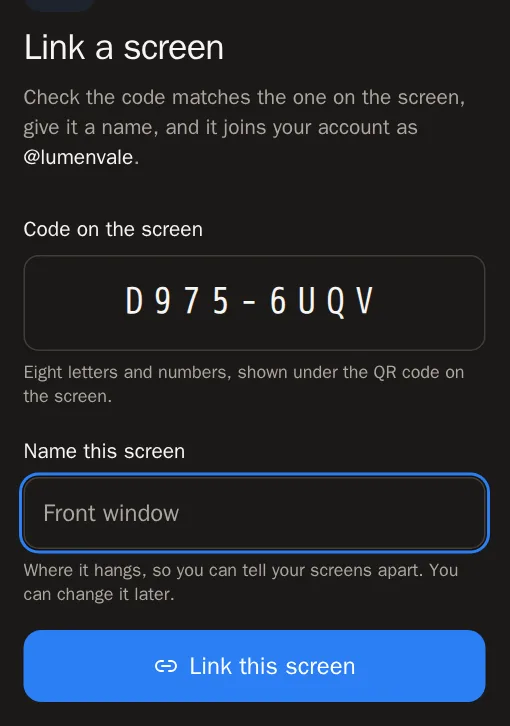 You'll know it worked when… Your phone says is linked, and within a few seconds the screen starts playing your featured work.Good to know Codes last fifteen minutes. If yours has run out, the screen shows a fresh one by itself.
Choose what plays
Step 22: Open Gallery Exhibition
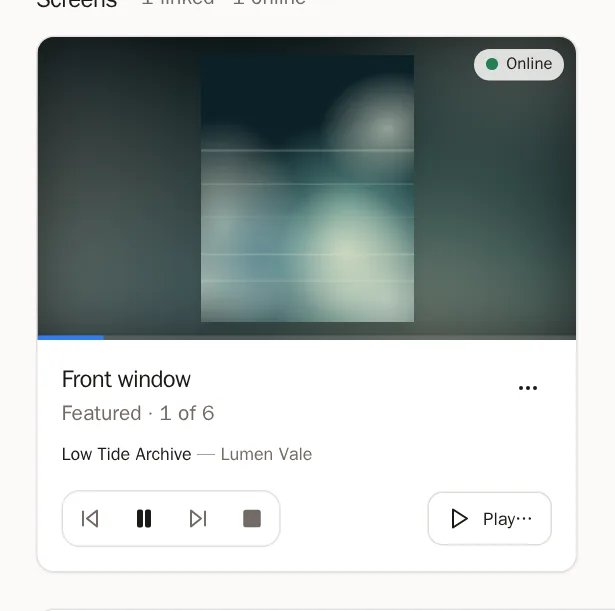
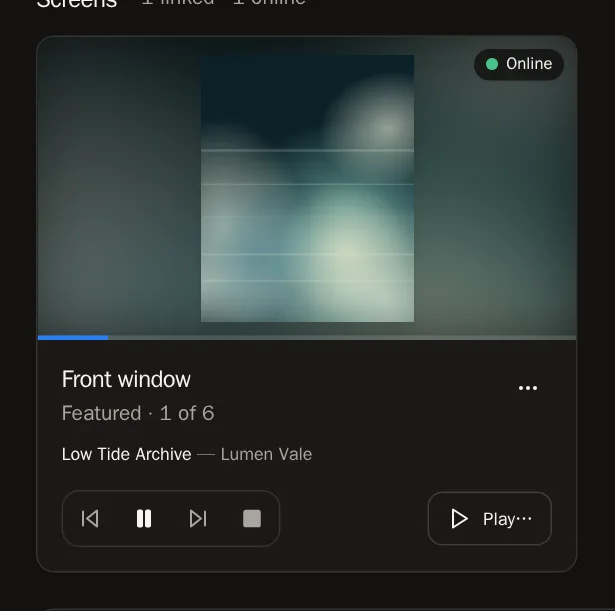
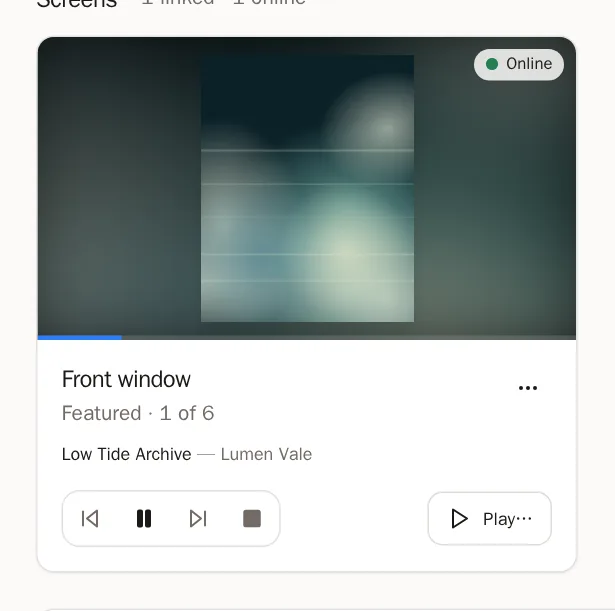
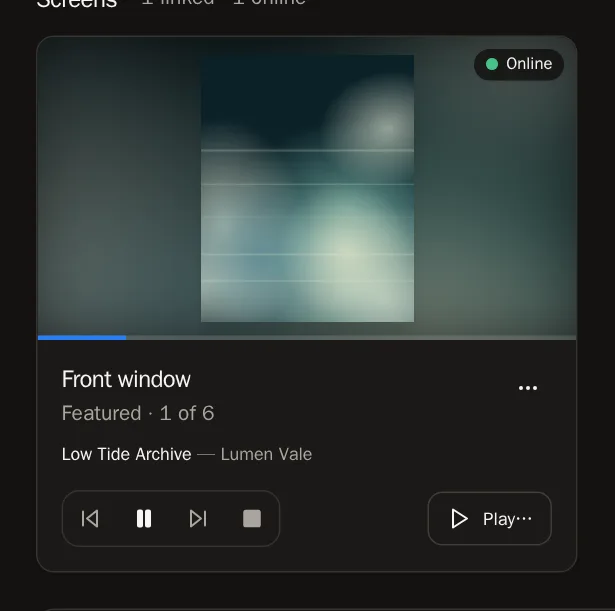
In the menu on the left, choose Gallery Exhibition. Each linked screen has a card showing what it's playing, live, and whether it's Online.
Step 23: Pick a gallery
On a screen's card, press Choose a gallery (or Play… if something is already playing). Choose what to show:
- Featured — your shortlist, in your order.
- Collections — any of your collections.
- TheVault galleries — galleries you curated on TheVault.Art.
- Collected — the art one of your wallets holds.
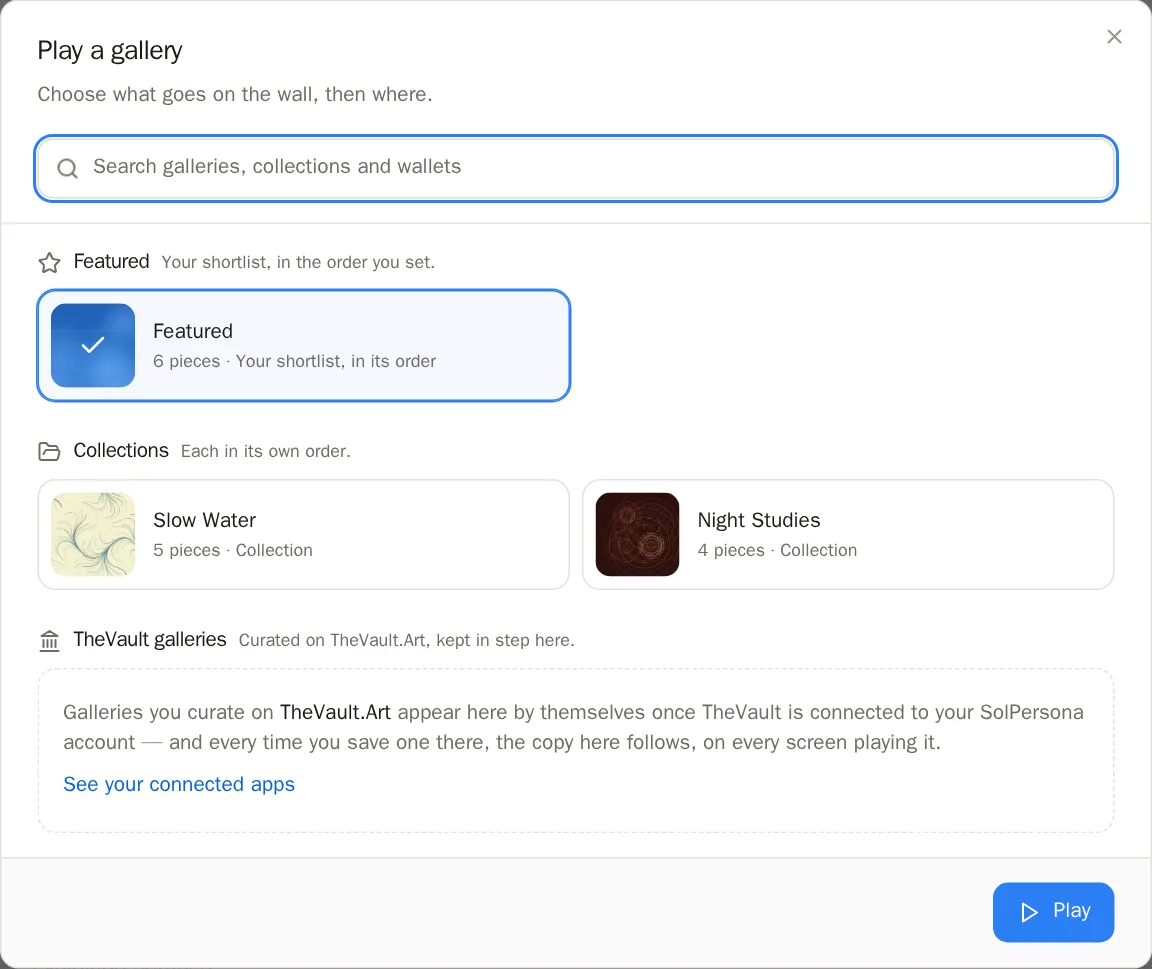
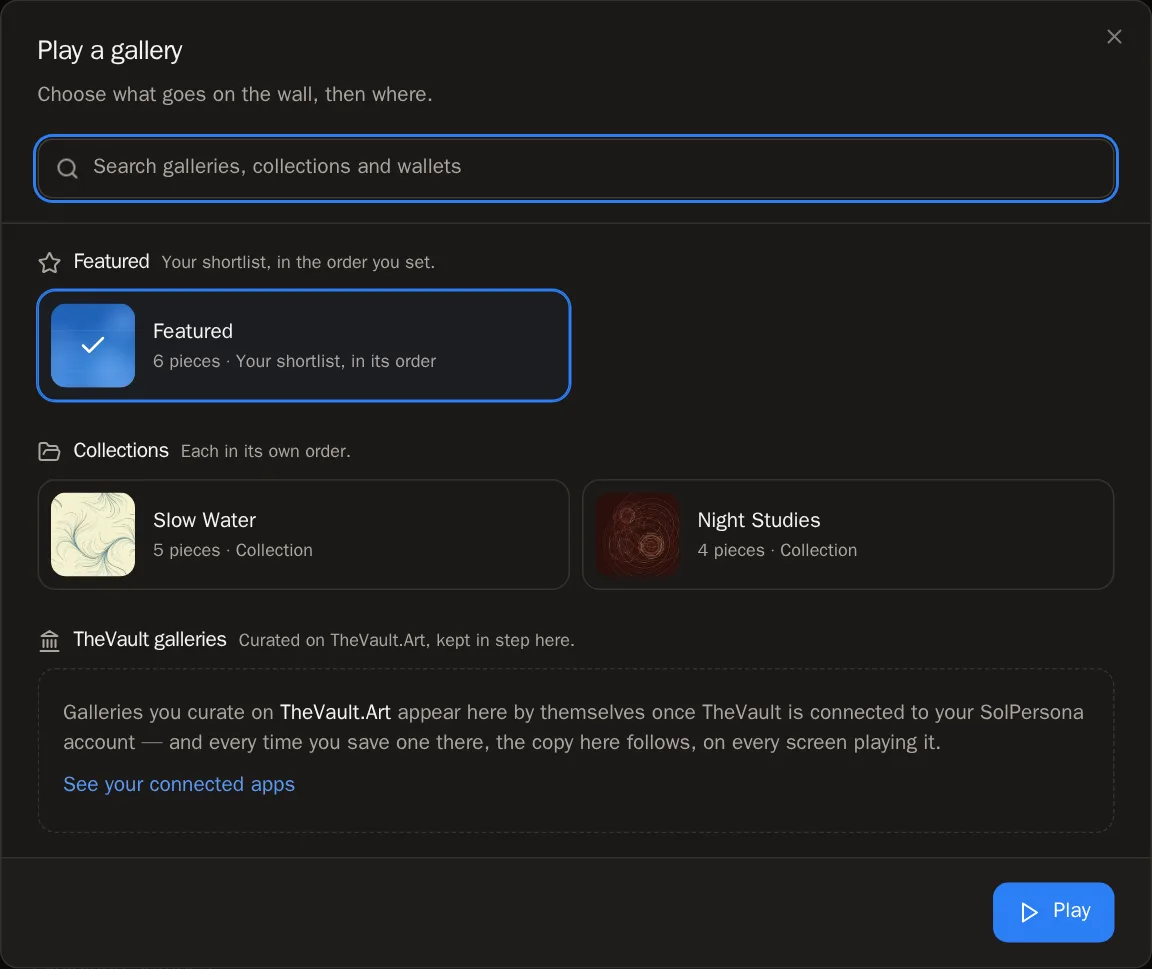 You'll know it worked when… Press Play. The screen changes within a few seconds.
Step 24: Control it from your phone or computer
Use the buttons on the card: Previous piece, Pause, Next piece and Stop. Press the picture on the card to see every piece in order — press one to put it up now.
Step 25: Show one piece right now
On any of your artworks, press Show on a screen. Choose the screens and for how long, then press Show now. When it comes down, the gallery carries on where it was.
Step 26: Several screens, in step
With two or more screens, tick them and press Play on 2 in step — or press Put every screen in step. They'll change piece at the same moment, like one installation.
Step 27: Keep the gallery on the screen
Some players (like the Raspberry Pi) can store the whole gallery and play it with no internet. Press ⋯ on the card and choose Keep this gallery on the screen.
Make it look just right
Step 28: Exhibition settings
Under Exhibition settings you choose how work is hung:
- Timing — how long each piece shows, the order, the transition, and opening hours (the screen goes dark outside them).
- Video — repeat short videos, and whether to play sound.
- Presentation — what surrounds the piece: a soft blurred wash, a frame and mat, black, or fill the screen.
- Wall label — a museum card with title and artist, one line, or none.
- QR code — where it leads, so visitors can take the work home on their phone.
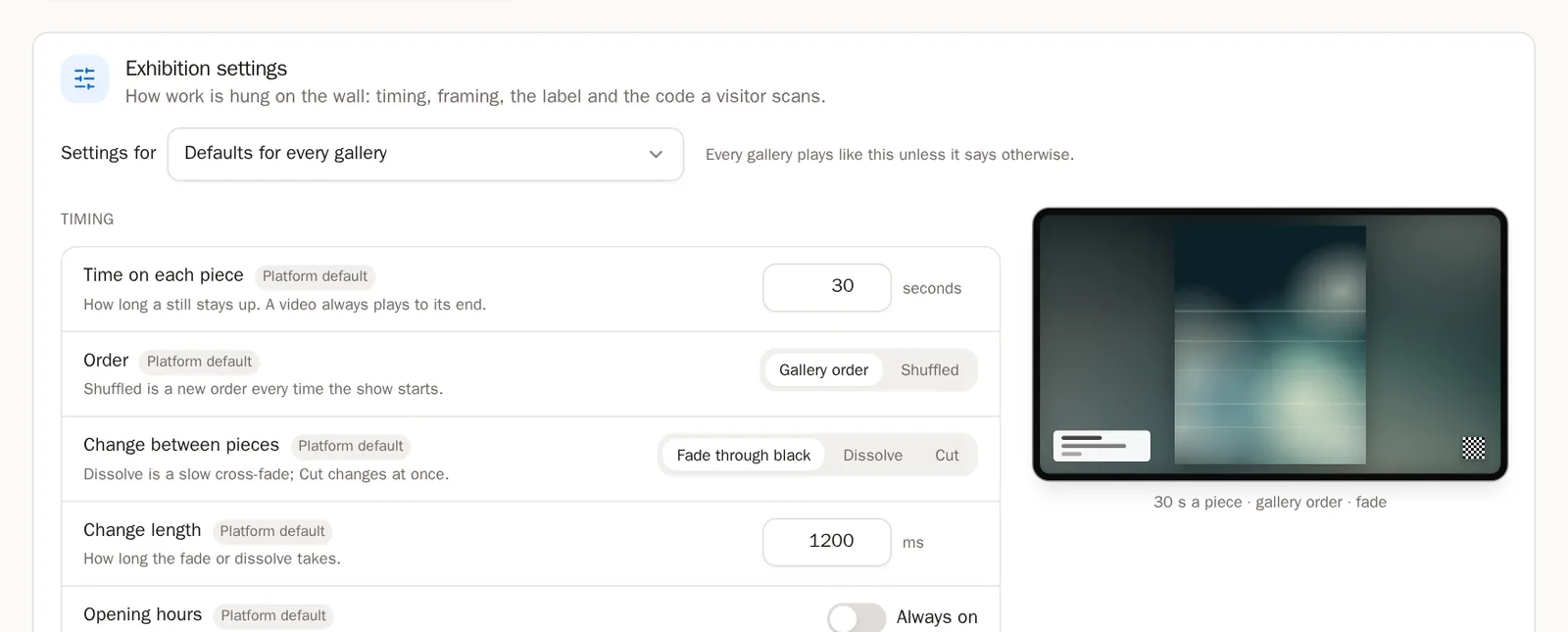
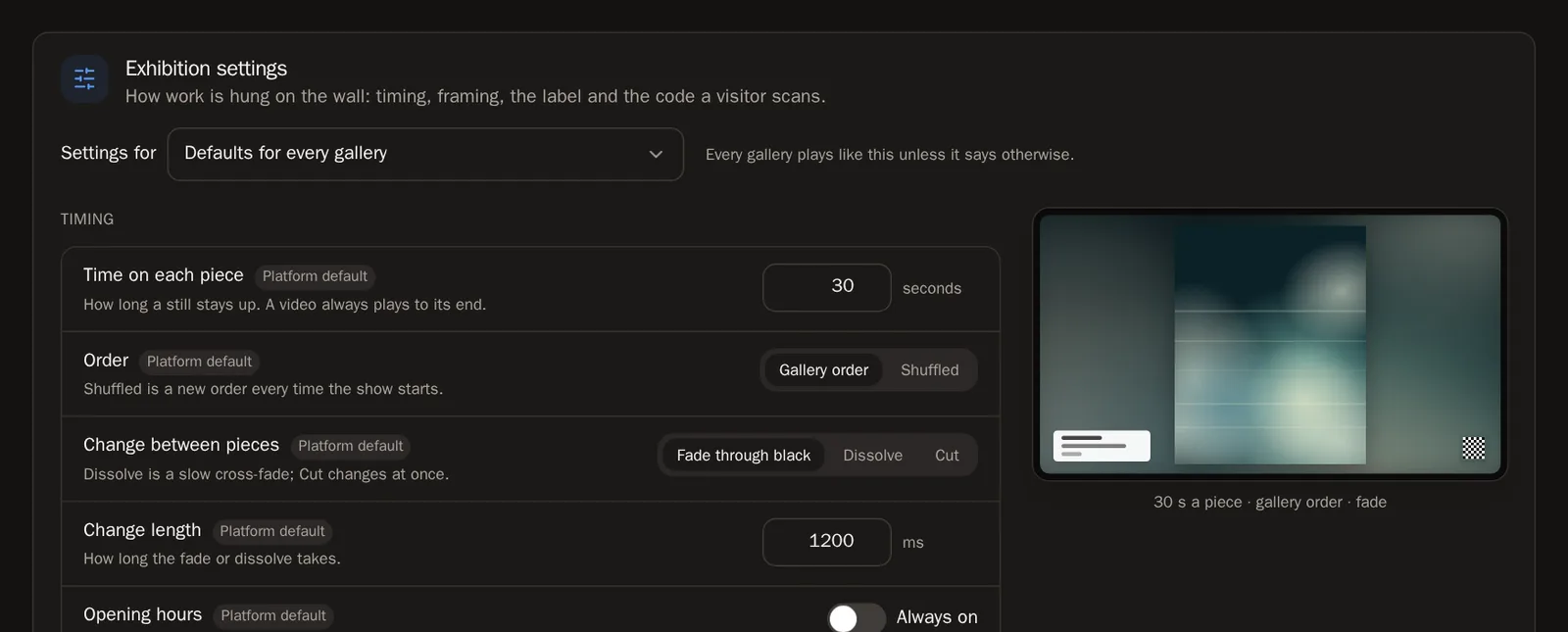 Tip Choose Defaults for every gallery in Settings for to change them all at once, or pick one gallery to give it its own look. Press Save changes.
Step 29: More than one screen
Your first screen is free. If you need more, add screen licences in Settings under Add storage — the Storage guide explains how. A screen without a licence stays linked and starts playing again the moment you add one.
Step 30: Rename or remove a screen
Press ⋯ on a screen's card for Rename, Identify (shows its name on the screen), Reload and Remove screen. A removed screen goes back to showing a pairing code, ready to link again.
Questions people ask
Can I show other artists' work on my screen?
On your own screen you can play your work and the art your wallets hold. Showing other artists' work commercially — in a café, hotel or shop — goes through the Commercial programme, where the artists are paid.
The screen says "Ready" but nothing plays
It's linked but has nothing to play yet. Choose a gallery on its card in Gallery Exhibition — or feature a few pieces, and it plays them by itself.
My screen's card says "Offline"
The screen hasn't checked in recently. Make sure it's on, the app or player is open, and it's connected to the internet.
It says "This screen isn't active on your account yet"
All your screen licences are in use. Add one in Settings, or remove a screen you no longer use.