

Your profile is the top of your public page: your banner, your picture, your name and your story. It's worth getting right — it's the first impression for every collector, curator and gallery who finds you.
You'll find everything on one page: Profile in the menu on the left.
About 10 minutes
Before you start
- A profile picture (a square photo works best).
- A wide banner image — landscape, at least 1500 pixels wide.
- A few sentences about you and your work.
Your picture and banner
Step 1: Add your banner
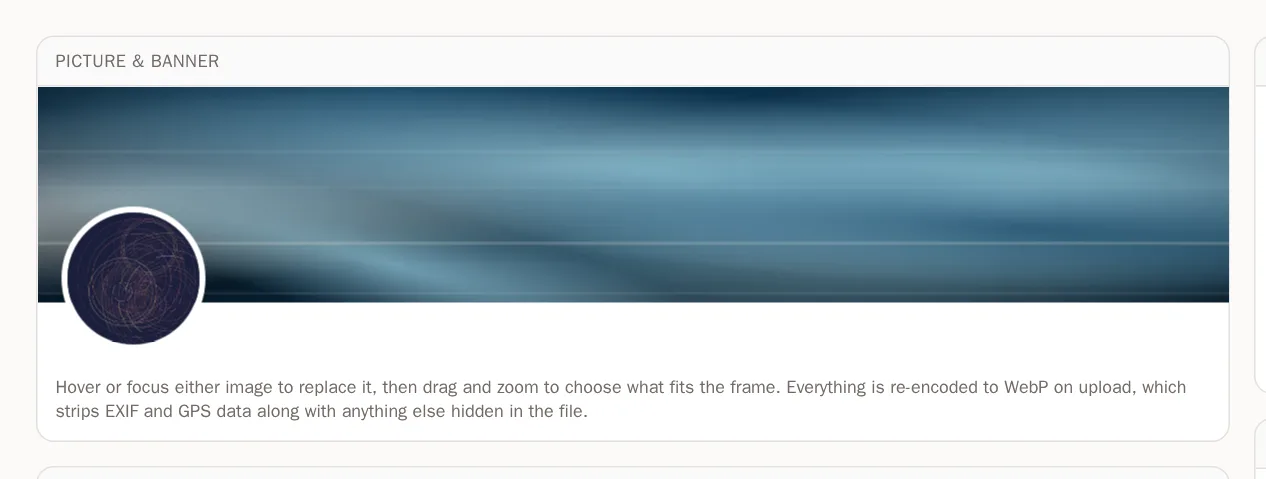
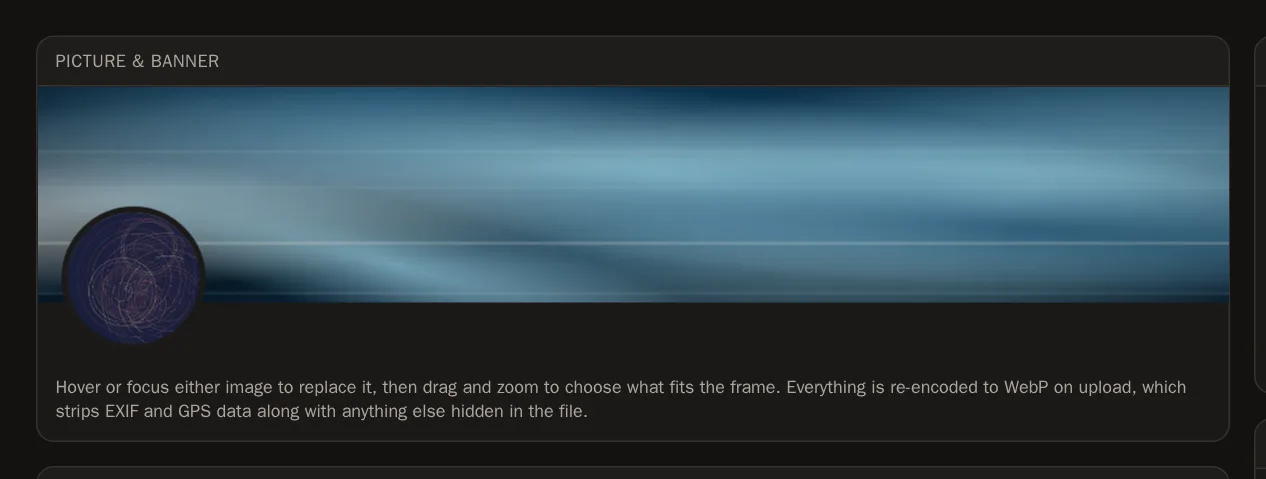
At the top of the Profile page is a preview of your page's header, laid out exactly as visitors will see it. Point at (or tap) the wide banner area and press Upload. Choose an image from your computer or phone.
Step 2: Frame it
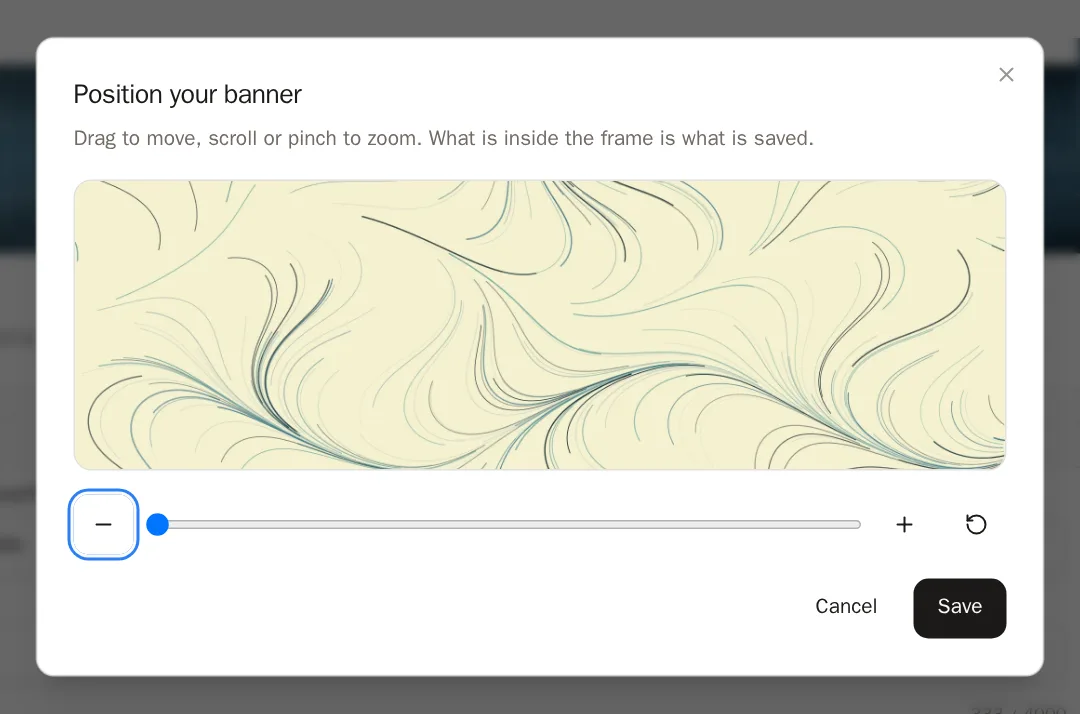
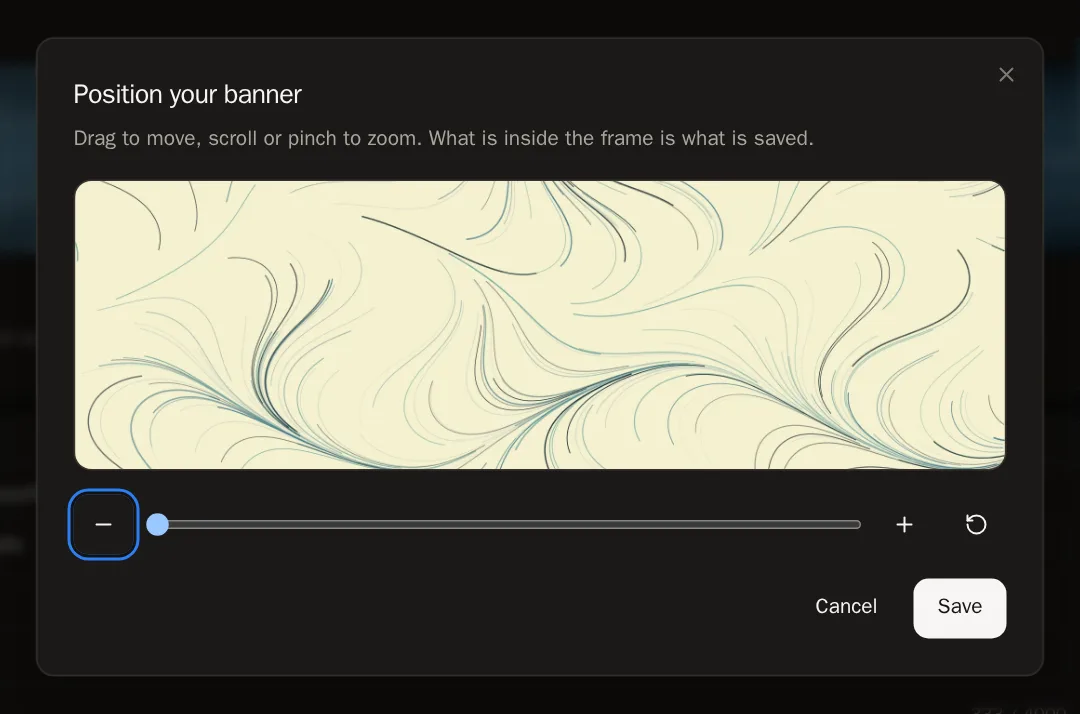
A window called Position your banner opens. What is inside the frame is what gets saved.
- Drag the picture to move it.
- Use the Zoom slider (or scroll, or pinch) to make it bigger or smaller.
- Press Recentre to start over.
- Press Save.
 You'll know it worked when… You see Your banner was updated. Pictures save straight away — no other button needed.
Step 3: Add your profile picture
Do the same with the round picture: point at it, press Upload, frame it and press Save.
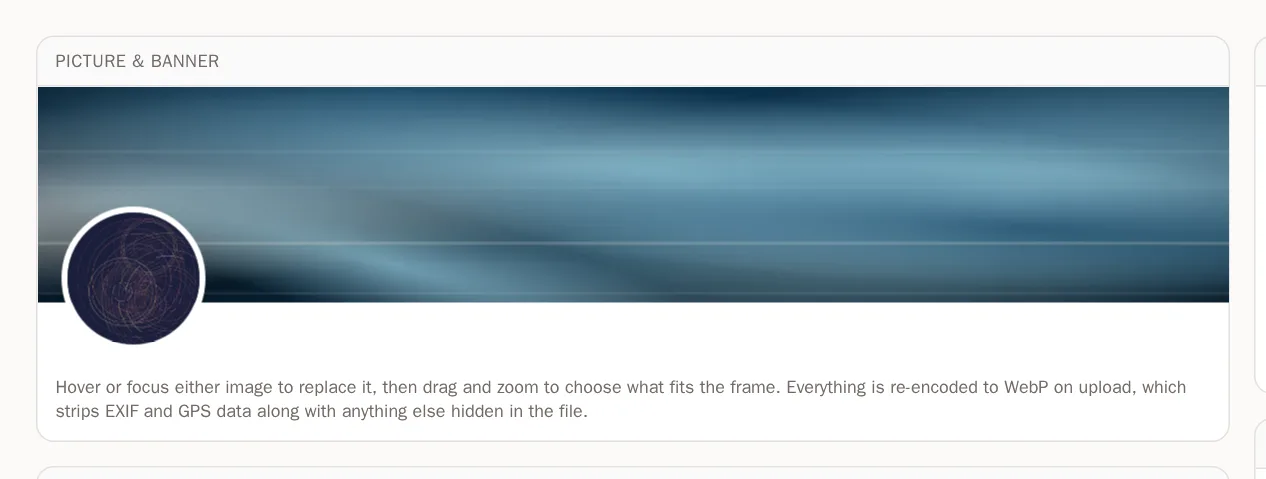
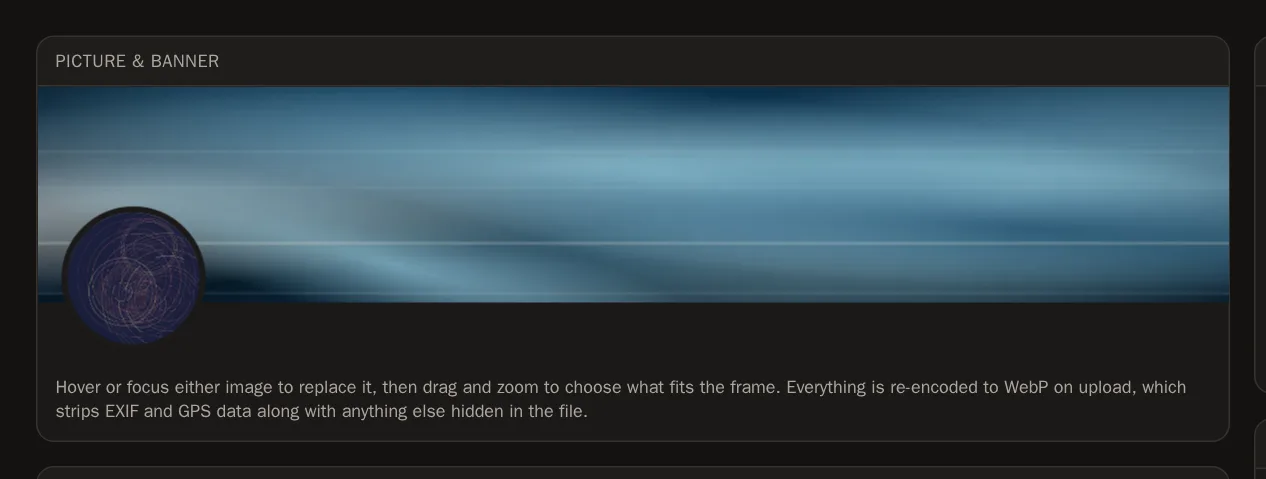 Tip Animated GIFs work for both — the animation is kept.
Step 4: Change or remove a picture
Press Replace on a picture to choose a new one. The bin button in its corner removes it.
About you
Step 5: Fill in your details
In About you, fill in what you'd like to share. Everything is optional except your display name:
- Display name — your artist name, as you want it shown.
- Pronouns — for example she/her or they/them.
- Headline — one line about your work, like Generative systems and plotter drawings.
- About — your artist statement. It gets its own section on your page.
- Website, Location and Public contact email.
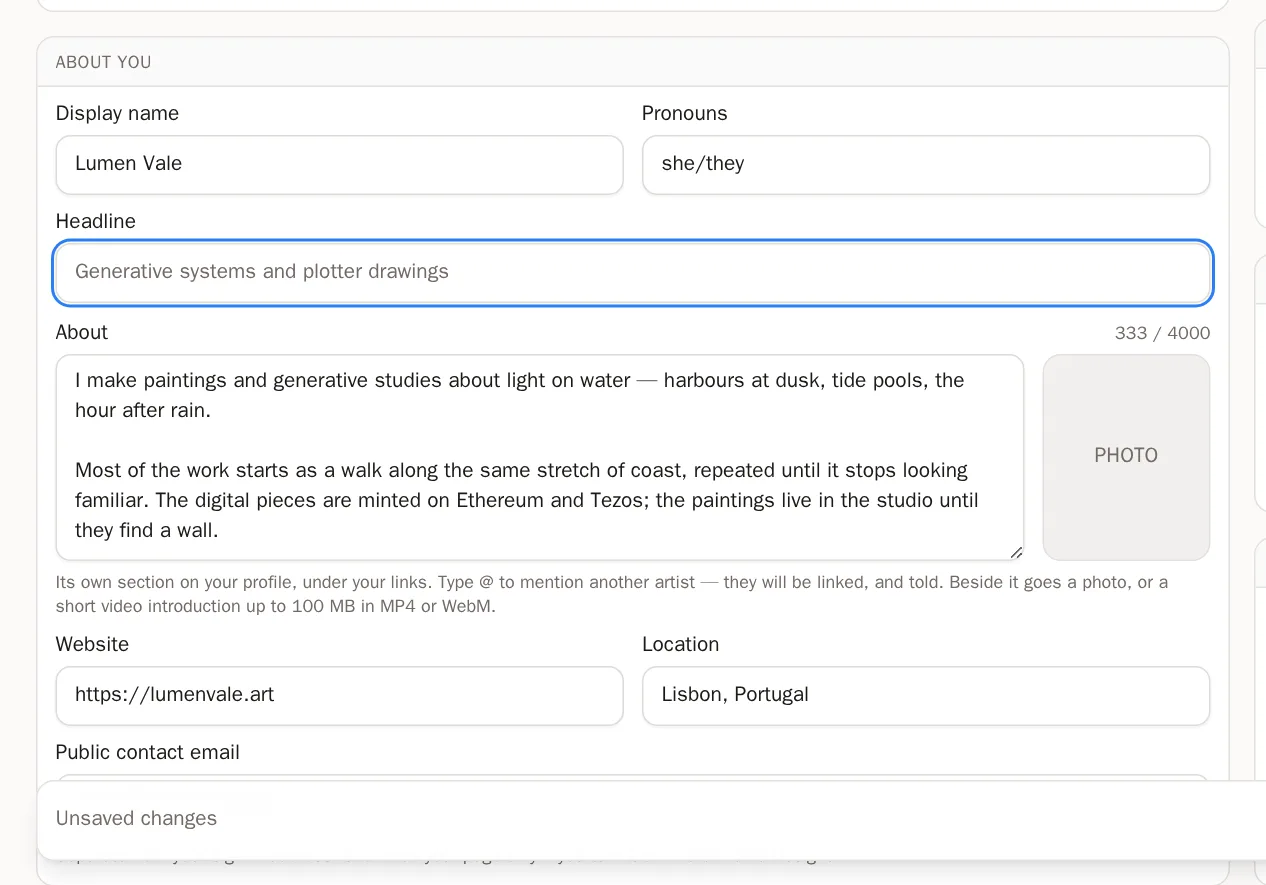
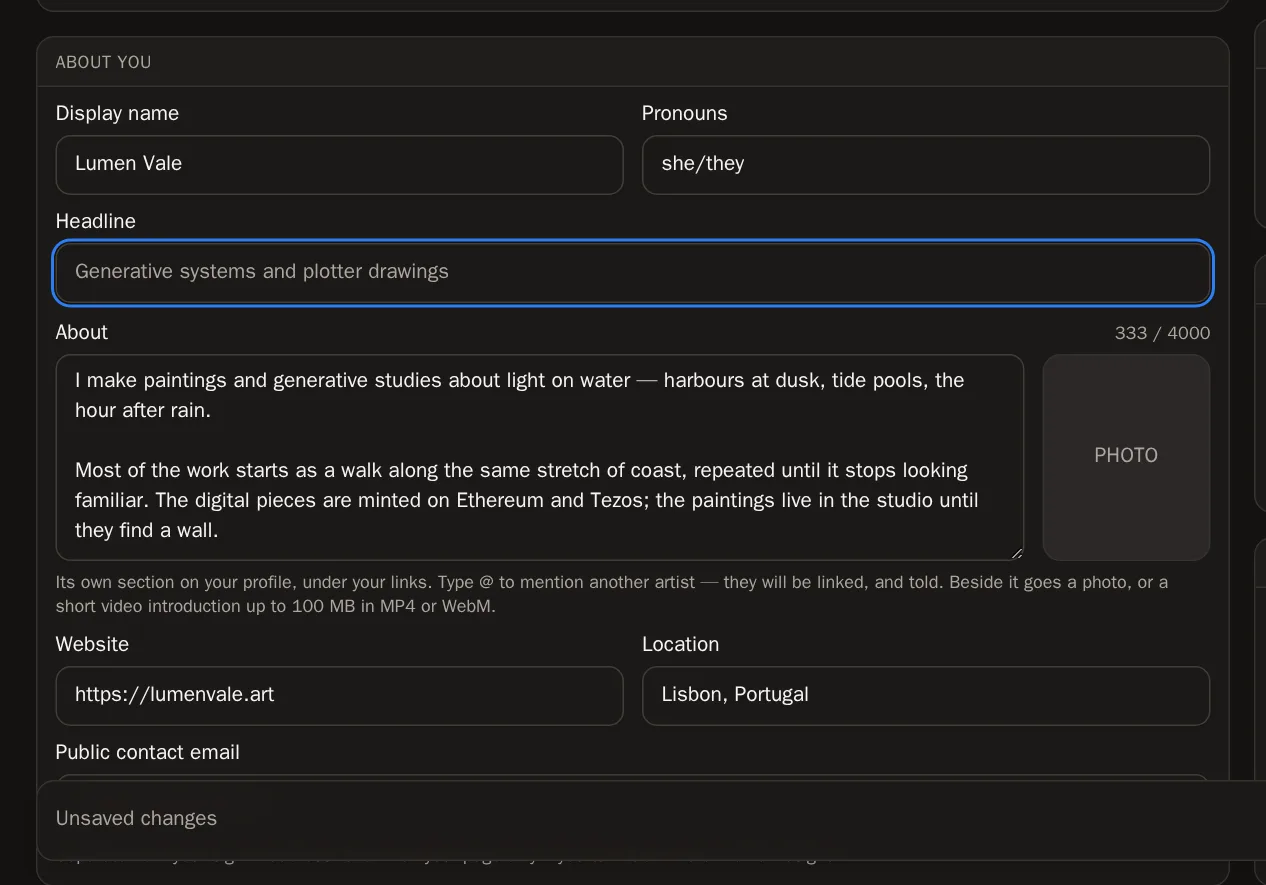 Good to know Your location and contact email are only shown if you turn them on in the Profile Designer.
Step 6: Mention other artists
In your About text, type @ and the first letters of another artist's handle. A list appears — press the right one. Their name becomes a link on your page, and they're told you mentioned them.
Step 7: Add an About photo or video
Next to the About box there is a space for a photo — or a short video introduction (MP4 or WebM, up to 100 MB). A video plays silently by itself when visitors scroll to it.
Step 8: Save your changes
As soon as you change any text, a bar appears at the bottom of the screen saying Unsaved changes. Press Save changes.

 You'll know it worked when… You see Profile saved, and the bar disappears.Tip Changed your mind? Press Discard to go back to what was saved.
Who can see it, and your address
Step 9: Choose who can see your page
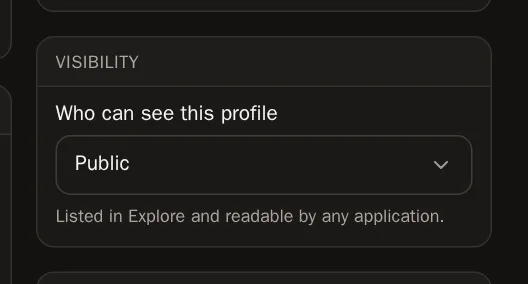
In Visibility, open Who can see this profile and choose:
- Public — anyone can find it, including in Explore.
- Unlisted — only people with the link can see it.
- Private — only you can see it.
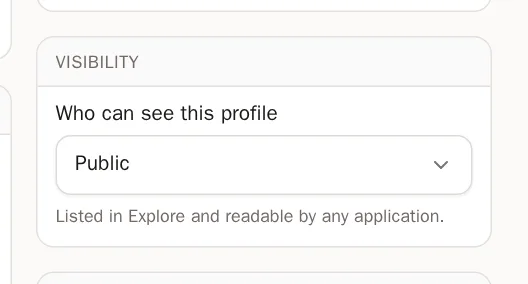
 Tip Building your page? Set it to Private until it's ready, then switch to Public. Remember to press Save changes.
Step 10: Your address (handle)
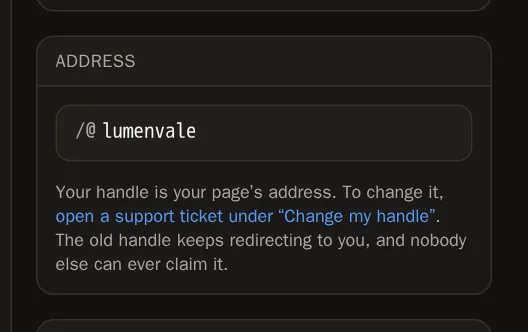
Address shows your page's web address,
solpersona.com/@yourhandle. To change your handle, press the support link there and ask under Change my handle. Our team will change it for you, and your old address will keep sending people to your page.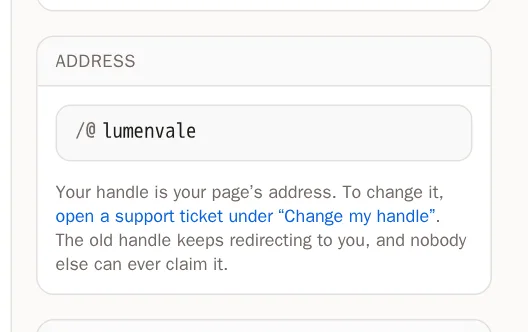
Step 11: Copy your details from a marketplace
Already wrote a bio on OpenSea or objkt? In Import from a marketplace, choose a wallet and press Look up. Tick what you'd like to keep, then press Apply to my profile.
Step 12: Arrange your page
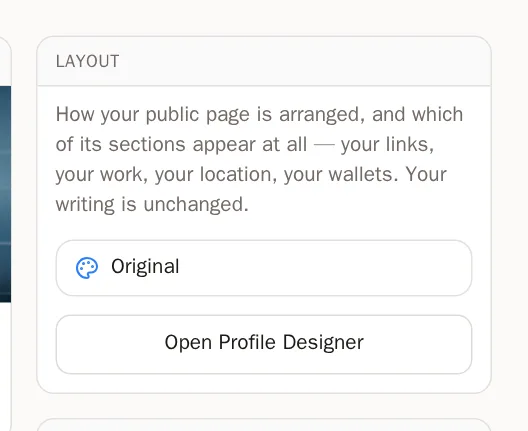
In Layout, press Open Profile Designer to choose how your whole page is laid out. The Profile Designer guide shows you how.
Questions people ask
Is my photo's location data published?
No. Every picture is re-saved when you upload it, which removes hidden information such as GPS location.
How do I see what visitors see?
Press View public profile at the top of the Profile page.