

No two artists are the same. Some have four links and a photo; others have hundreds of pieces across three chains. The Profile Designer lets you choose the layout that suits you — and you watch your real page change as you go.
Nothing here changes your writing or your artwork. It only changes how they are arranged.
About 5 minutes
Open the designer
Step 1: Press Open Profile Designer
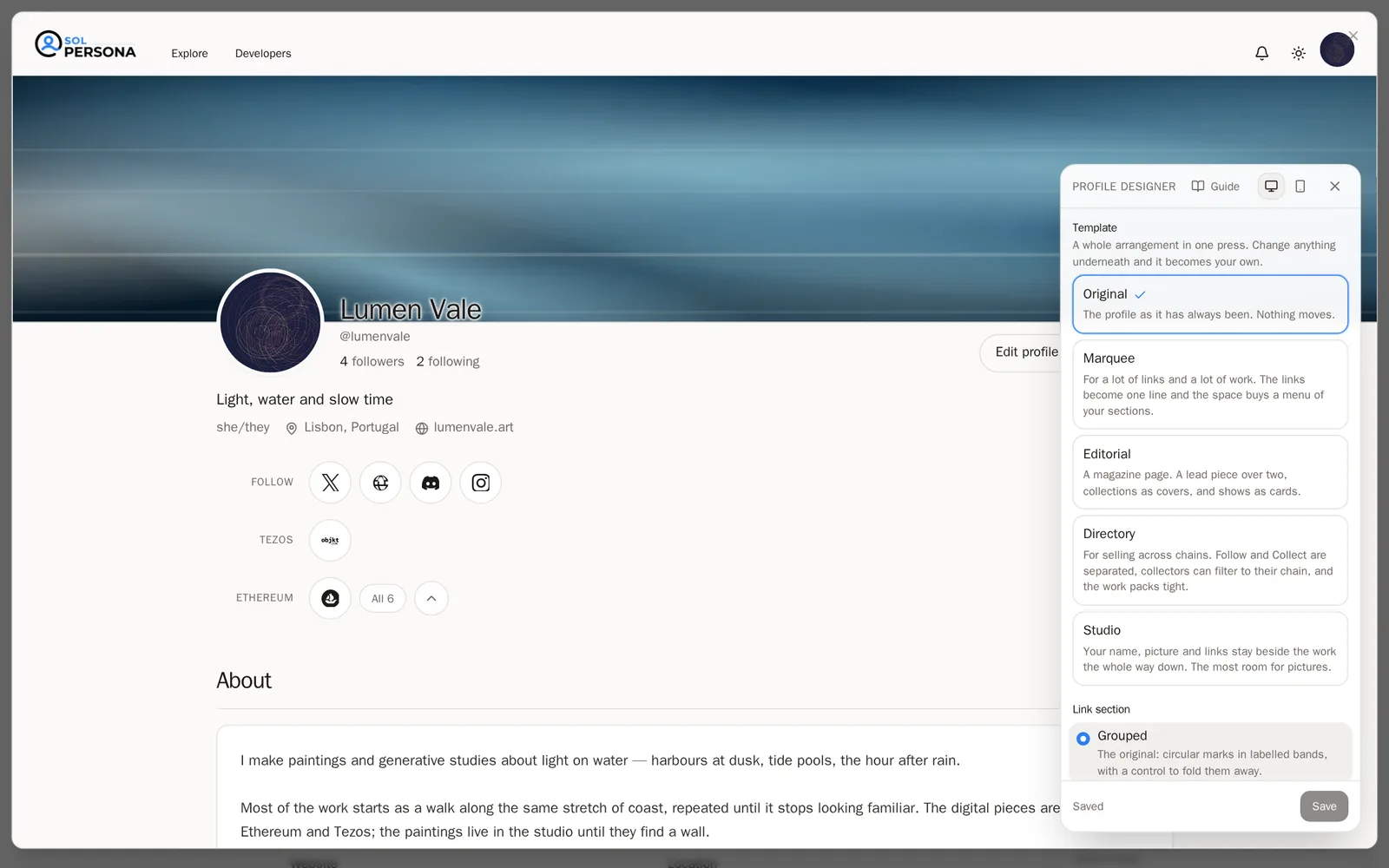
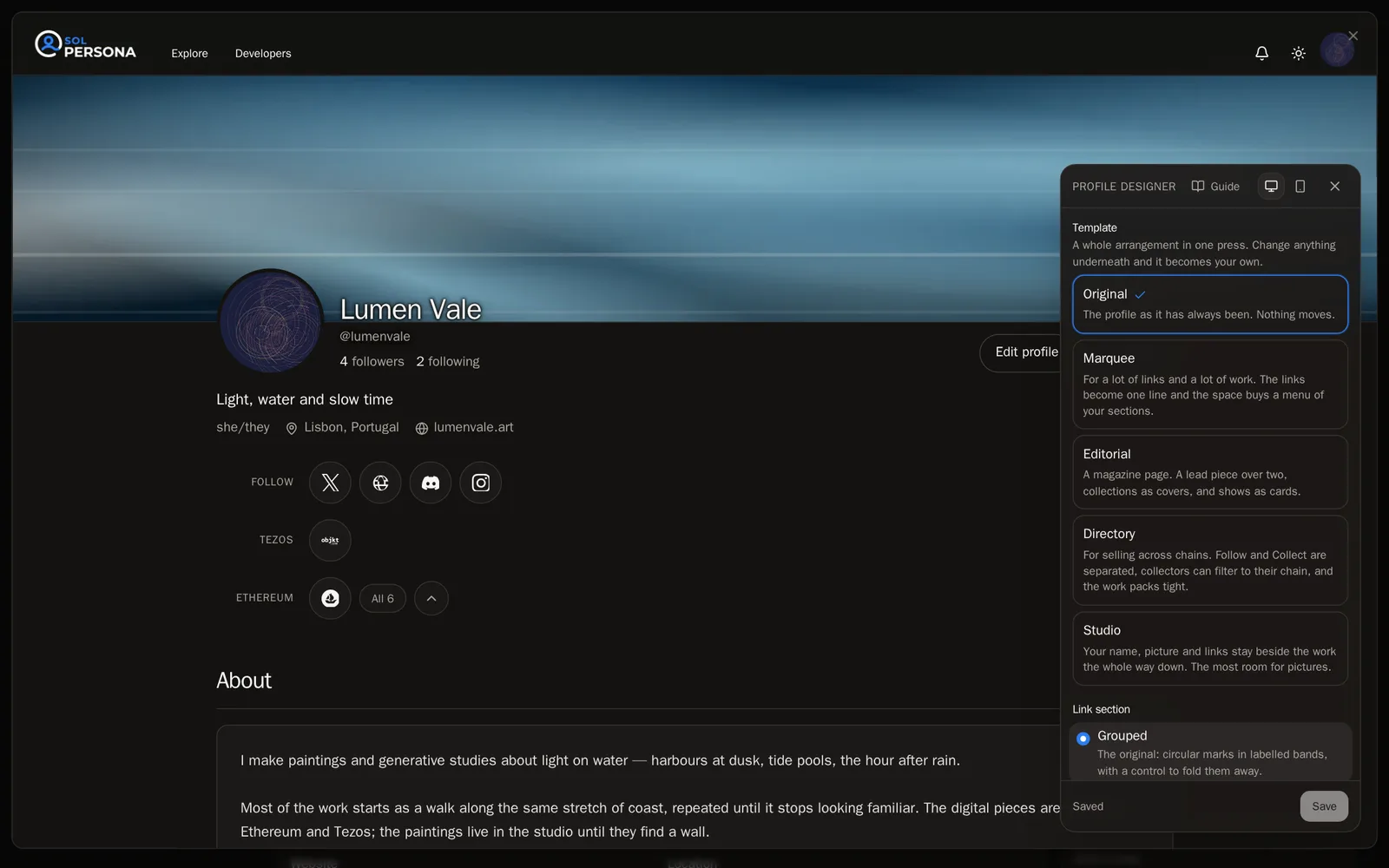
Go to Profile in the menu. In the Layout box on the right, press Open Profile Designer.
You'll know it worked when… Your page fills the screen, with a panel of choices floating on top of it.Step 2: See it on a computer and a phone
At the top of the panel, press Desktop or Phone to see how your page looks on each. To see your page with nothing in the way, press the X on the panel to tuck it away, then press Designer to bring it back.
Start with a template
Step 3: Pick a template
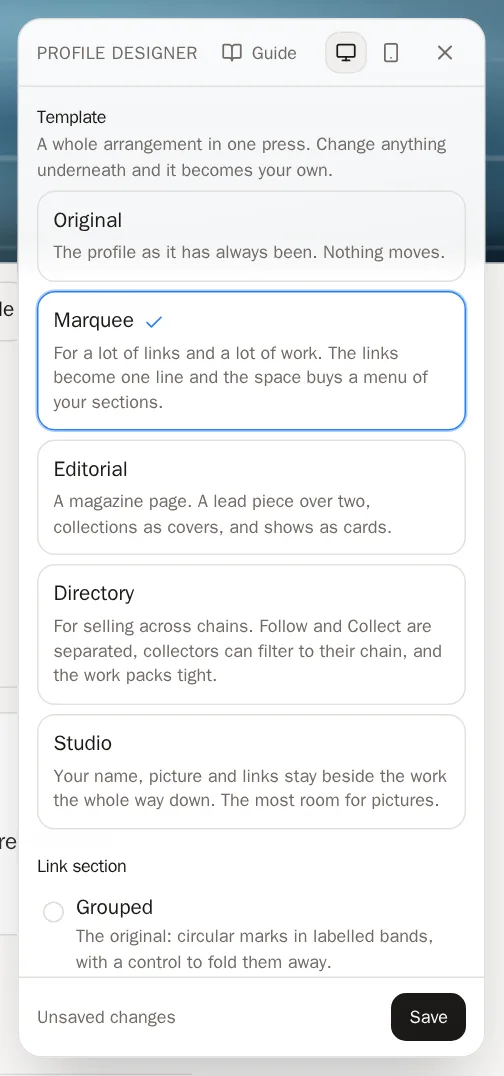
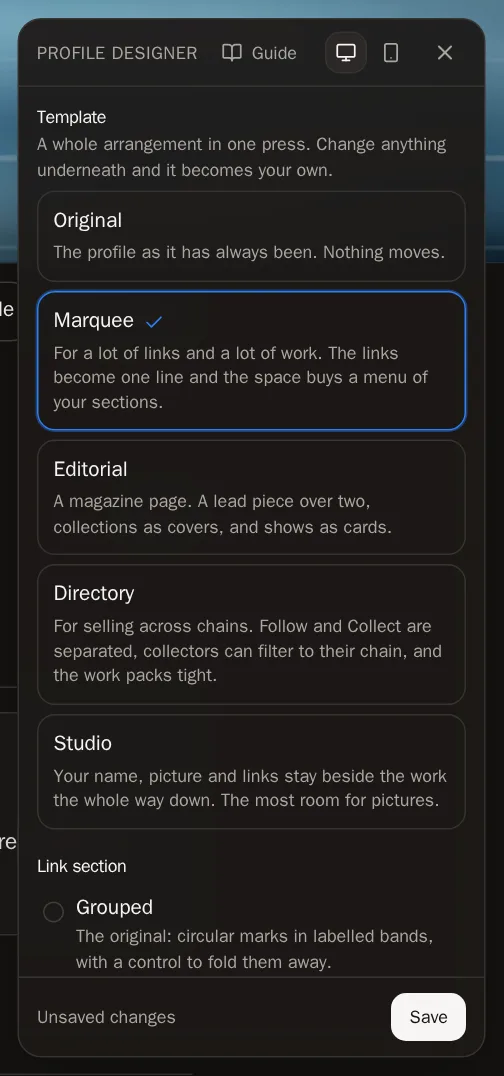
A template sets the whole layout in one press. Try each one and watch your page change:
- Original — the classic SolPersona page.
- Marquee — for lots of links and lots of work. Links become one tidy line, and a menu of your sections appears.
- Editorial — like a magazine: one big piece over two, collections as covers, shows as cards.
- Directory — for selling across chains. Collectors can filter your shops by chain.
- Studio — your name and links stay beside the work as visitors scroll. The most room for pictures.
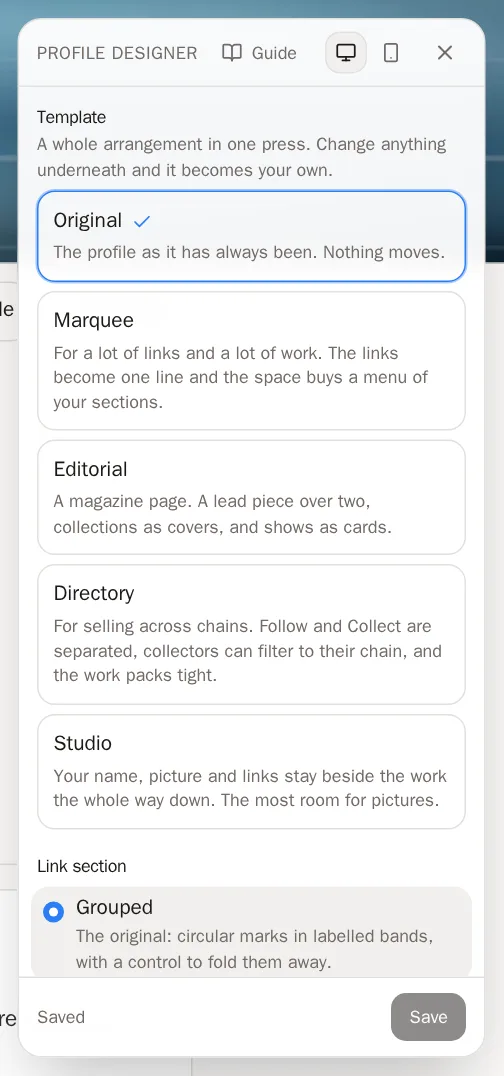
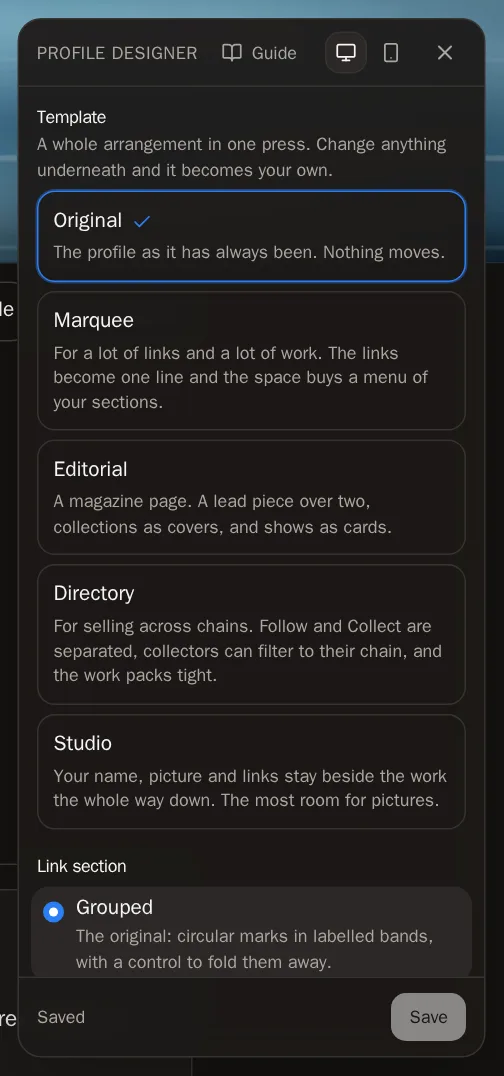 Tip Change anything below a template and it becomes Your own mix. Press Back to the original any time to start over.
Fine-tune your page
Under the templates, every part of the page has its own choice. Press an option to try it.
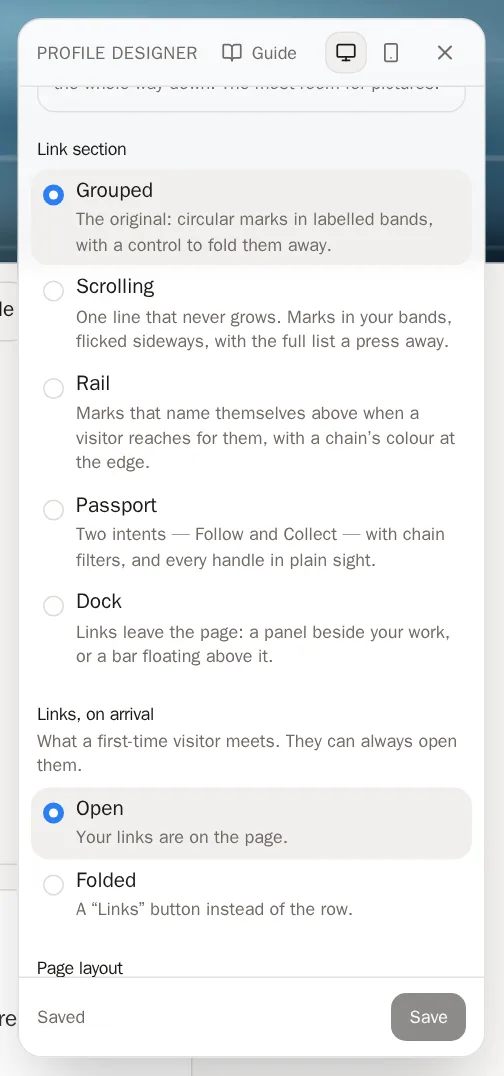
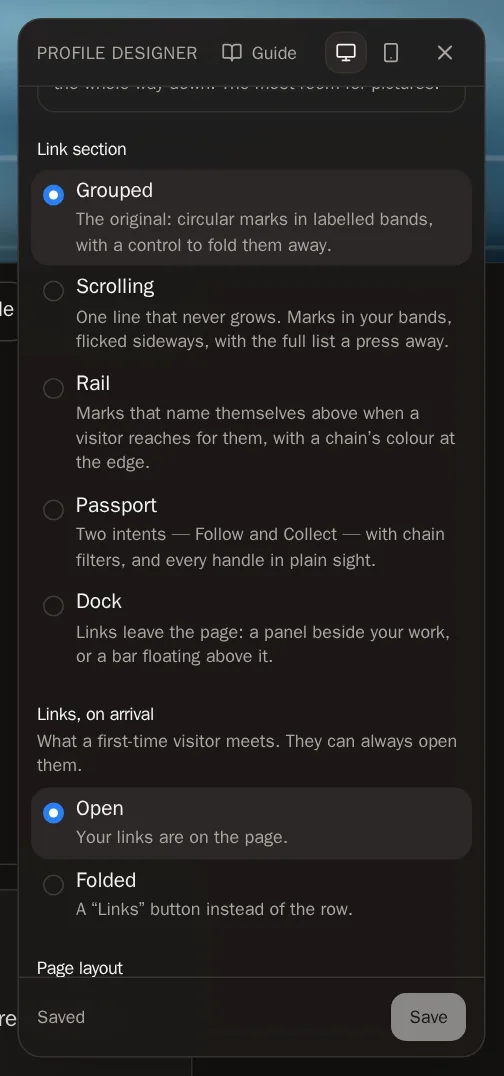
Step 4: Links and layout
Choose how your Link section looks (Grouped, Scrolling, Rail, Passport or Dock) and whether links start Open or Folded. Choose a Page layout: Stacked (name across the top) or Split (name and links in a column beside your work). Turn on the Section menu to give visitors a bar that jumps to each part of your page.
Step 5: Sections
Choose how your About section, Featured band, Collections, Work grid (large or small pieces), Exhibitions and Verified wallets look. Section style chooses between bordered Cards or Plain, borderless sections.
Step 6: What is on the page
Under What is on the page, decide whether to show More artwork (work that is in no collection) and Collaborations (work other artists credit you on), and whether long sections start Folded.
Step 7: What a stranger sees
Under What a stranger sees, choose whether to show your Verified wallets, your Location and your Contact email.
Good to know These three can't be previewed — they take effect after you save.
Save your design
Step 8: Press Save
When you like what you see, press Save at the bottom of the panel.
 You'll know it worked when… The panel says Saved. Your page now looks like this for everyone.Good to know Closing the designer without saving keeps your choices waiting on the Profile page. Press Save changes on the bar at the bottom there to keep them, or Discard to throw them away.
Questions people ask
Can I lose anything by trying templates?
No. Templates only change the layout. Your writing, pictures, links and artwork are never touched, and nothing changes for visitors until you press Save.
Which template should I choose?
A few links and pieces: Original. Lots of links: Marquee. A curated, gallery-style page: Editorial. Selling on several chains: Directory. Mostly pictures: Studio.