

Your SolPersona is your identity as an artist, so it's worth protecting. The single best thing you can do is turn on two-factor authentication: after your password (or your wallet), you also type a six-digit code from your phone. Even someone who steals your password can't get in without it.
About 5 minutes
Before you start
- Your phone, with a free authenticator app installed — Google Authenticator, Authy or 1Password all work.
- Somewhere safe to keep ten recovery codes, like a password manager or a printed sheet.
Turn on two-factor authentication
Step 1: Open Security
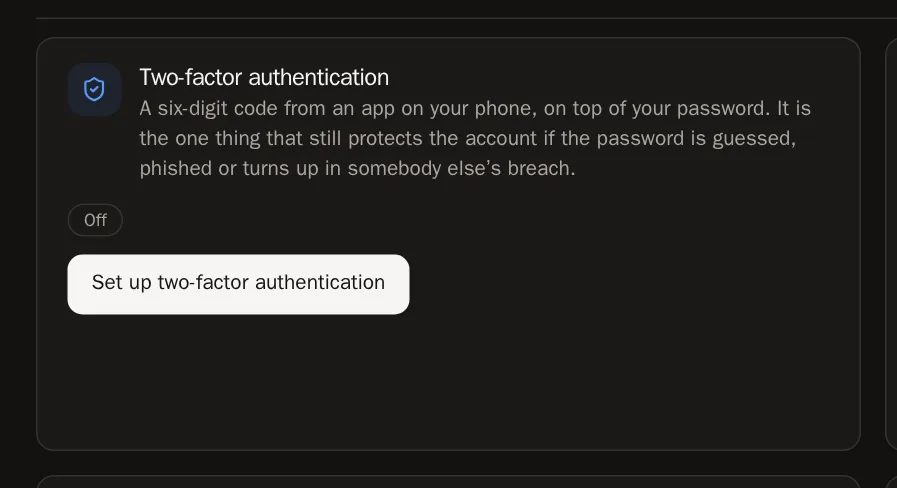
In the menu, choose Settings, then Security. In Two-factor authentication, press Set up two-factor authentication.
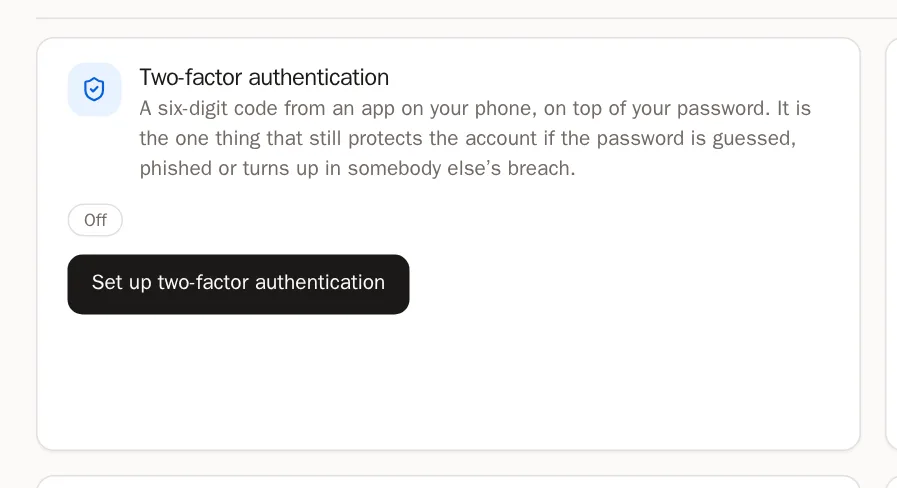
Step 2: Scan the QR code with your phone
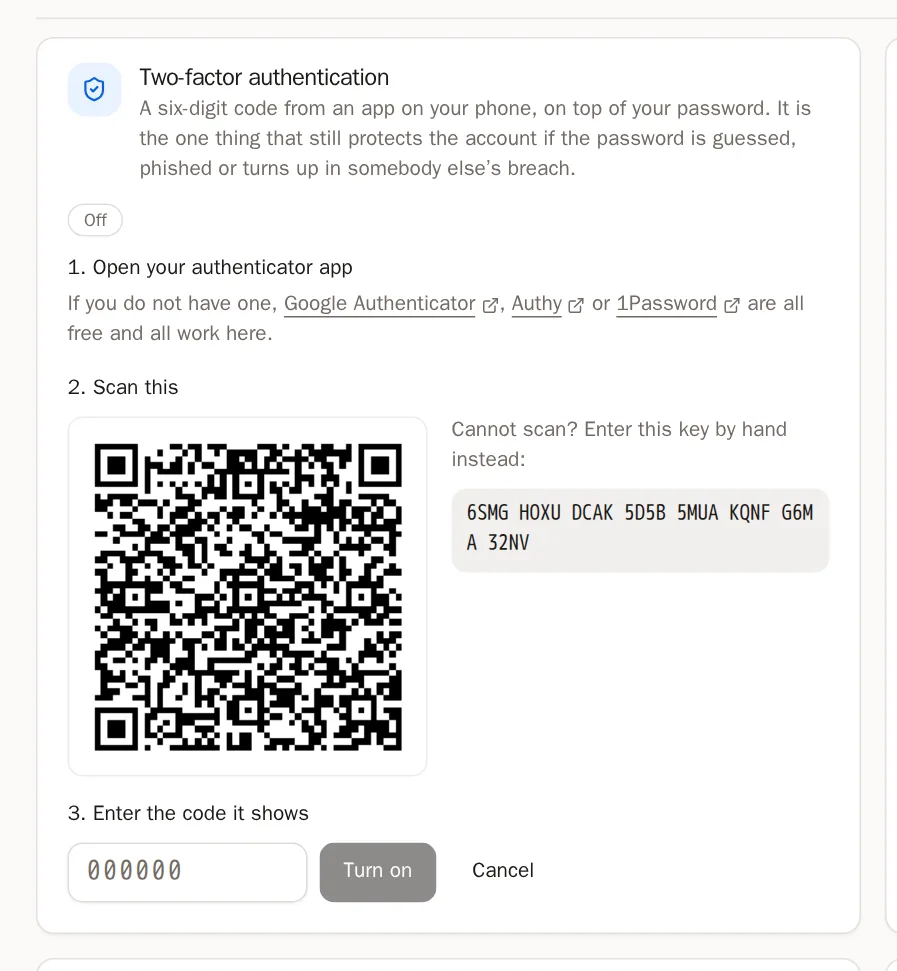
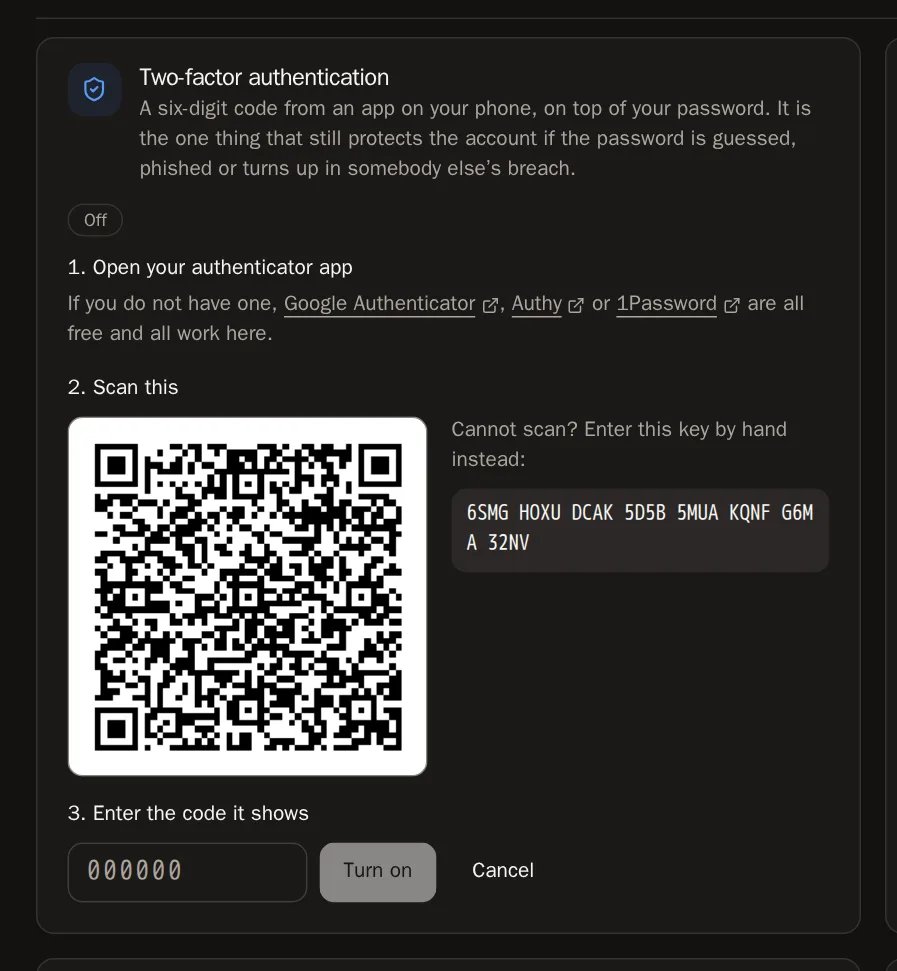
Open your authenticator app, press + (or Add account), and choose Scan a QR code. Point your phone at the QR code on the screen.
Two-factor authenticationOff3. Enter the code it shows000000Turn onAuthenticator+ Scan a QR codeOpen your authenticator appTip Can't scan? Press Enter a setup key in the app and type the key shown under the QR code instead.Step 3: Type the code it shows
Your app now shows SolPersona with a six-digit code that changes every 30 seconds. Type the current code into the box and press Turn on.
Step 4: Save your recovery codes
You'll see ten recovery codes. Each one lets you in once if you lose your phone. Press Copy codes and paste them into your password manager — or write them down and keep them somewhere safe. Tick I have saved these somewhere safe and press Done.
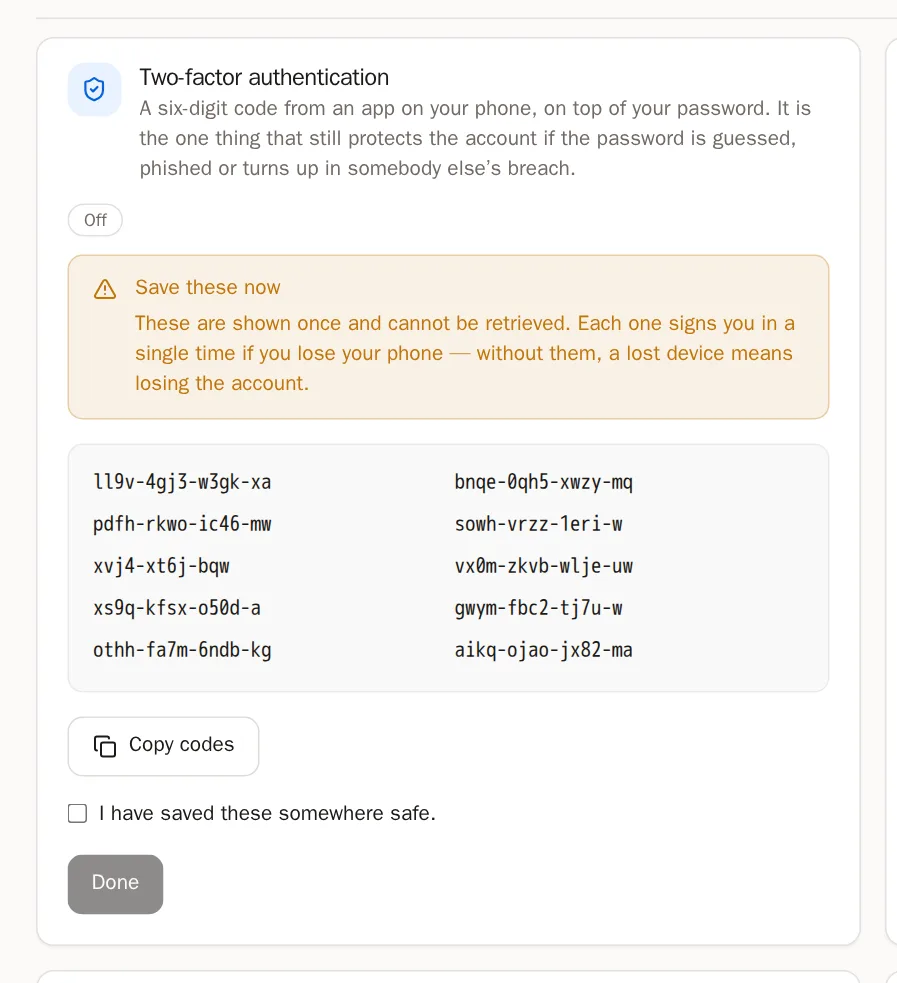
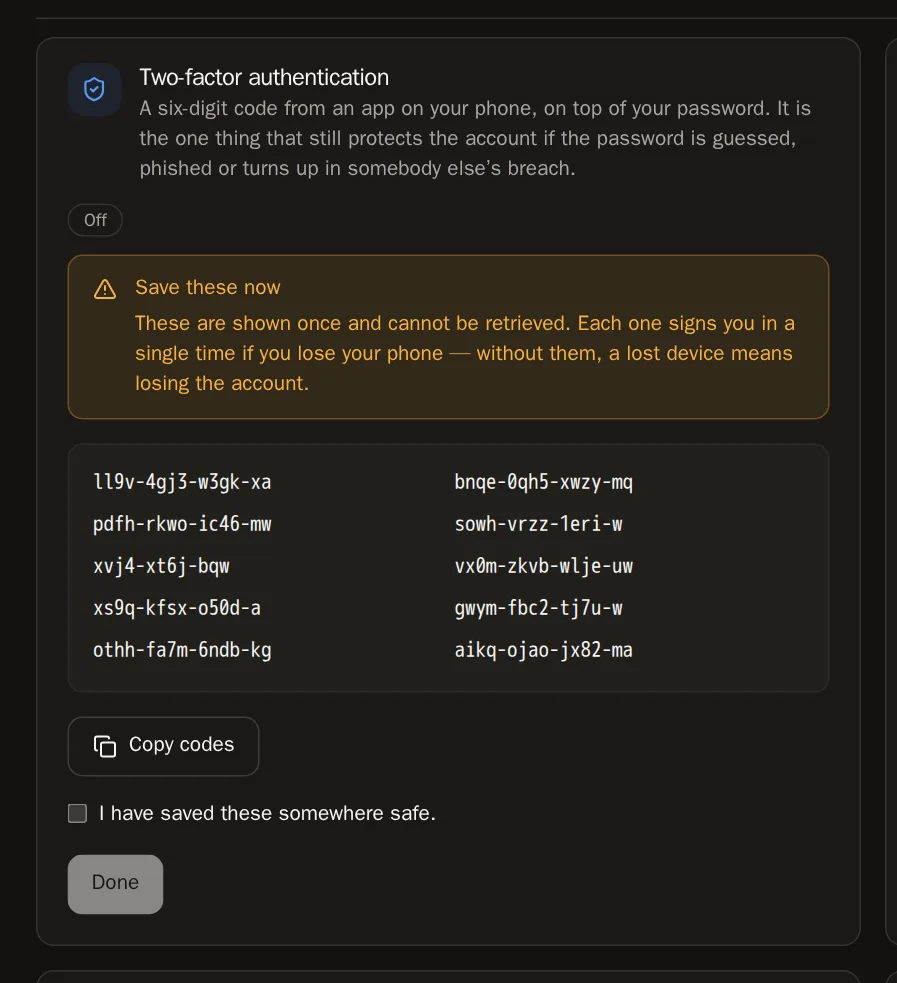 Careful These codes are shown only once. Without them, losing your phone can mean losing your account.
Step 5: Signing in from now on
After your password or wallet, SolPersona asks: Enter your code. Open your app and type the six digits. Lost your phone? Type one of your recovery codes in the same box.
You'll know it worked when… Two-factor shows On.
Other ways to stay safe
Step 6: Change or set your password
In Change password, type your current password and a new one twice, then press Change password. Signed up with a wallet? The card is called Set a password — adding one gives you a second way in.
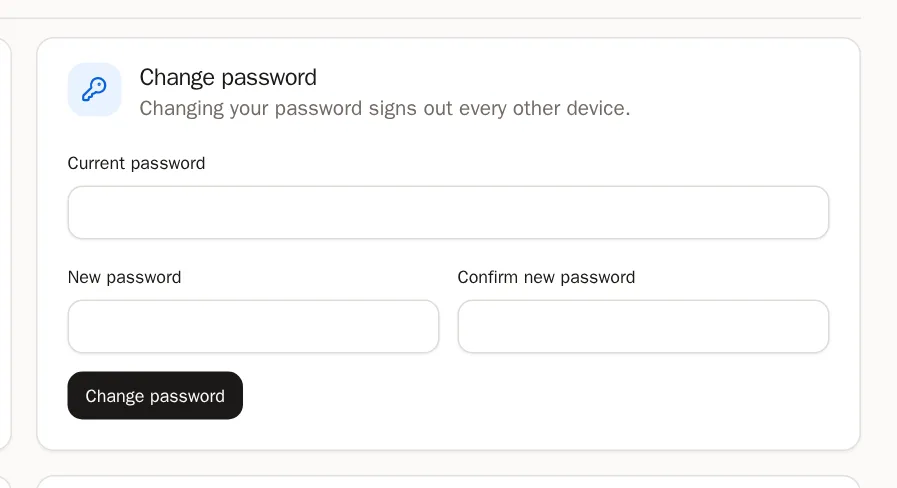
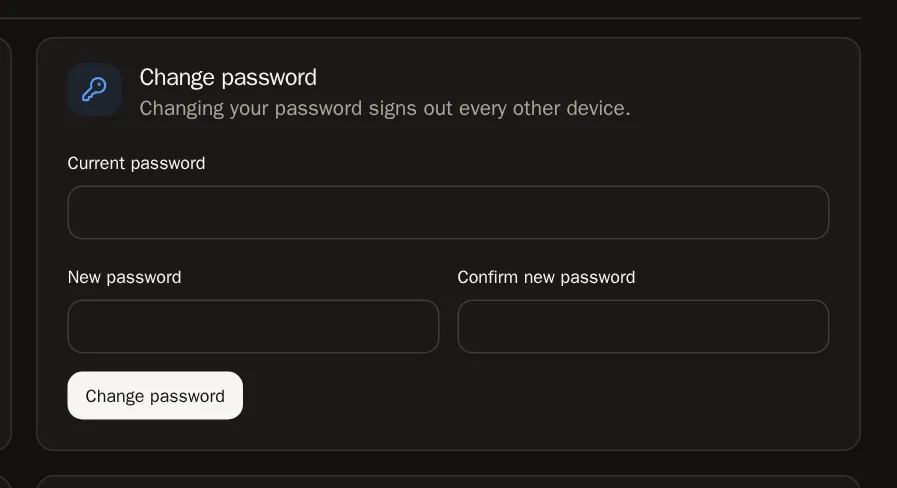 Good to know Changing your password signs out every other device.
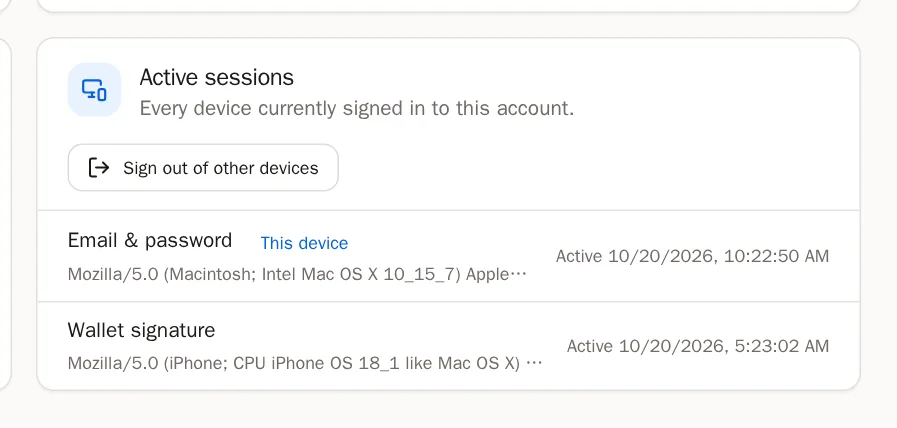
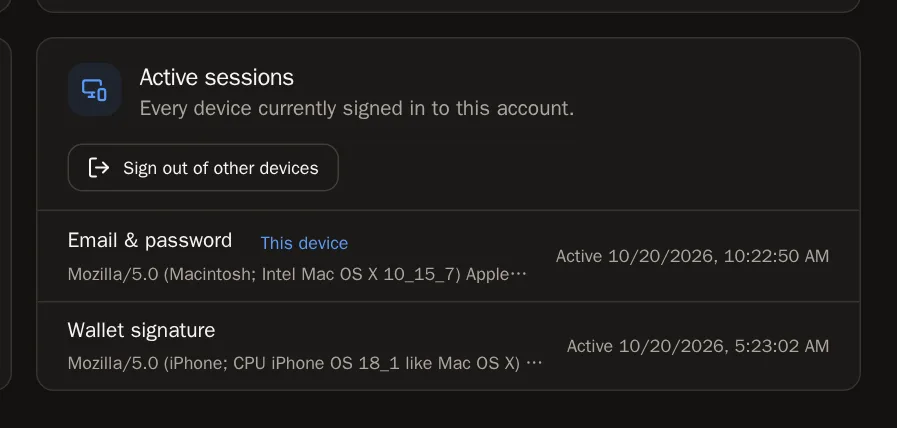
Step 7: Check your devices
Active sessions lists every device signed in to your account. See one you don't recognise? Press Sign out of other devices, then change your password.
Step 8: Running out of recovery codes?
Type a current code from your app and press New recovery codes to get a fresh set of ten. The old ones stop working.
Questions people ask
Will SolPersona ever ask for my recovery phrase?
Never. Not by email, not in support, not on any page. Anyone asking for your wallet's secret words is not us — please report them.
I lost my phone and my recovery codes
Contact support. Our team can help you get back in once we've confirmed it's really you.
It says "That code is not right"
Make sure you're typing the code under SolPersona in your app, and that your phone's clock is set automatically. If you started setup twice, delete the older SolPersona entry in the app.