

Your wallets are where your artwork comes from. When you connect a wallet, SolPersona can find everything you minted with it and show it on your page — with a tick that tells visitors the work really is yours.
Connecting is free and safe. You only sign a short message. Nothing is sent, nothing is spent, and SolPersona can never move anything out of your wallet.
About 3 minutes per wallet
Before you start
- A wallet app installed in this browser (for example MetaMask, Phantom, Temple or Kukai), unlocked and ready.
- The wallet you mint your art from — that is the one with your work in it.
Connect a wallet
Do this once for each wallet you mint from. If you mint on more than one chain, connect one wallet for each chain.
Step 1: Open the Wallets page
In the menu on the left of your dashboard, choose Wallets. Then press the blue Connect wallet button at the top of the page.

 Tip On a phone, the menu is a row across the top of the screen instead of down the side.
Step 2: Choose your chain
A window called Connect a wallet opens. Pick the chain your wallet lives on:
- Ethereum & EVM — for Ethereum, Base, Polygon, Avalanche, Optimism, Arbitrum and Zora. One wallet covers all of them.
- Solana — for Phantom, Solflare, Backpack or MetaMask on Solana.
- Tezos — for Temple, Kukai, Umami and other Tezos wallets.
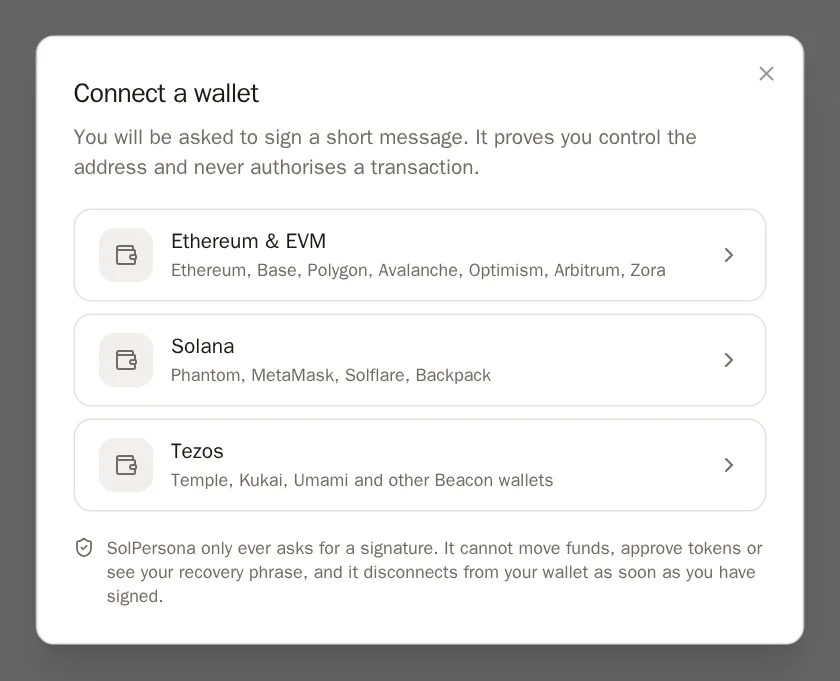
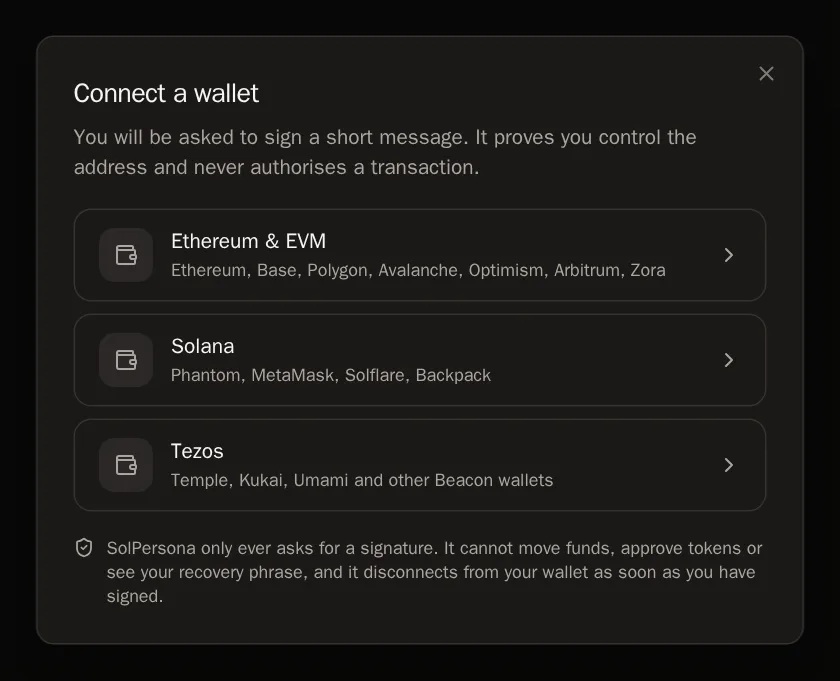 Good to know If you see No wallet detected, your wallet app is not installed or not unlocked in this browser. Unlock it, refresh the page and try again.
Step 3: Choose your wallet app
SolPersona asks: Which wallet holds your address? Press the name of your wallet app, such as MetaMask or Phantom.
For Tezos you skip this step — your wallet shows its own list instead. Choose your wallet there.
Tip Picked the wrong one? Press Back and choose again.Step 4: Approve the signature in your wallet
Your wallet app pops up and shows a short message that begins with wants you to sign in. Read it if you like — it says it proves you control the wallet and does not authorise any transaction.
Press Sign (some wallets say Confirm or Approve) in your wallet.
WalletsConnect walletPress Connect walletYou'll know it worked when… A message says Wallet verified and linked, the window closes, and your wallet appears on the page as a card.Careful SolPersona will never ask for your recovery phrase (the 12 or 24 secret words). If anything asks you to type them in, stop — it is not us.Step 5: Meet your wallet card
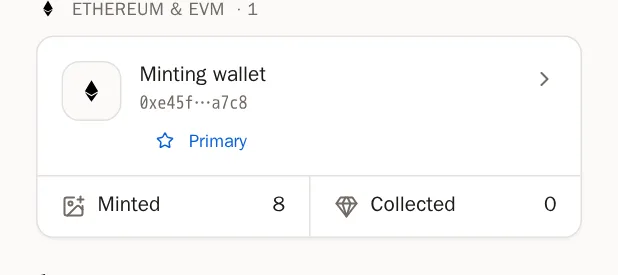
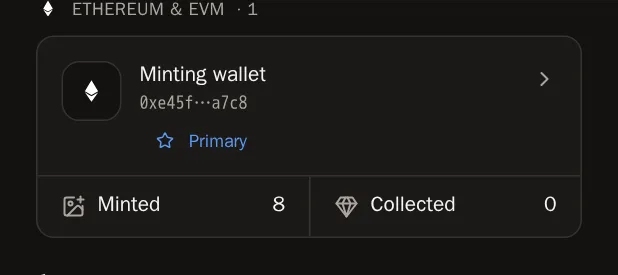
Each wallet you connect gets a card, grouped under its chain. The card shows the wallet's name (or a short version of its address) and two buttons:
- Minted — the artwork this wallet created. This is where you bring your work onto your page.
- Collected — the art this wallet holds by other artists.
 Tip Next step: open Minted and import your work. The Import your artwork guide walks you through it.
Look after a wallet
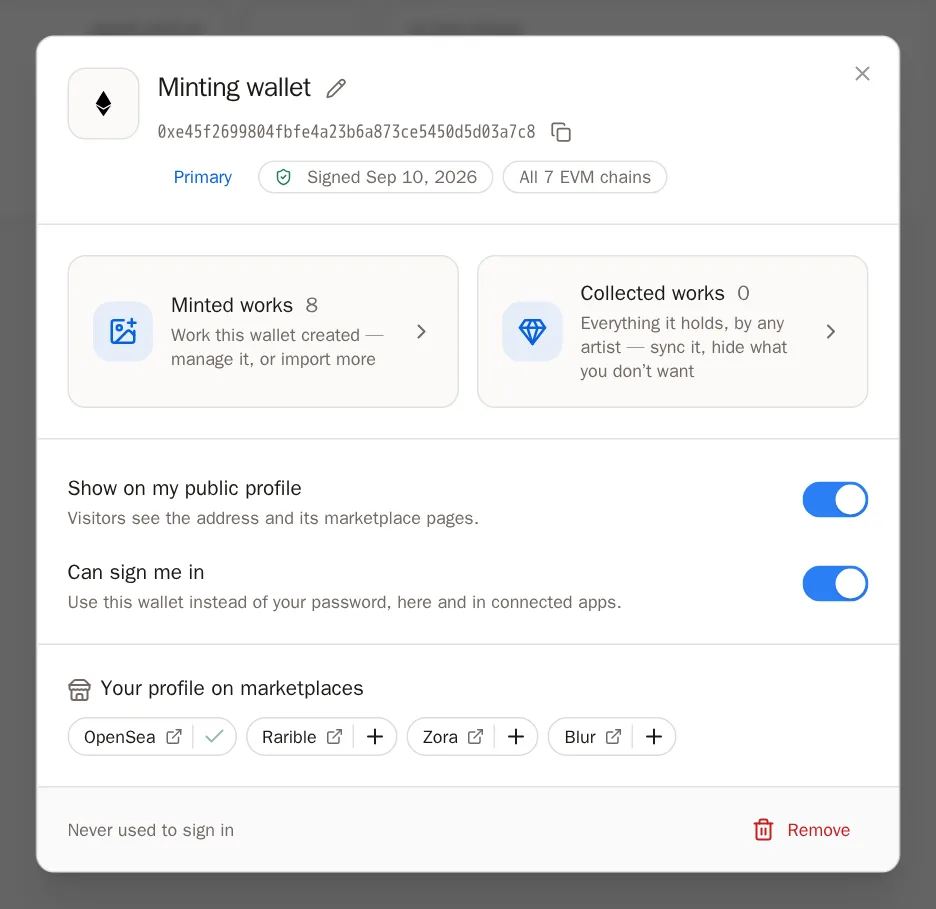
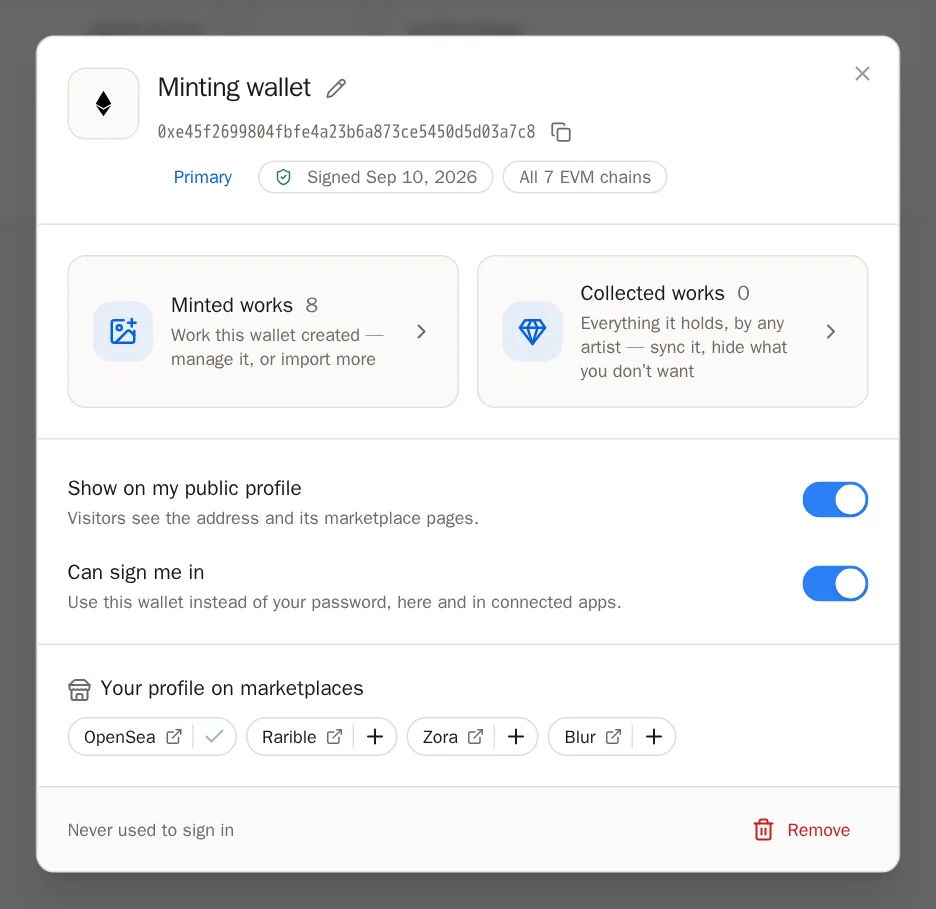
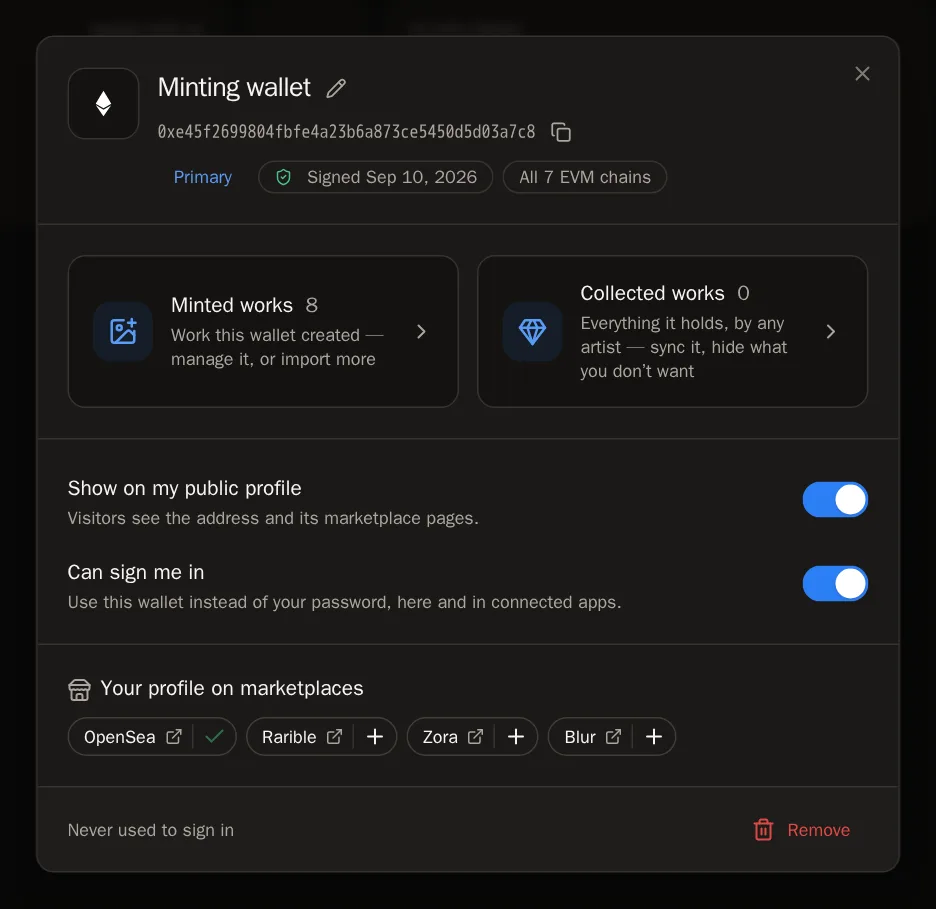
Press a wallet's name on its card to open its window. Everything about that wallet is in there.
Step 6: Give it a name
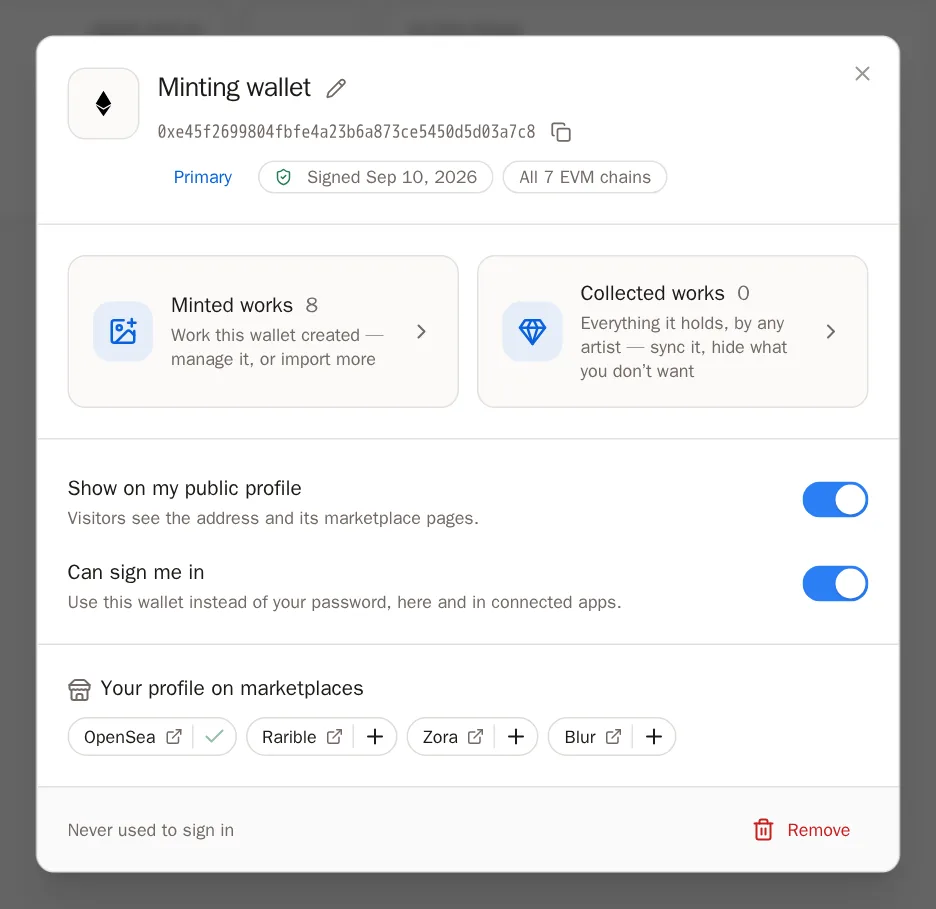
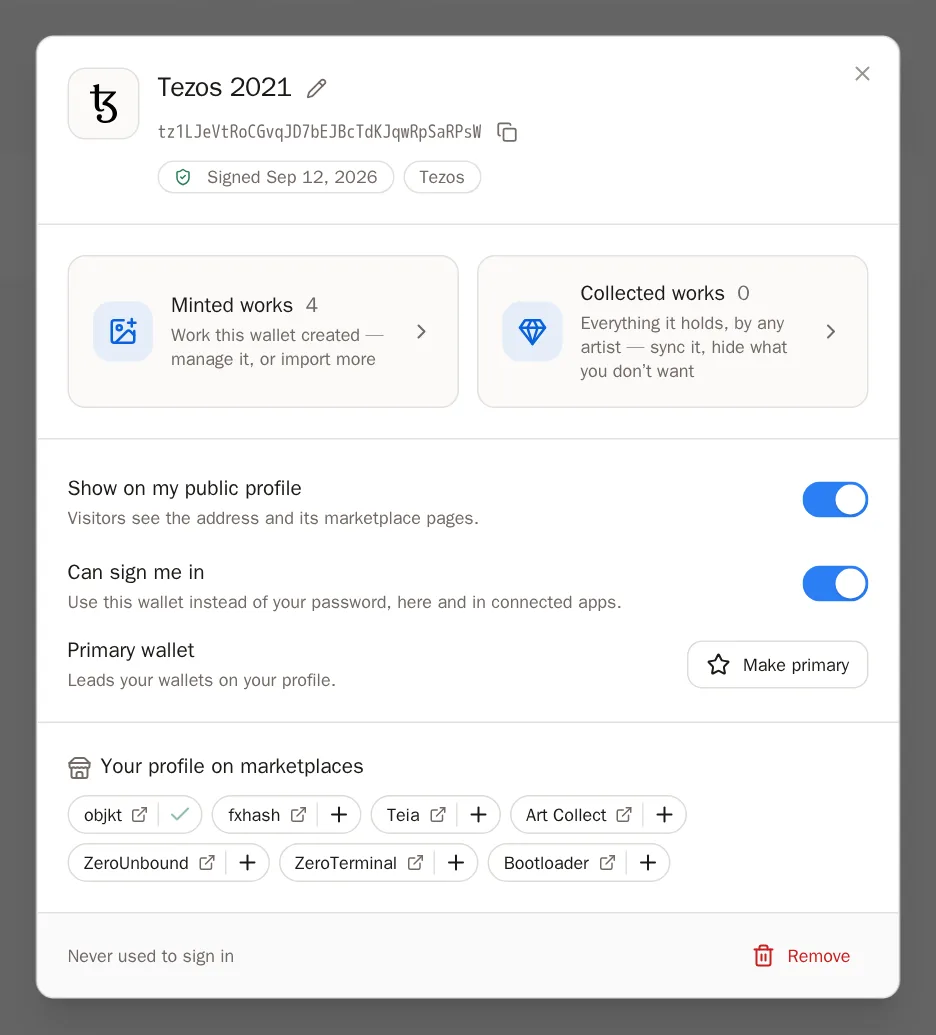
Wallet addresses are long and hard to tell apart. Give each one a friendly name, like Minting wallet or Tezos 2021.
- Press the pencil button, Rename this wallet, next to the name.
- Type a name.
- Press Save.
 You'll know it worked when… You see Wallet renamed, and the card shows the new name.
Step 7: Copy the address
Need to paste your address somewhere? Press the copy button, Copy the address. A tick appears for a moment to show it worked.
Step 8: Show or hide it on your page
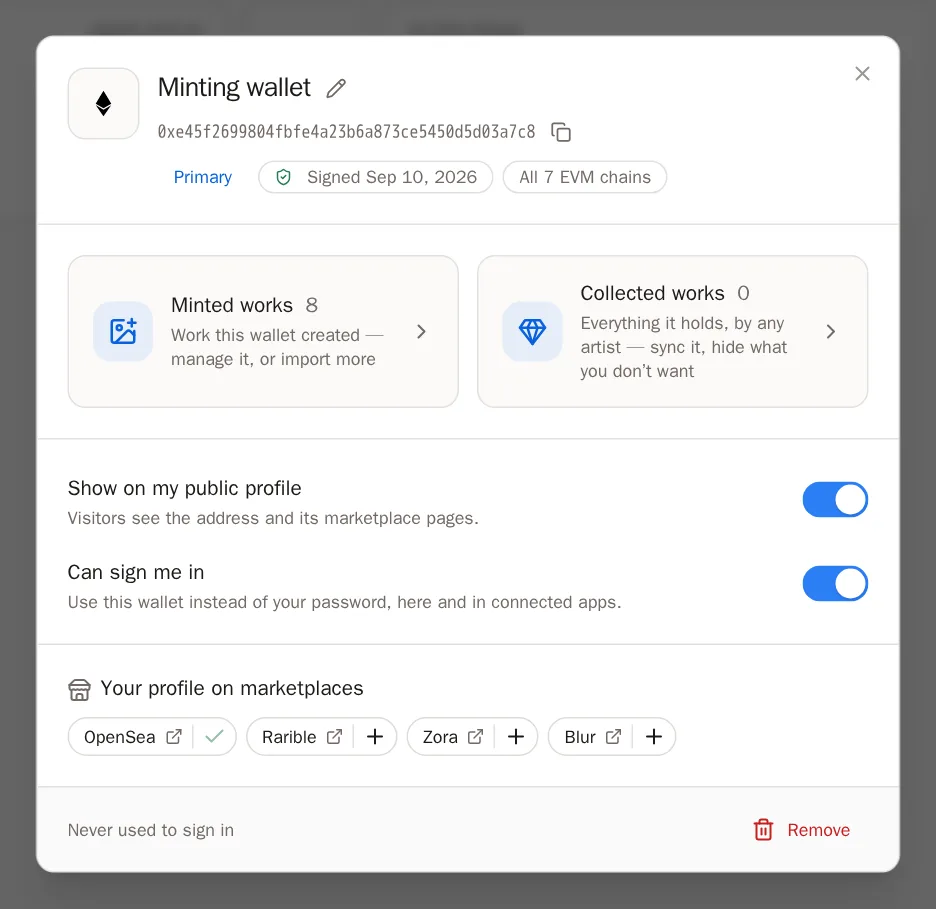
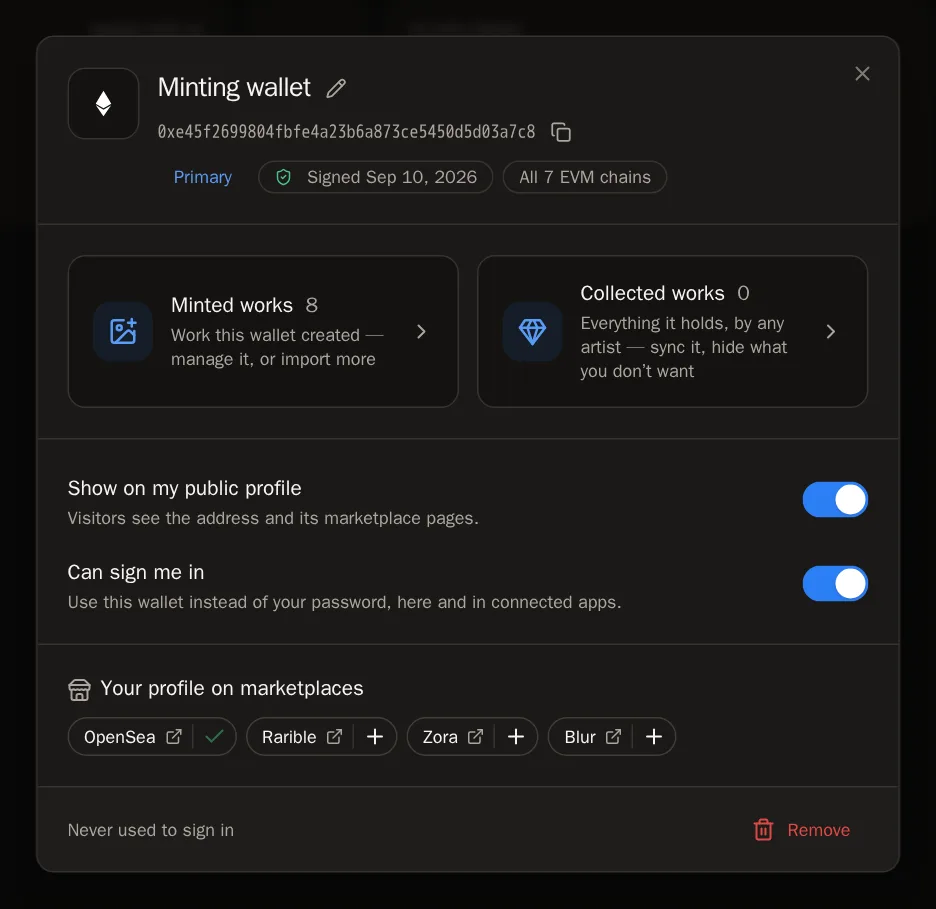
The switch Show on my public profile decides whether visitors can see this wallet's address and its marketplace links on your page. Turn it off to keep the address private — your artwork still shows either way.
Step 9: Use it to sign in
With Can sign me in turned on, you can sign in to SolPersona with this wallet instead of typing your password. On the sign-in page, choose Continue with wallet.
 Good to know When you turn sign-in on or remove a wallet, SolPersona may ask you to type your password again in a window called Confirm it is you. That is a safety check — type it and press Confirm.
Step 10: Choose your main wallet
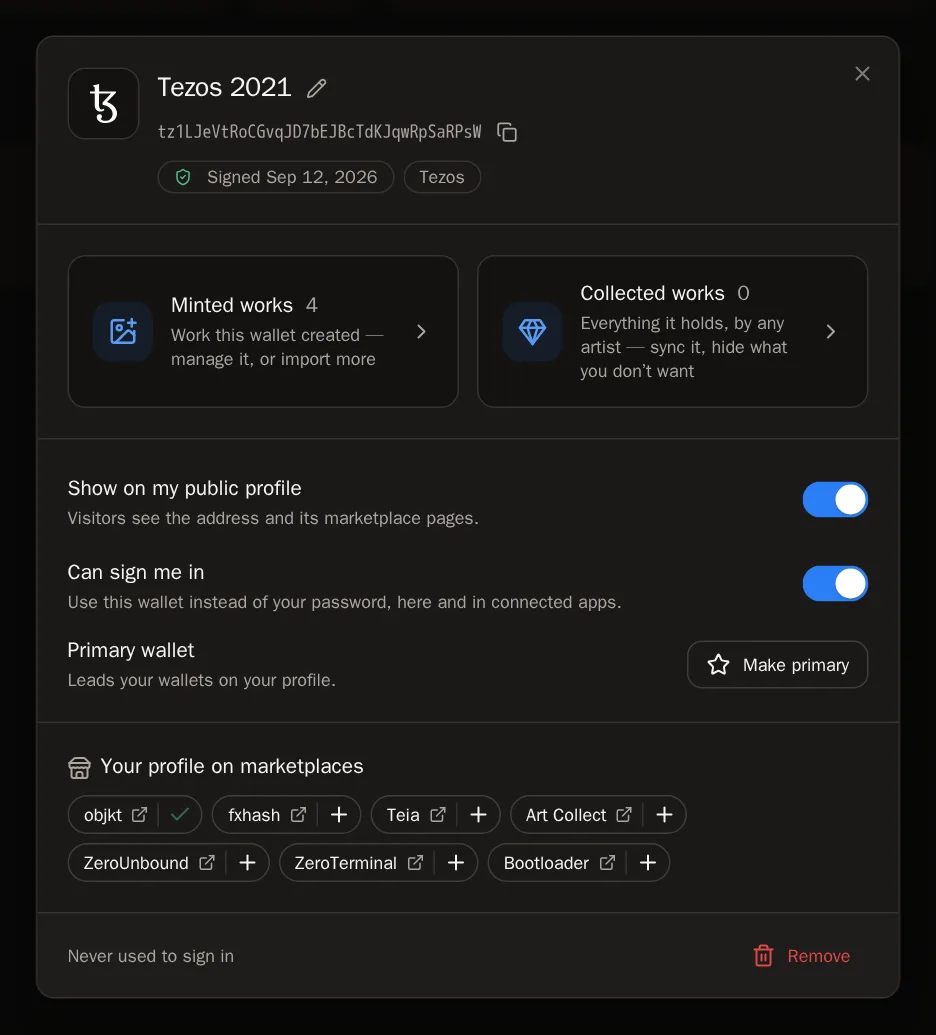
If you have several wallets, press Make primary on the one you want shown first on your page.
Step 11: Add your marketplace pages
Under Your profile on marketplaces you see your pages on places like OpenSea, Magic Eden or objkt. Press the + next to one to add it to the links on your page in one go.
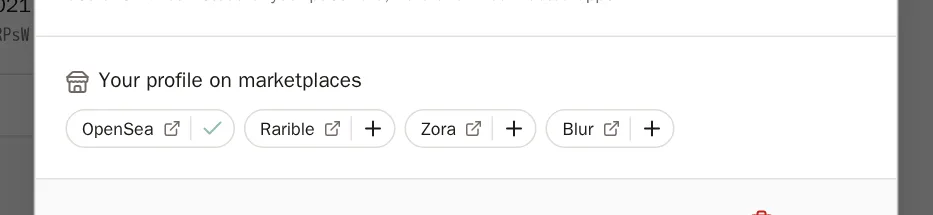
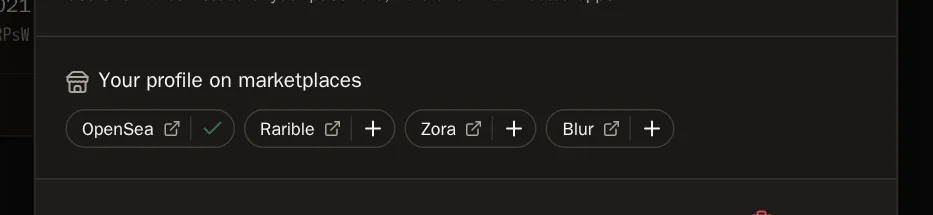 You'll know it worked when… The + turns into a tick, and a message says it was added to your links.
Step 12: Remove a wallet
Press Remove, then Remove wallet to confirm. The wallet stops showing on your page and can no longer sign you in. Artwork you already imported from it stays. You can connect it again any time.
If your key is on a Ledger
Hardware wallets work too. You just need your device plugged in and its app open.
Step 13: Ethereum or Tezos on a Ledger
Connect your Ledger through your wallet app (for example MetaMask or Temple) as you normally do. Open the Ethereum or Tezos app on the device, then follow the steps above. Approve the message on the Ledger's screen when it appears.
Step 14: Solana on a Ledger
Open the Solana app on your Ledger and follow the steps above. A Ledger cannot sign a plain message on Solana, so your wallet will instead show a small transaction with the SolPersona message written inside it. Check the message on your Ledger's screen and approve it.
Good to know Phantom may warn that the transaction would fail. That is expected and correct: it is built so it can never be sent, and it costs nothing. It only proves the wallet is yours.
Questions people ask
Is connecting my wallet safe?
Yes. You only sign a message. SolPersona cannot move funds, approve tokens or see your recovery phrase, and it disconnects from your wallet as soon as you have signed.
Does it cost anything or use gas?
No. Signing a message is free. No transaction is sent.
I mint on Base (or Polygon, Zora, Optimism…). Which chain do I choose?
Choose Ethereum & EVM. One signature proves your address on every one of those chains, so your Base work and your Ethereum work both come from the same wallet card.
Why does one of my wallets have an amber tick?
An amber tick means the wallet was added without your signature — either a person on our team confirmed it for you (for example when you lost the key), or a marketplace said it was yours. It can't sign you in. If it is yours and you still have the key, connect it and sign: it turns into a normal wallet. If it is not yours, open it and press Remove.
It says "You cancelled the request in your wallet"
The wallet window was closed or rejected. Press Connect wallet and try again, and press Sign in your wallet this time.
It says the wallet is already linked to another profile
Each wallet can belong to only one SolPersona account. If you made two accounts by mistake, contact support and we will help you combine them.