

Once a wallet is connected, SolPersona can find everything that wallet created — sold or not, on every network it lives on. You simply tick what you want and press one button.
Only work you made is offered here. Art you collected from other artists never lands on your page by accident — that lives under Collected works.
About 5 minutes
Before you start
- A connected wallet — the one you mint from. See Connect your wallets first if you haven't.
Import from a wallet
Step 1: Open the wallet's Minted works
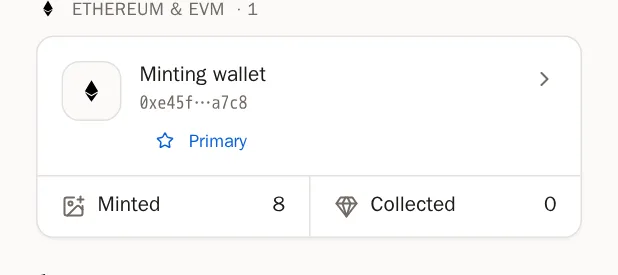
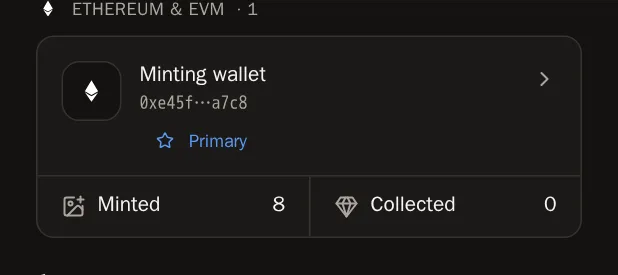
Go to Wallets in the menu. On the card of the wallet you mint from, press Minted.
Step 2: Press Import from this wallet
A large window called Minted works opens. Press the Import from this wallet tab. SolPersona starts looking straight away — for an Ethereum wallet, it checks every network one after another.
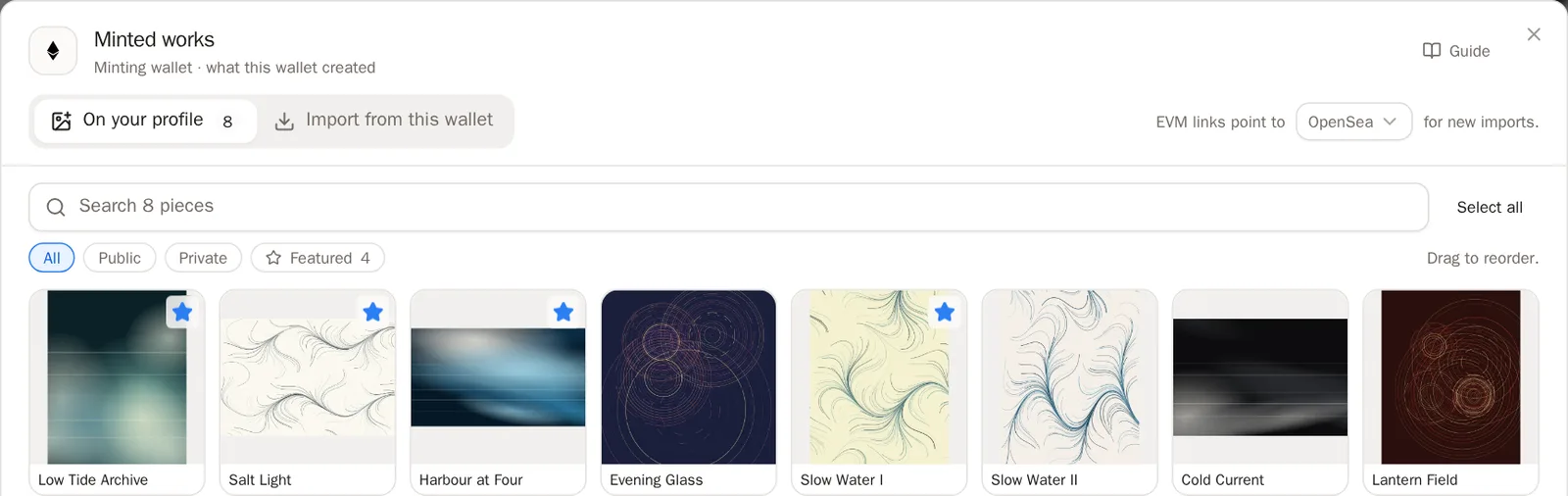
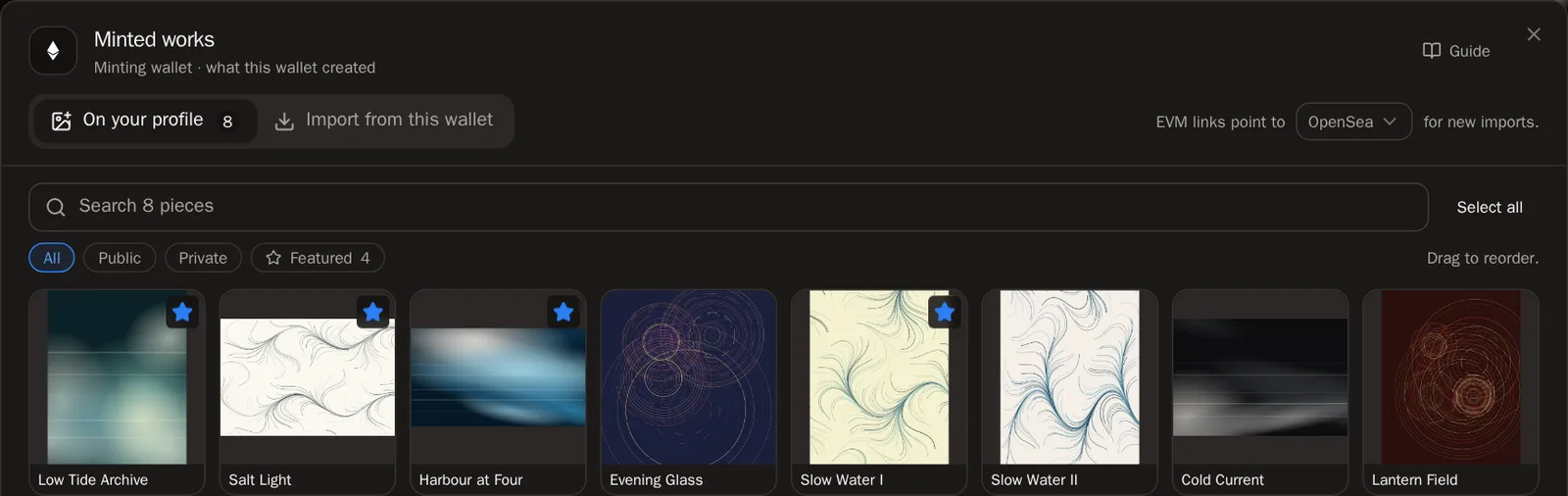 You'll know it worked when… A line says Reading 1 of 7 networks… while it looks, then shows how many pieces are not on your profile yet.
Step 3: Choose your pieces
Press each piece you want on your page so it's ticked, or press Select all to take everything.
- Pieces marked Already added are on your page already.
- Press a network button (like Base) to see only that network.
- Press Load more if there are more pieces to see.
Step 4: Add them to your page
Press Add to my profile at the bottom. It shows how many you picked, for example Add 12 to my profile.
You'll know it worked when… A summary tells you how many were added. Press the On your profile tab to see them.
Look after your imported work
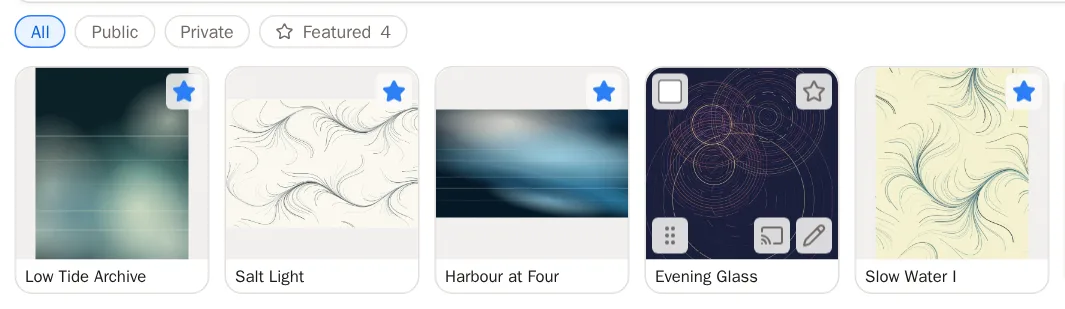
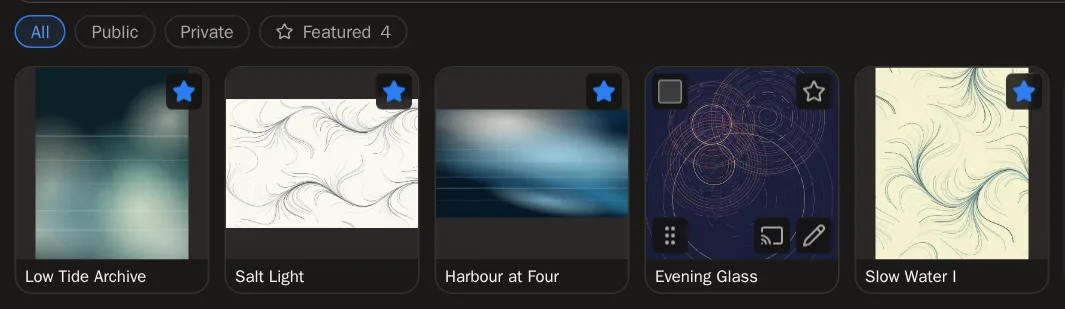
The On your profile tab shows everything filed under this wallet. Point at a piece to see its buttons.
Step 5: Feature your best pieces
Press the star on a piece to feature it. Featured pieces open your page. Put them in order on the Collections page.
Step 6: Put them in order
Hold a piece's handle and drag it to a new place. It saves by itself.
Good to know Dragging only works when the search box is empty and the filter is on All.Step 7: Edit a piece
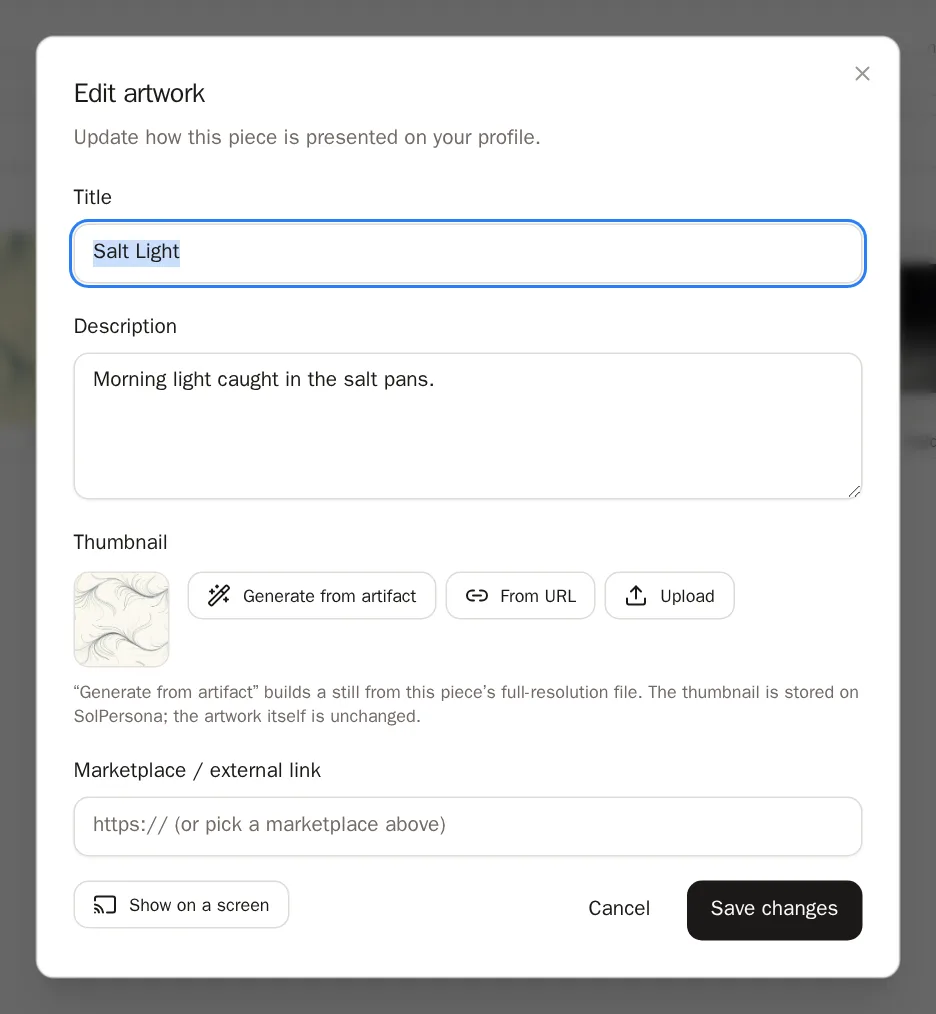
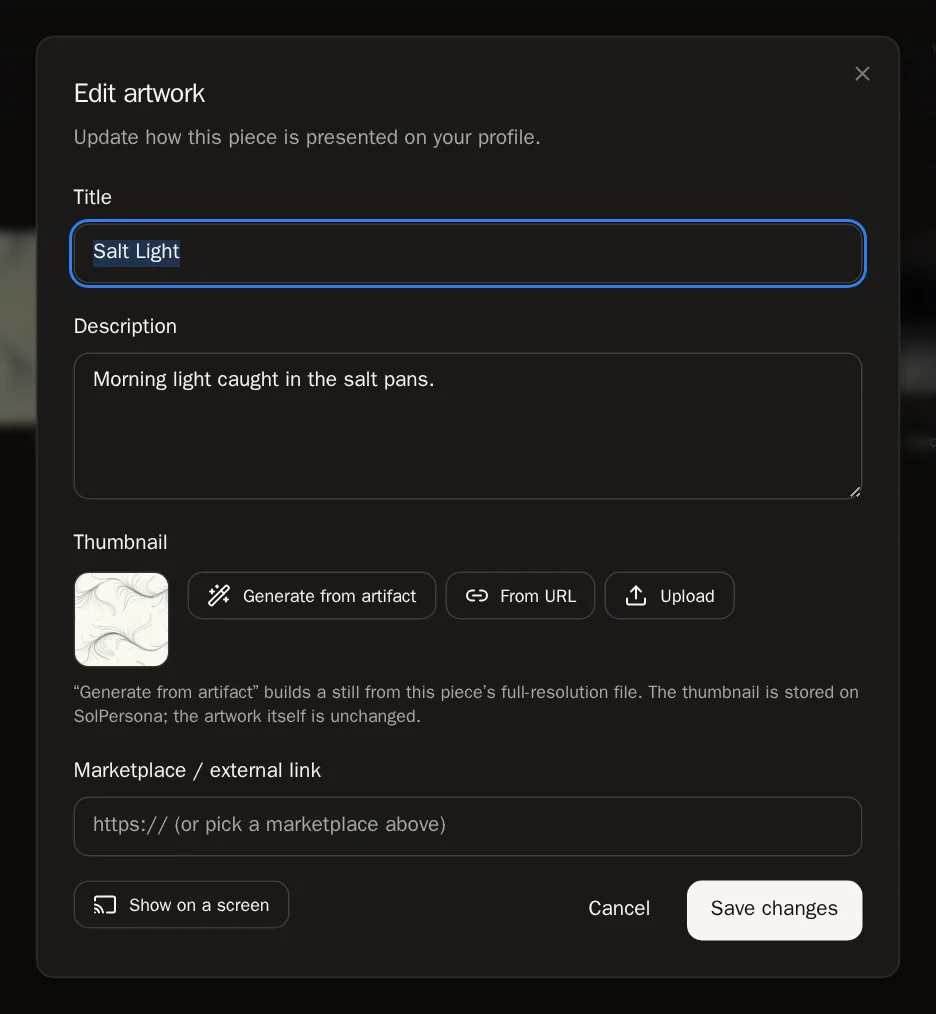
Press the pencil, Edit details, to change the title or description, then Save changes.
Step 8: Change many pieces at once
Tick several pieces (or press Select all). A bar appears with Feature, Private, Public, Add to… (a collection) and Delete.
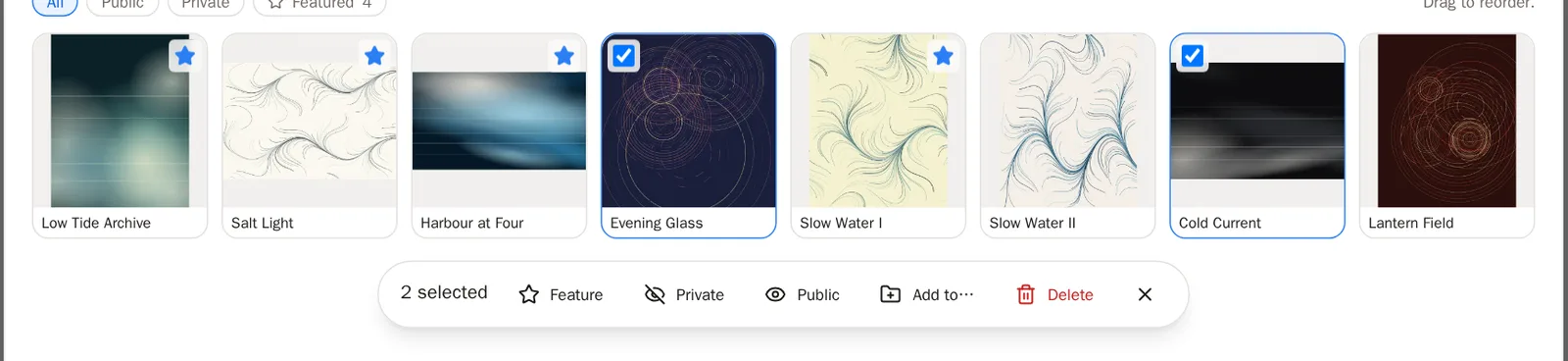
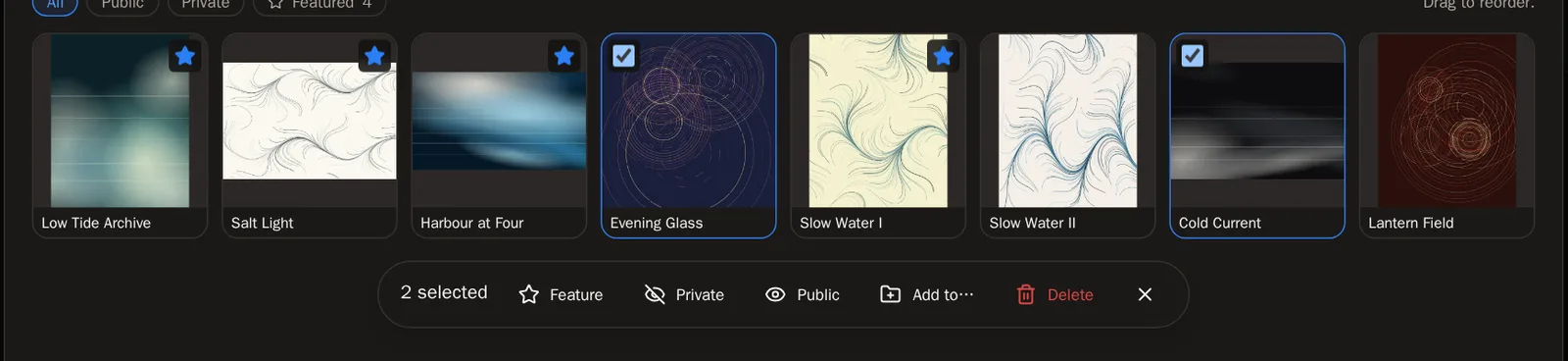 Tip Use Private to keep pieces in your dashboard but off your page.
Step 9: Find a piece
Type in Search this wallet's work, or press a filter: All, Public, Private, Featured or Needs attention.


Questions people ask
A piece I made isn't in the list
Make sure you connected the wallet that minted it. On Ethereum-style chains, a piece a marketplace minted for you later ("lazy-minted") may not be linked to your wallet. Some networks can only show work the wallet still holds, so pieces you sold may not appear there — the screen will tell you when that's the case.
If I delete a piece, is the NFT burned?
No. Deleting only removes it from your SolPersona page. Nothing happens on the blockchain, and you can import it again later.
A piece says "hidden · missing media"
We couldn't fetch its files yet. Go to your Overview and use Try again under Artwork tokens with missing media. The dashboard guide explains more.