

SolPersona keeps a safe copy of your artwork's files so your page always loads quickly — even if the place the file was first stored goes offline. Those copies use storage.
Every account gets free storage, and most artists never need more. This guide shows where to check, and what happens if you go over.
About 3 minutes
Check your storage
Step 1: Open Settings
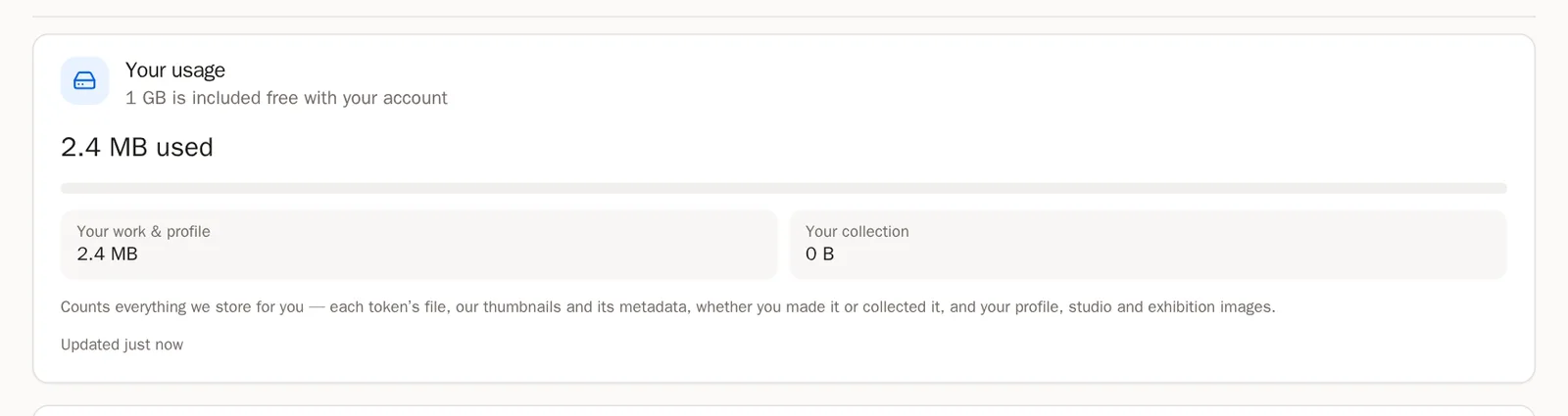
In the menu on the left, choose Settings. The first section, Storage & billing, shows Your usage: how much you use, split into Your work & profile and Your collection.
 Tip Your Overview shows a small Storage card too.
Step 2: "Counting…"
Right after you import a lot of work, the number may say Counting… or counting what you added since. That's normal — it updates within a few minutes.
Step 3: What counts
Everything we store for you: each artwork's file and its thumbnails, the art you've collected, and your profile, studio and exhibition pictures. Art you have sold stops counting.
Add more storage
If buying storage is switched on for your account, you'll see a card called Add storage under your usage.
Step 4: Choose how much
In GB to add, press + or − to choose how many gigabytes. Over your limit? Press Cover my overage and the right amount is chosen for you.
Good to know Storage is bought for a year at a time. Anything you add later runs to the same renewal date, priced for the time left.Step 5: Add screen licences (optional)
Need more than your one free gallery screen? Choose how many in Screen licences to add.
Step 6: Choose how to pay
Under Pay with, choose a currency and chain, such as USDC on Base or USDC on Solana. Have a discount code? Type it in Discount code and press Apply.
Step 7: Pay
Check the total under Due, then press Pay and confirm. Your wallet asks you to approve the payment — nothing leaves your wallet until you do. Keep the window open while it confirms.
You'll know it worked when… You see Paid. Your storage is active. and we email you a receipt.Careful All sales are final. Payments happen on a public blockchain and can't be refunded.Step 8: Paying from an exchange or another device
Open Manually send, copy the exact Amount and the To address, send it from anywhere, then paste the Transaction hash and press I have paid.
If you go over
Step 9: Nothing is ever deleted
You can always keep importing. If you go over your allowance, we let you know and give you time to add storage. After two weeks over, your newest pieces are hidden from your public page until everything fits again — they stay in your dashboard, and come back the moment you add storage.
Questions people ask
How much storage is free?
The amount included with your account is shown at the top of Your usage.
Does it renew automatically?
No. Nothing is ever charged automatically. We remind you before your storage ends, and you renew from the same card.