

Welcome to SolPersona! In the next fifteen minutes you'll have one beautiful page that shows who you are and everything you've made — with proof that the work is really yours.
Follow these steps in order. Each one links to a more detailed guide if you want to go further.
About 15 minutes
Before you start
- An email address you can open now.
- A profile picture and a wide banner image.
- Your wallet app (for example MetaMask, Phantom, Temple or Kukai) installed in this browser — the one you mint from.
1. Create your account
Step 1: Sign up
Go to solpersona.com and press Create profile. Fill in the form:
- Username — this becomes your address,
solpersona.com/@yourname. A message tells you if it's available. - Display name — your artist name, as you'd like it shown.
- Email and a Password of at least 12 characters. A few unrelated words make a strong, easy password.
- Press Create profile.
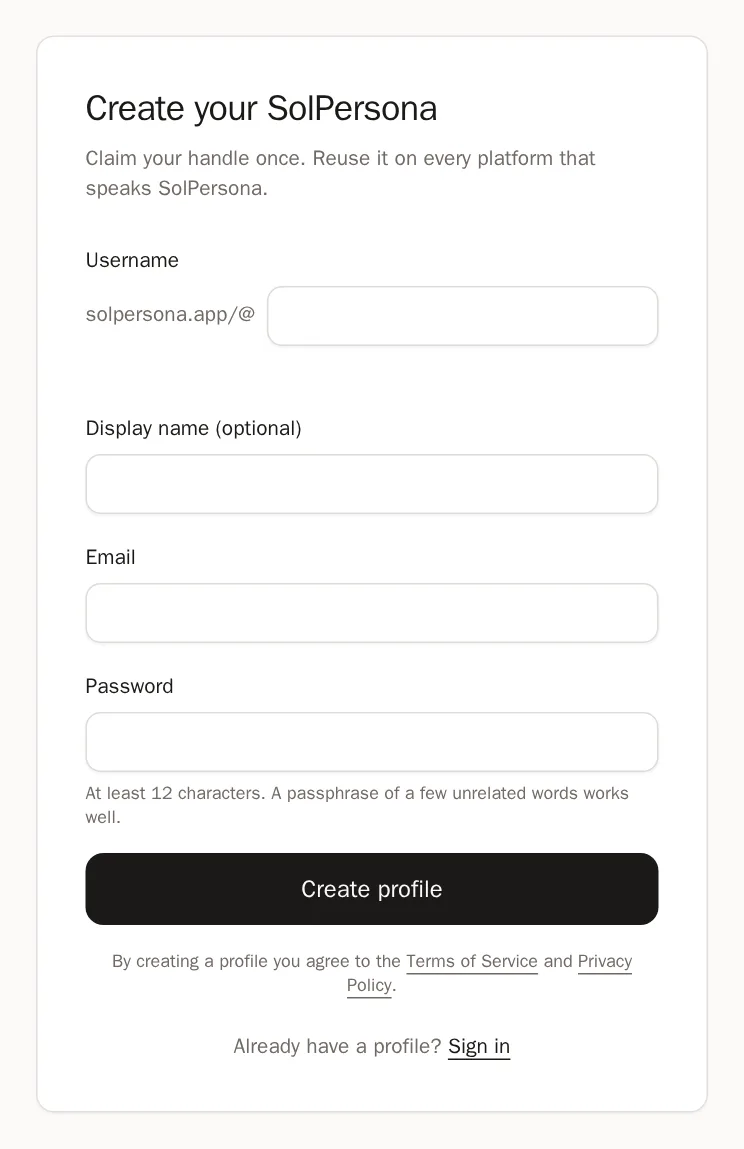
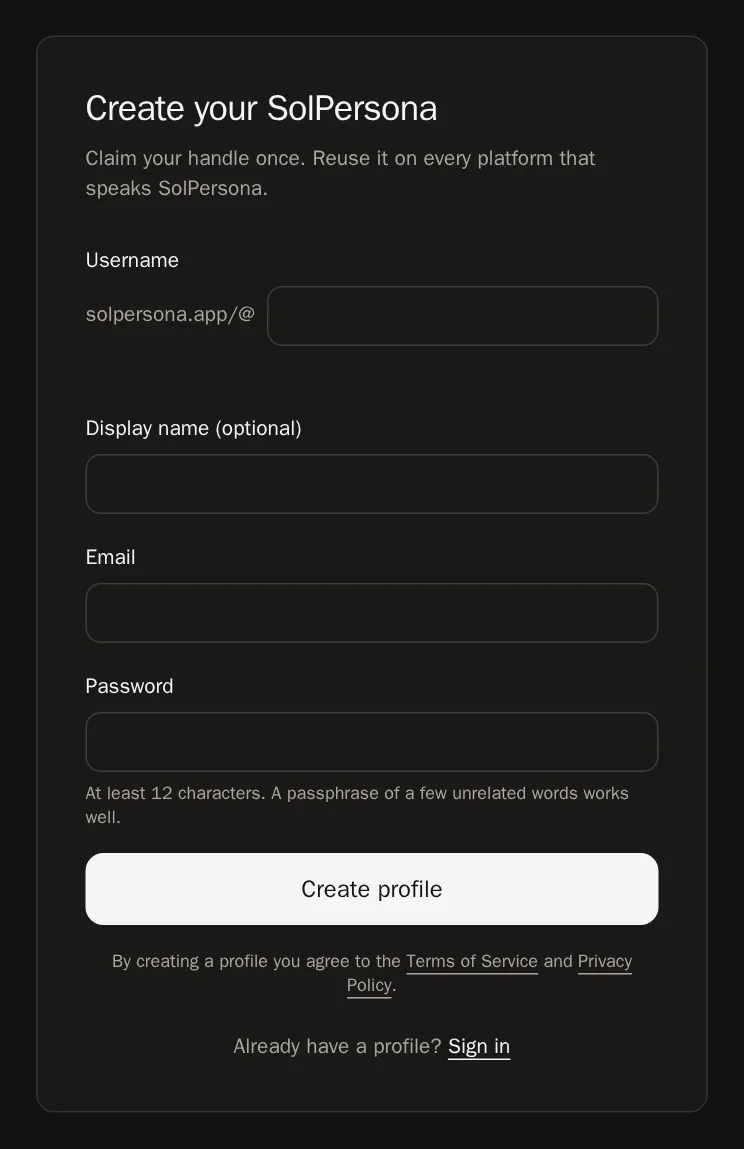 Tip Choose your username carefully. You can ask our team to change it later, but it's the address people will share.
- Username — this becomes your address,
Step 2: Confirm your email
We send you an email. Open it and press the link inside. Then come back and press I have confirmed it.
You'll know it worked when… Your dashboard opens, with a menu down the left side.Good to know Can't find the email? Check your spam folder, or press Resend email. Every account must confirm an email — it's how you get back in if you ever forget your password.
2. Make your profile yours
Step 3: Add your picture and banner
In the menu, choose Profile. Point at the banner area and press Upload, then frame the image and press Save. Do the same for your round profile picture.
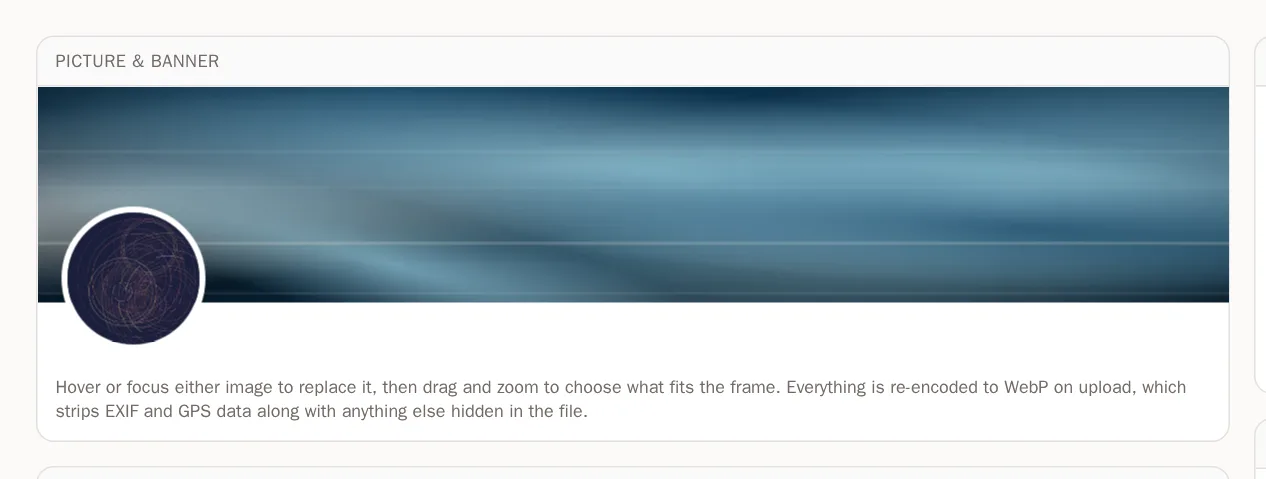
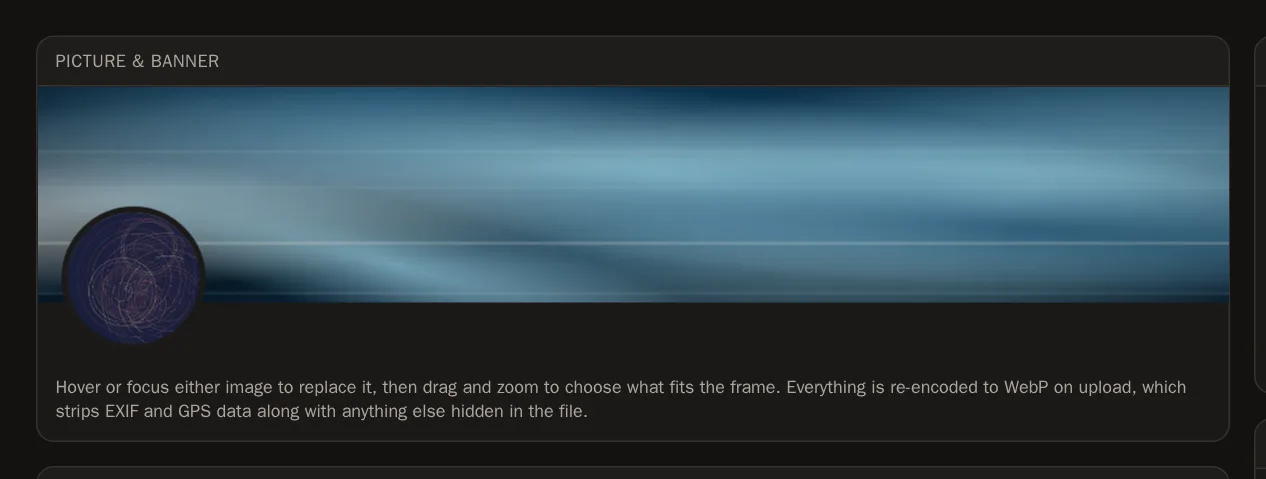 Tip Pictures save the moment you choose them.
Step 4: Write about yourself
Under About you, add your display name, a one-line Headline and your About text — your artist statement. Then press Save changes on the bar at the bottom.

 You'll know it worked when… You see Profile saved.
Step 5: Add your links
In the menu, choose Links, press Add link, pick a platform such as Instagram or X, type your username and press Add link. Add as many as you like.

 Tip More detail in the Links guide.
3. Connect your wallet
Step 6: Connect and sign
In the menu, choose Wallets and press Connect wallet. Choose your chain, choose your wallet app, then press Sign in your wallet.
WalletsConnect walletPress Connect walletYou'll know it worked when… You see Wallet verified and linked, and a card for your wallet.Careful Signing is free and never moves anything out of your wallet. SolPersona will never ask for your recovery phrase.
4. Bring in your work
Step 7: Import from your wallet
On your wallet's card, press Minted, then the Import from this wallet tab. SolPersona finds everything that wallet created. Press Select all (or pick pieces one by one), then press Add to my profile.
You'll know it worked when… A summary says how many pieces were added. They're on your page now.Step 8: Feature your best pieces
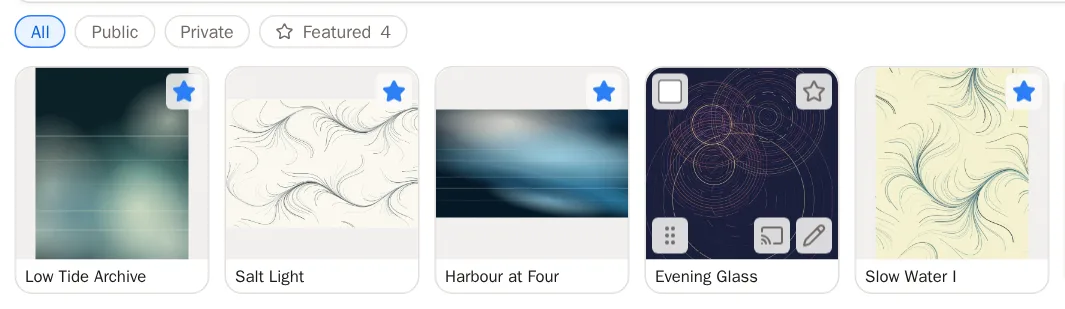
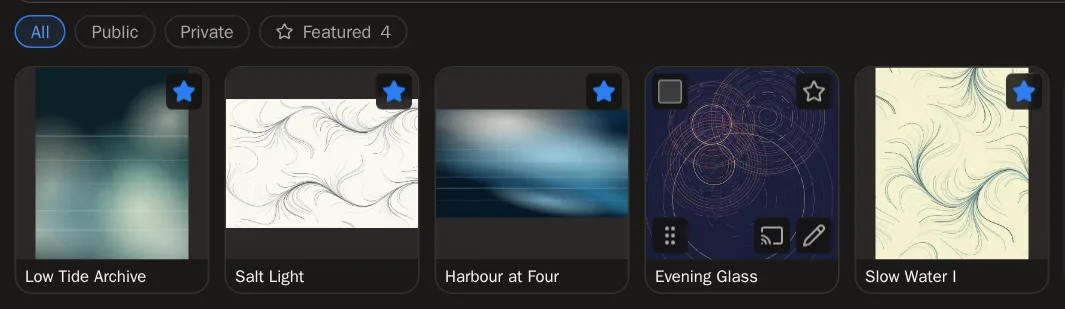
Press the star on three to six of your strongest pieces. They open your page as a slideshow.
Step 9: Group your work (optional)
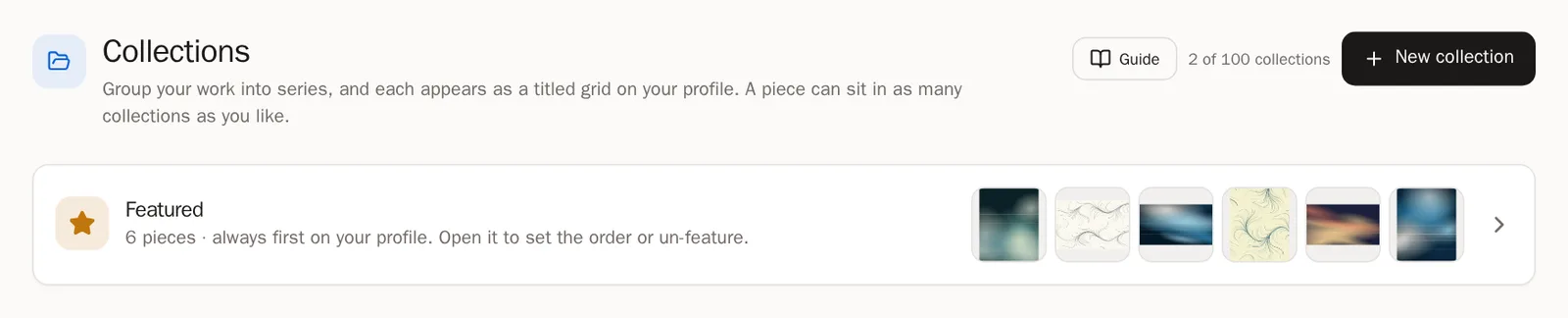
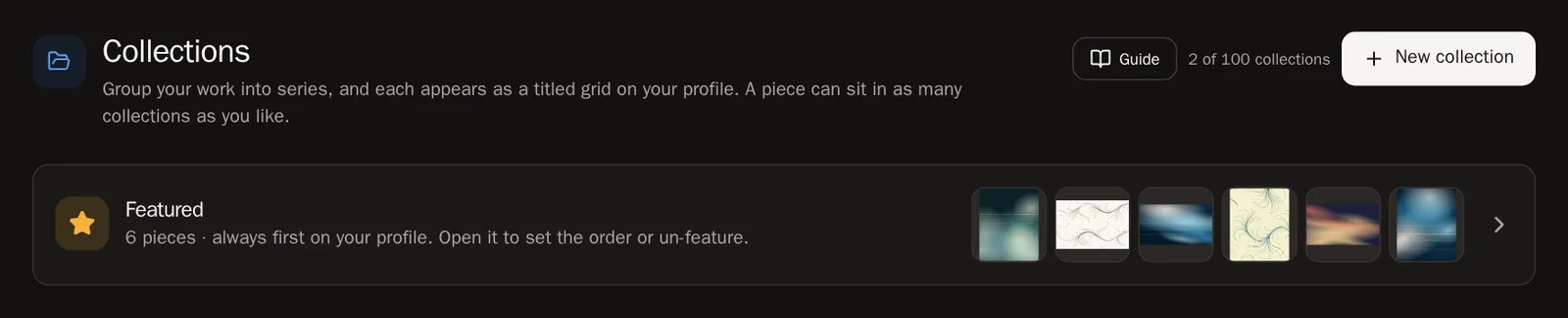
In the menu, choose Collections and press New collection to group a series. Physical paintings and prints go under In Real Life.
5. Keep your account safe
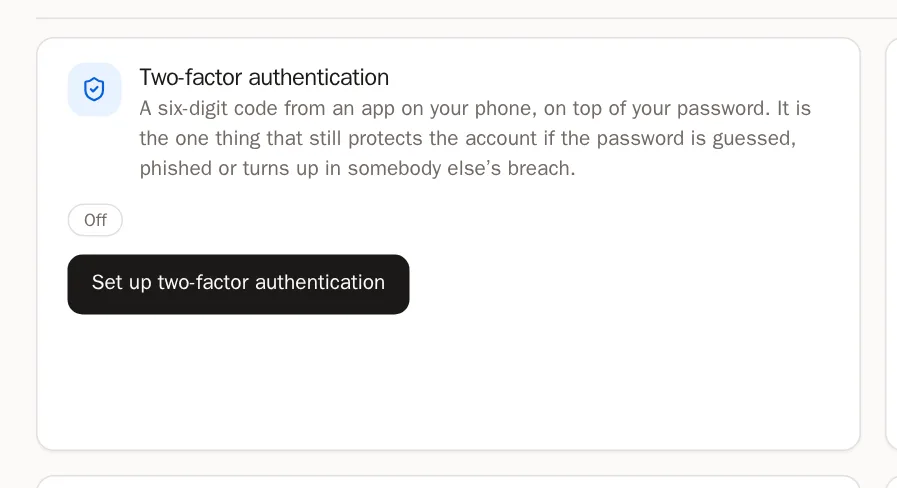
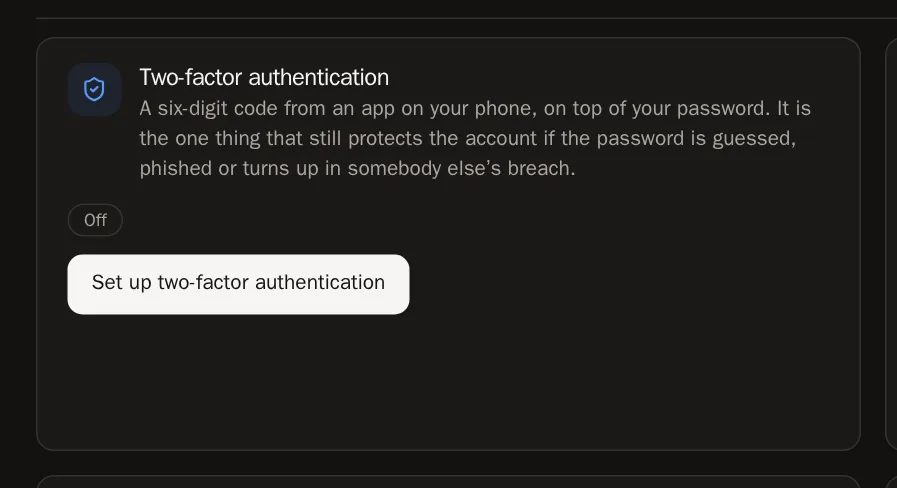
Step 10: Turn on two-factor authentication
In the menu, choose Settings, scroll to Security and press Set up two-factor authentication. You'll scan a code with an app on your phone. It takes two minutes, and it's the best protection your account can have. The Security guide walks you through it.
6. Share your page
Step 11: Look at your page
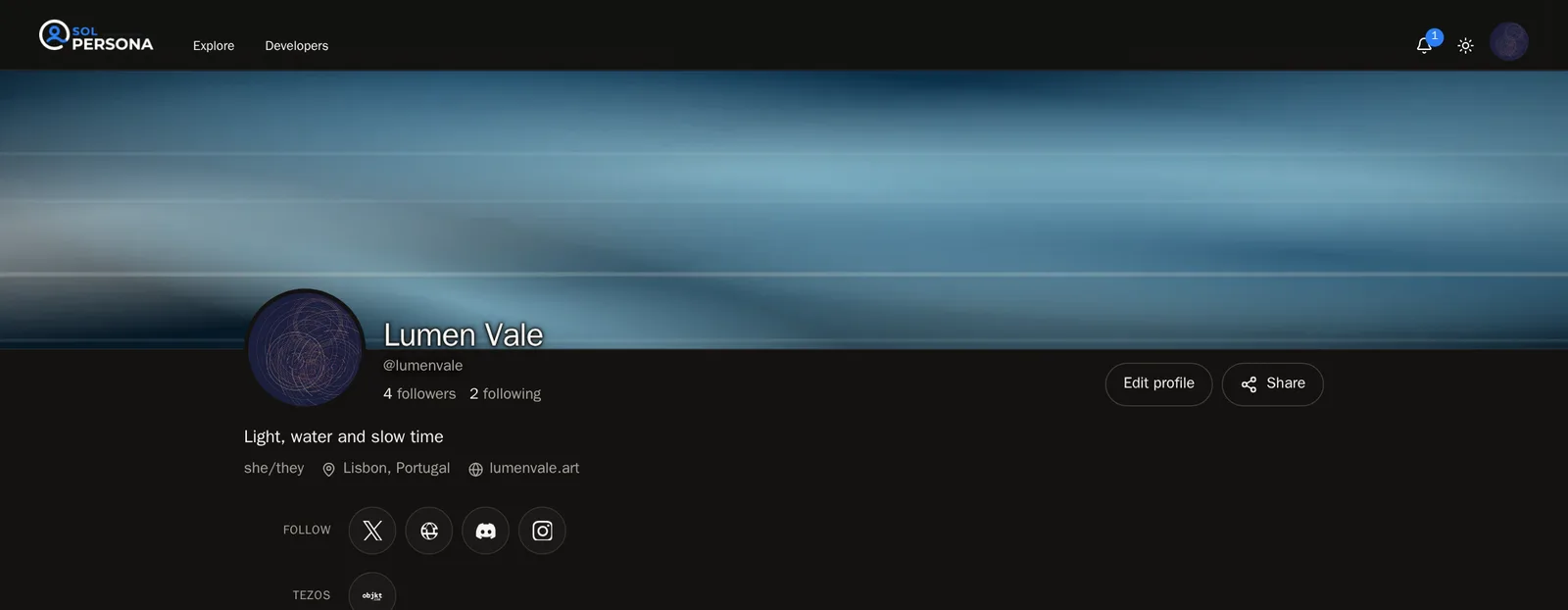
On your Overview, press View profile to see your page the way visitors do.


Step 12: Share it
Press Share on your page to post it to X, Threads, Facebook, WhatsApp and more — or copy the link. Put
solpersona.com/@yournamein your Instagram bio, your email signature and your business card.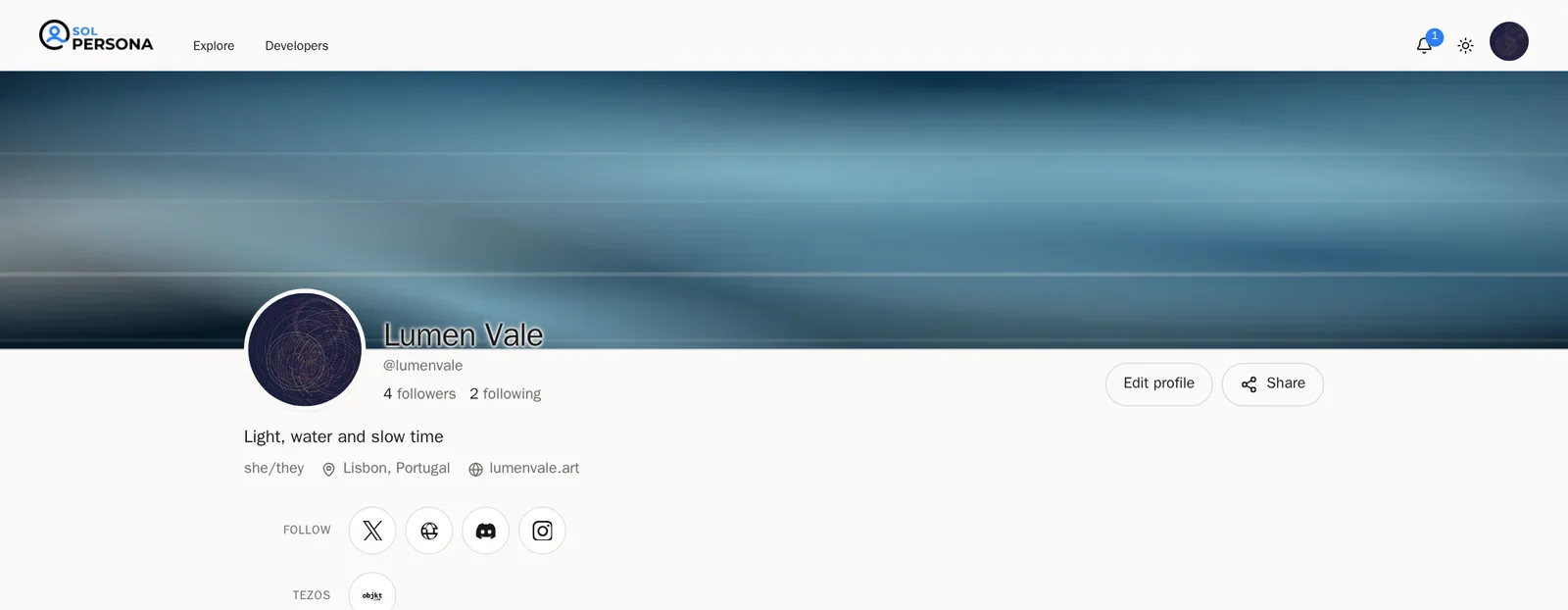
 Tip Want to go further? Arrange your page with the Profile Designer, use your own web address with Domains, or put your art on a TV with Gallery Exhibition.
Questions people ask
Does SolPersona cost anything?
Every feature is included with your account once your email is confirmed, along with free storage and one gallery screen.
Can I sign in with my wallet instead of a password?
Yes. Once your wallet is connected, choose Continue with wallet on the sign-in page.
I don't have any NFTs. Can I still use SolPersona?
Of course. Add your physical work under In Real Life, your exhibitions, your links and your story. Your page works beautifully without a wallet.